As part of starting with us, you’ll need to complete your New Employee Details Form in Humanforce HR. This includes entering your contact details, superannuation information, and bank account details so you can be paid correctly and stay up to date with important communications. This article will guide you through each section step by step.
Any item with an asterix (*) next to it are compulsory and must be answered.
For the purposes of this instruction guide we have used the Australian Resident option who has a Tax File Number and selected that we already have a super fund, however please ensure that you select the applicable options for your situation and follow the prompts on screen.
TABLE OF CONTENTS
- 1. Getting Started:
- Review Your Personal Details
- Tax File Number Declaration
- Enter Your Bank Details
- Super Choice Form
- Video Guide
- Getting more support
1. Getting Started:
You must complete this form to finalise your onboarding with TheirCare in order to ensure you are paid correctly.
An email invite will be sent to your personal inbox when it is time to start this form. To get started click the link in the email or you can log into Humanforce HR.
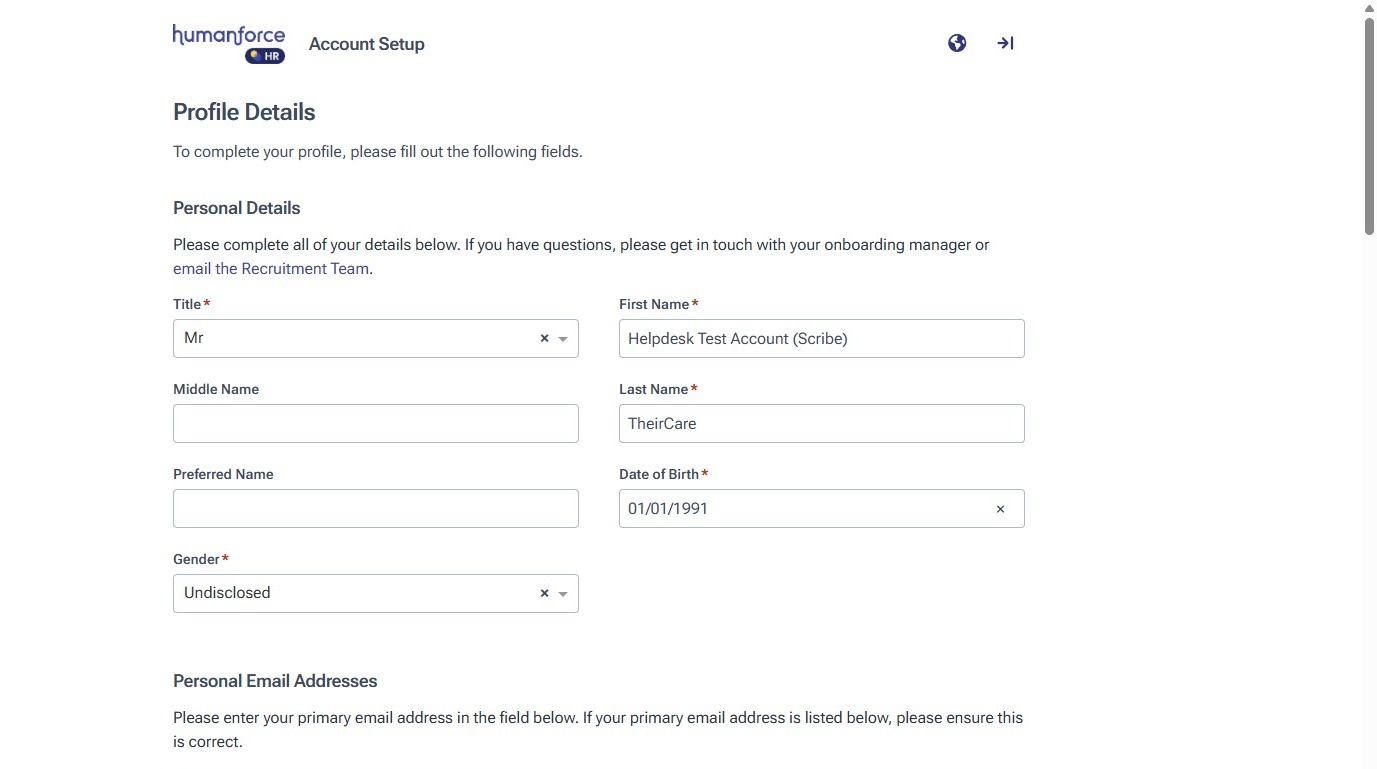
Review Your Personal Details
2. Check the details in this section is correct.
If you need to make a change type directly into the relevant field.
Note: For "preferred name" only enter your preferred first name. You not not need to include your surname.
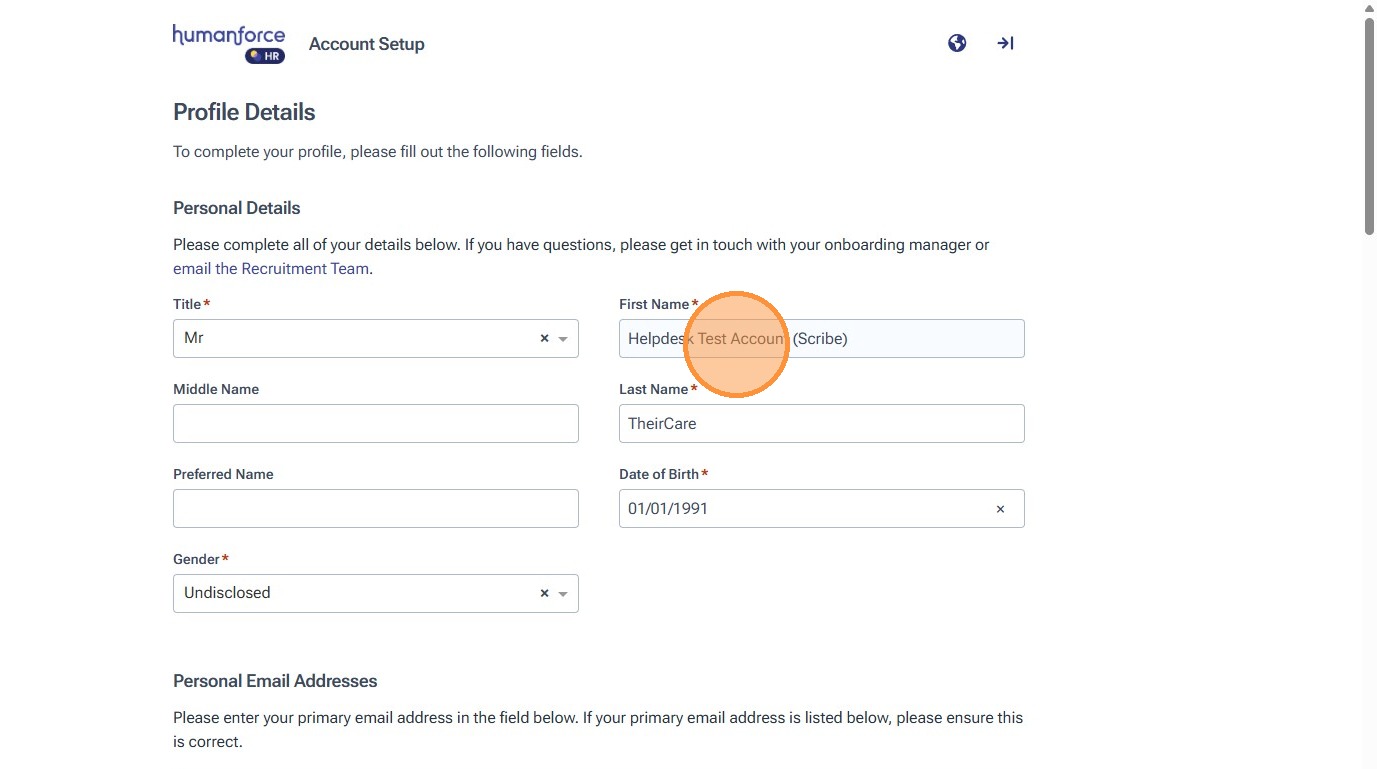
3. Your email address should be populated here based on the information provided as part of the recruitment process.
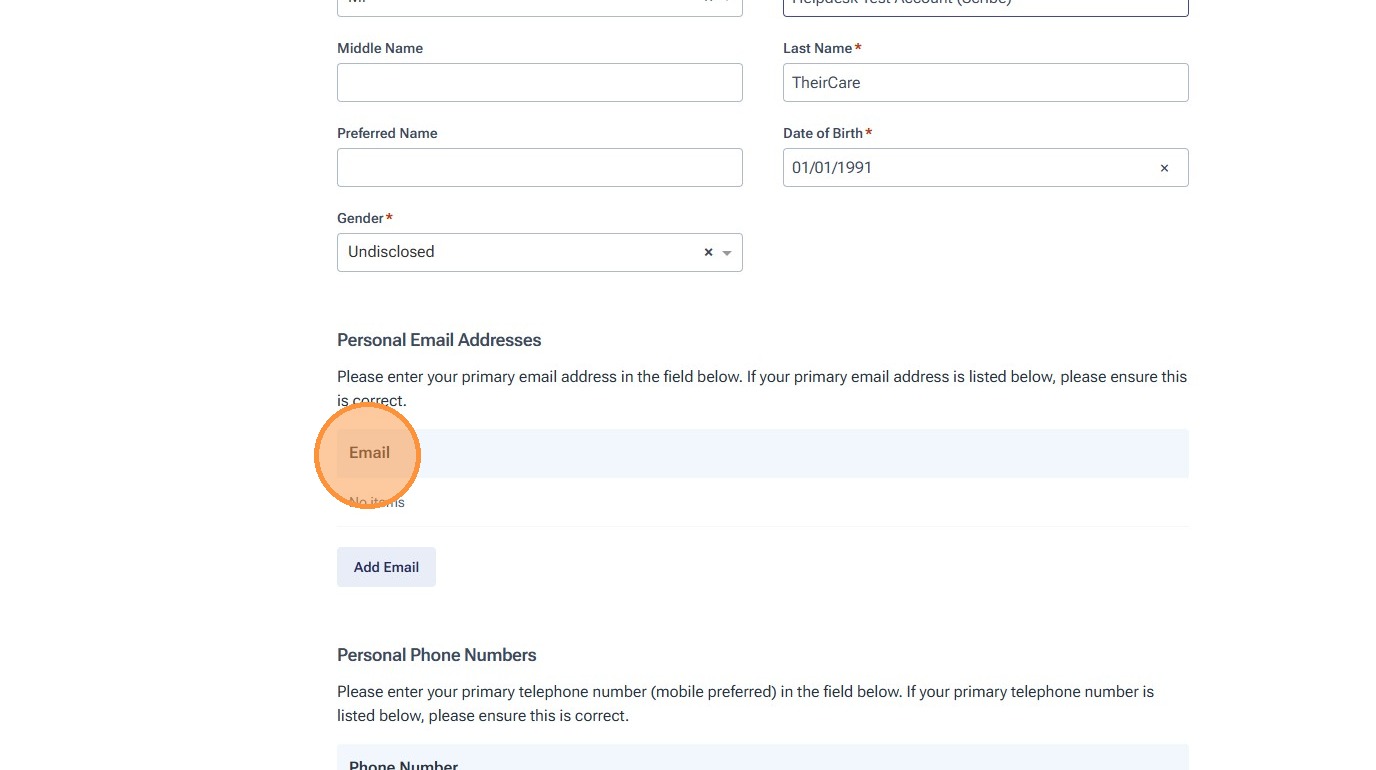
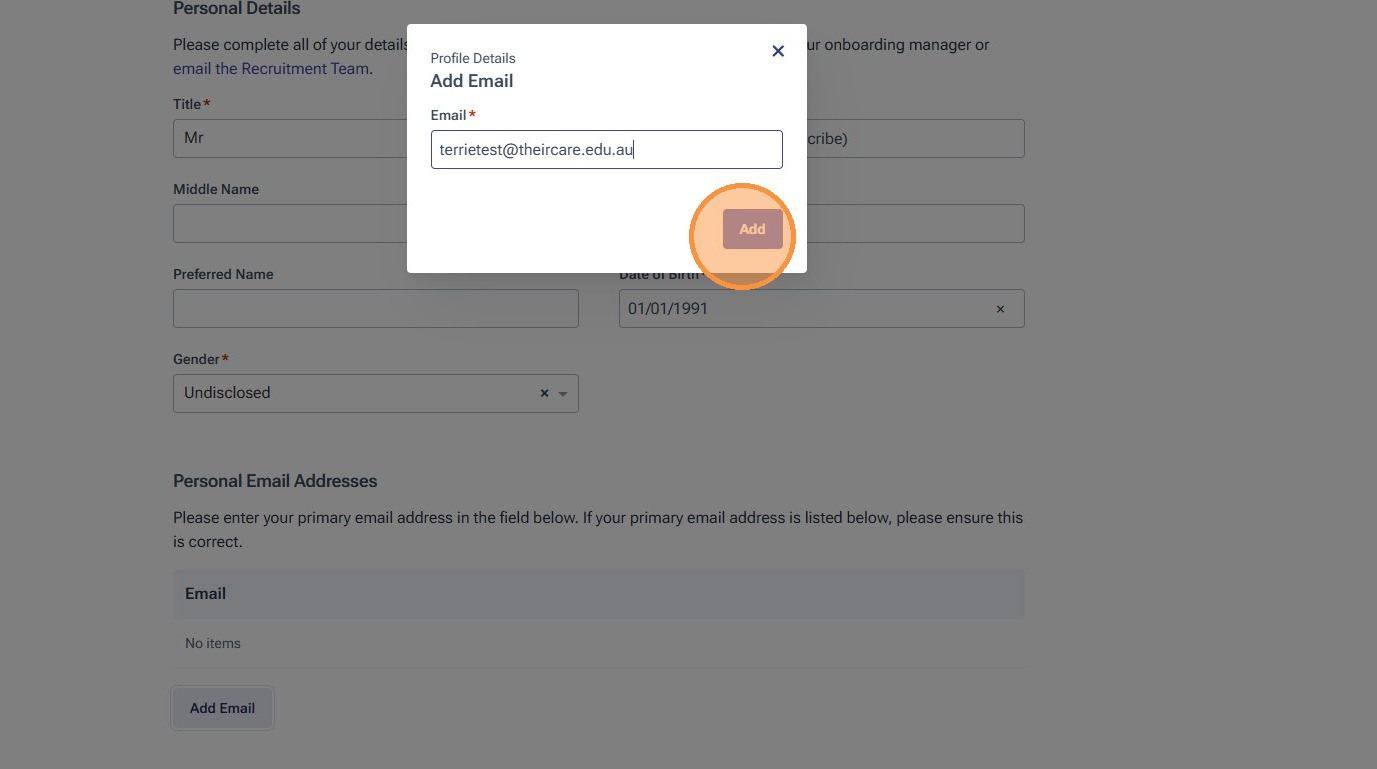
4. If you need to make a change click "Add Email" and follow the prompts
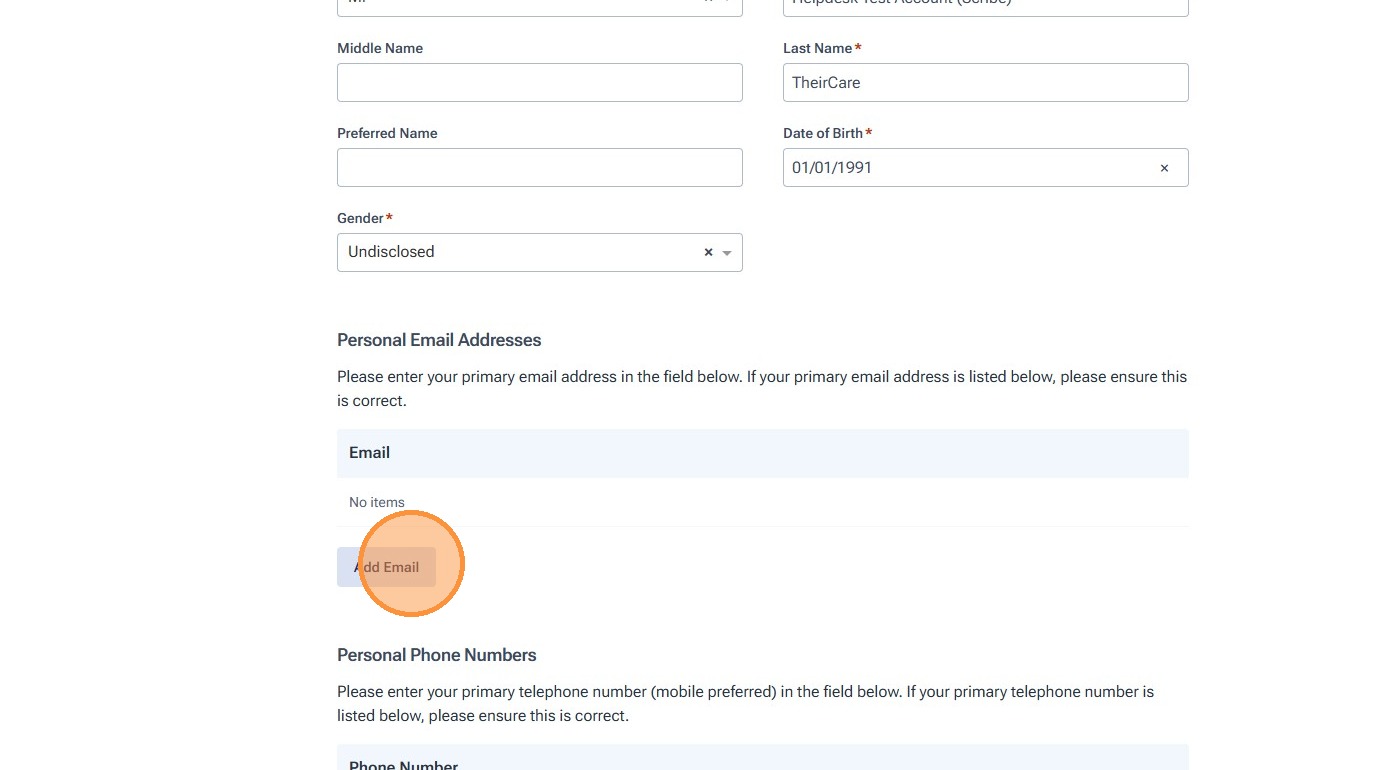
5. If required, enter your email address and click "Add"
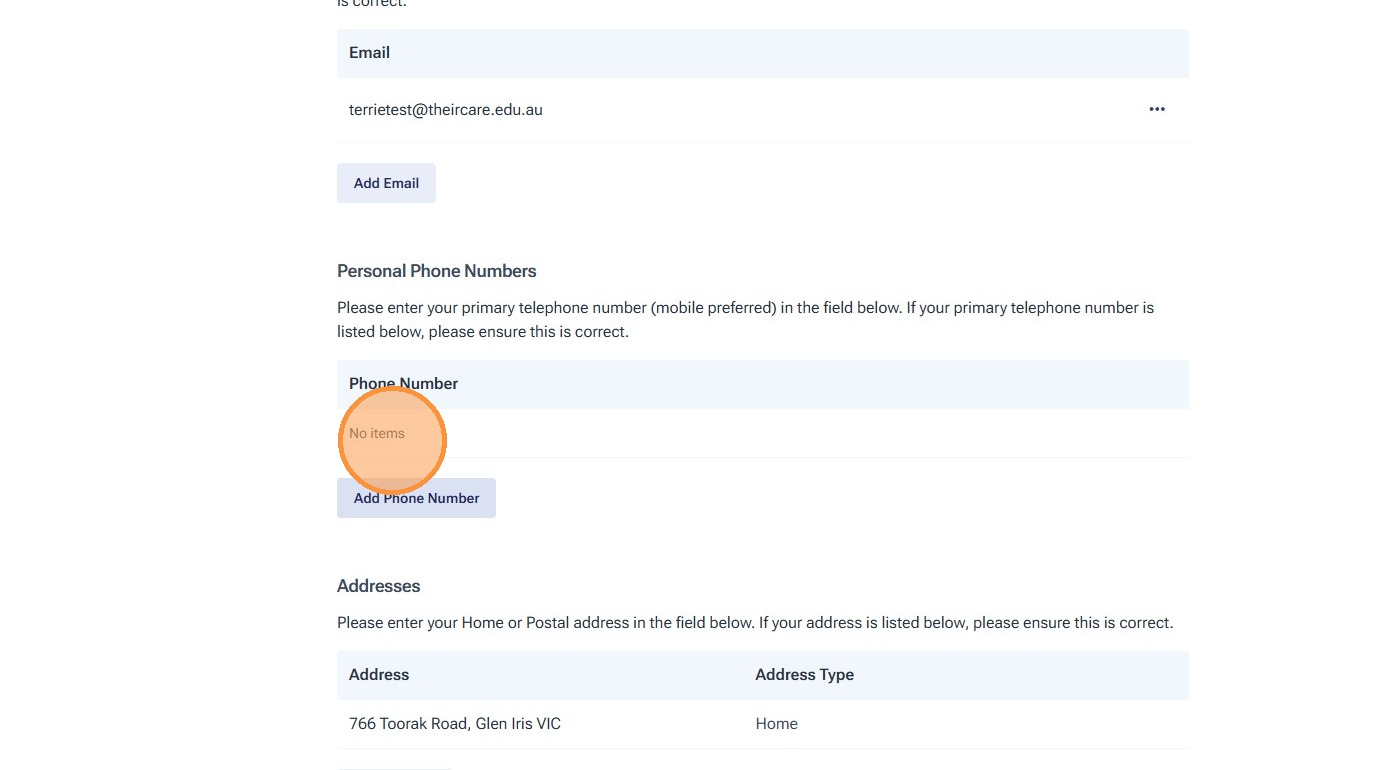
6. Review your mobile number is correct.
If you need to add an alternative contact number for yourself, click "Add Phone Number"
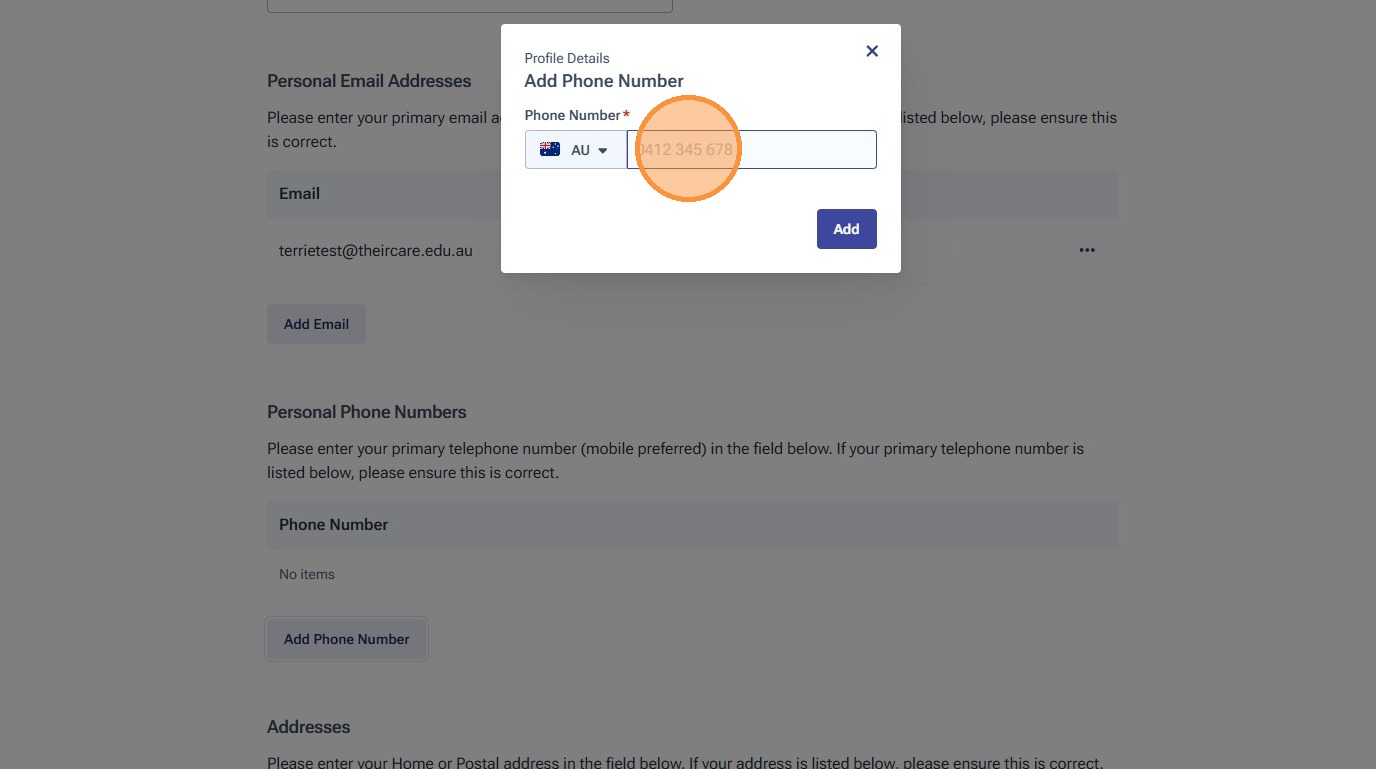
7. Enter your contact number, then press "Add"
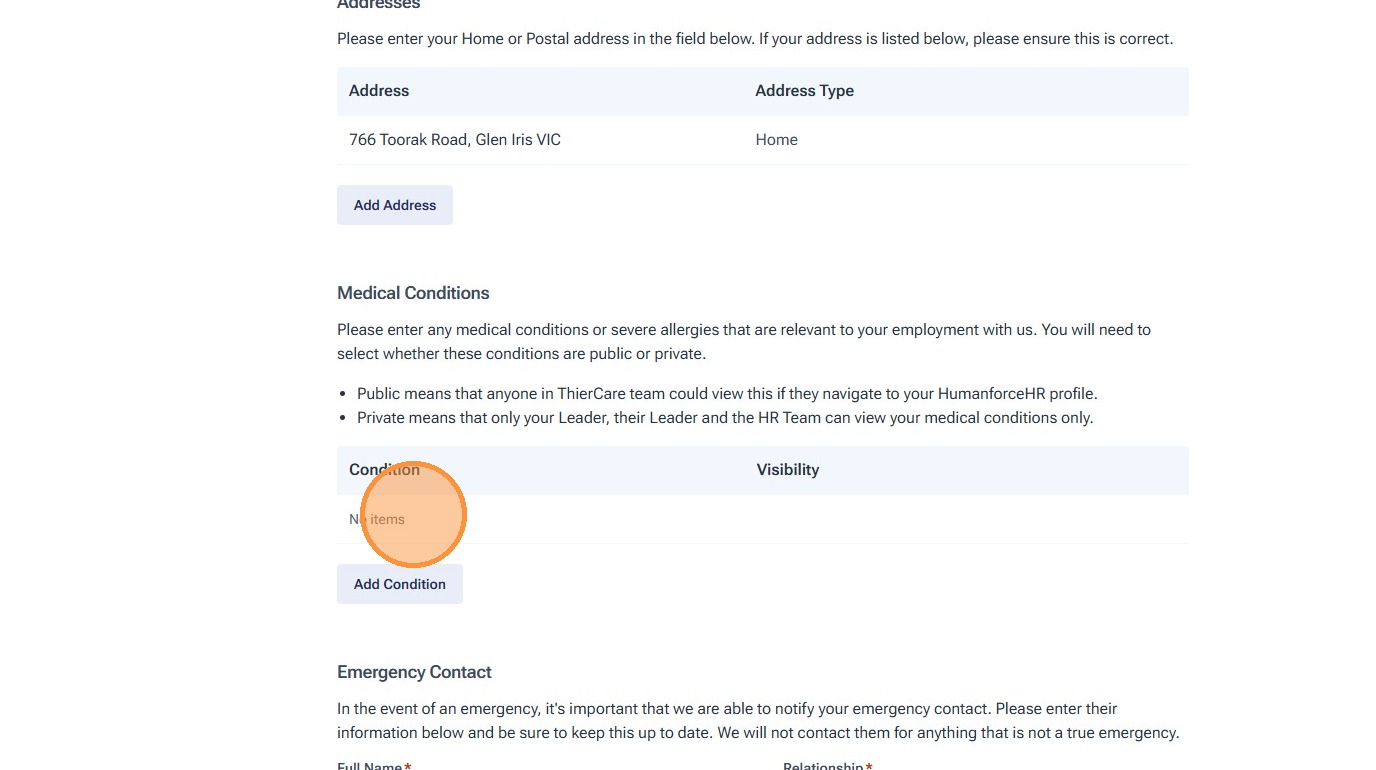
8. If you have a medical condition which we need to be aware of this can be added in this section.
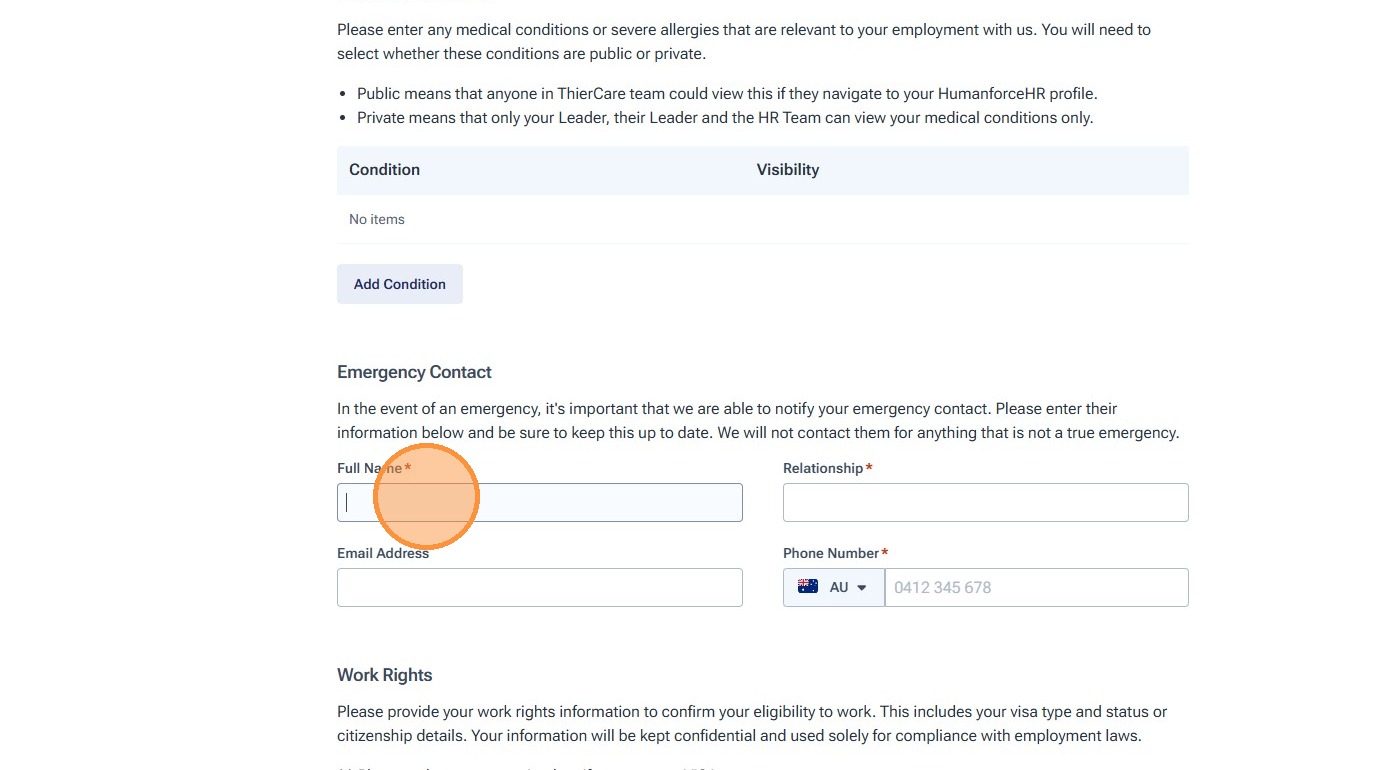
9. Enter your emergency contact persons name, relationship to you, email and contact number.
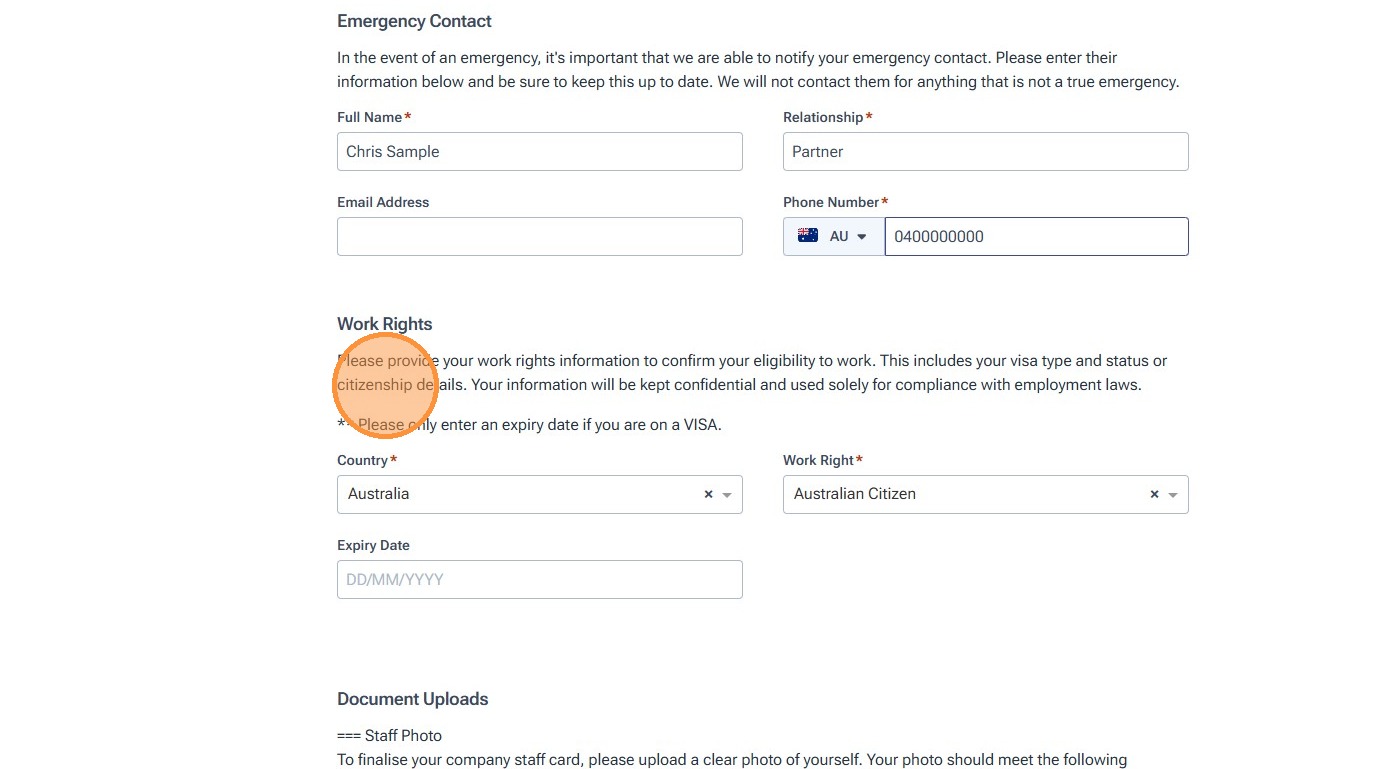
10. Review your work rights information.
This can be amended if required.
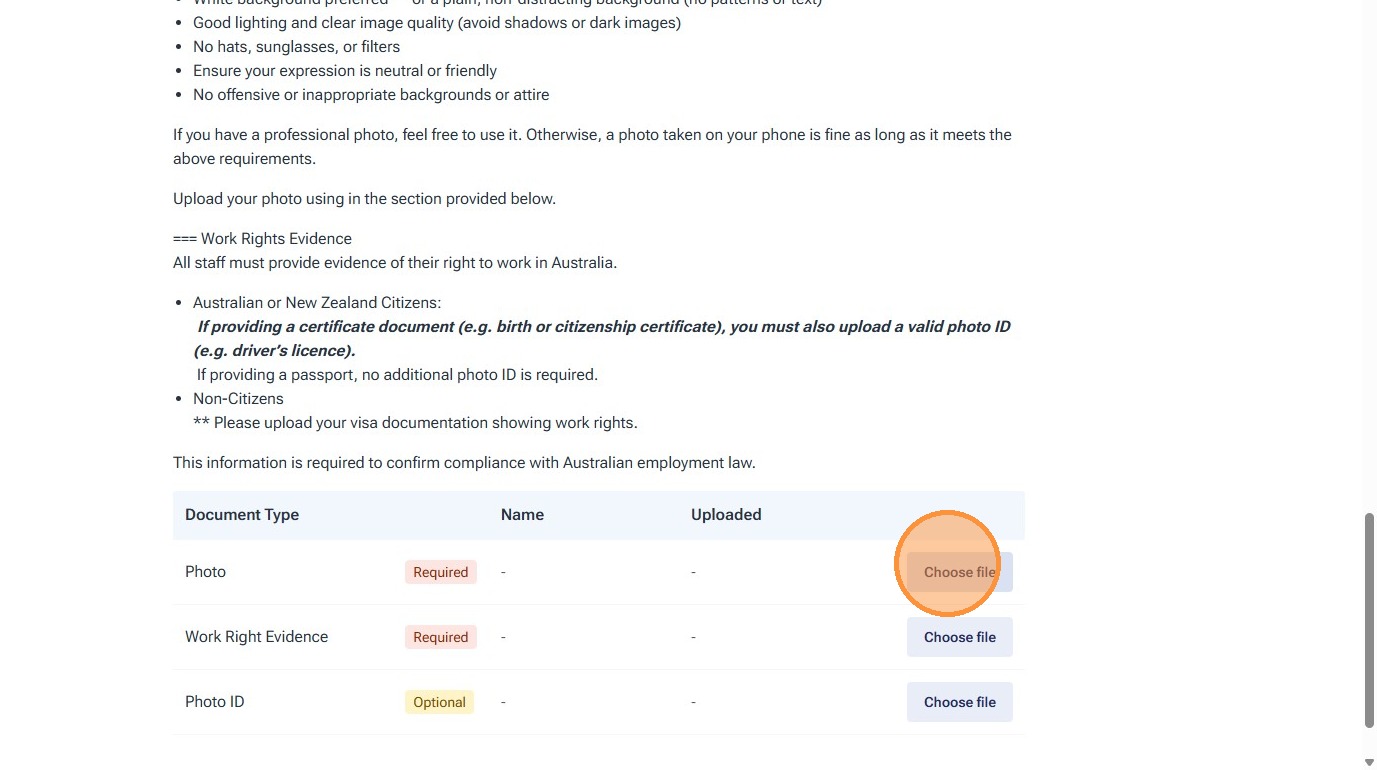
11. You will need to upload some important documents. These will vary based on the answers to the questions in the form.
Click "Choose File" to upload the applicable file requested.
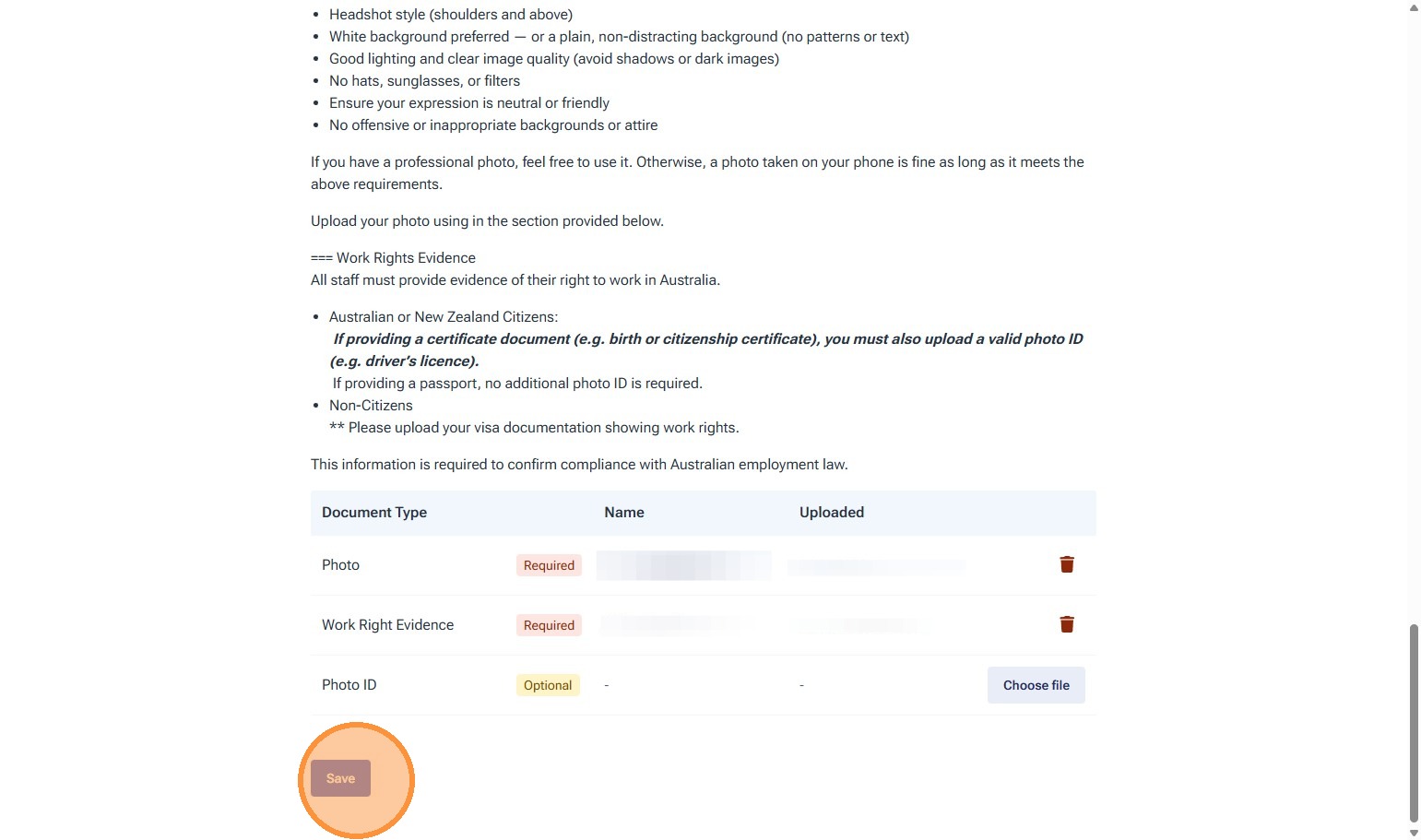
12. Click "Save"
Tax File Number Declaration
13. Click "Yes" or "No"
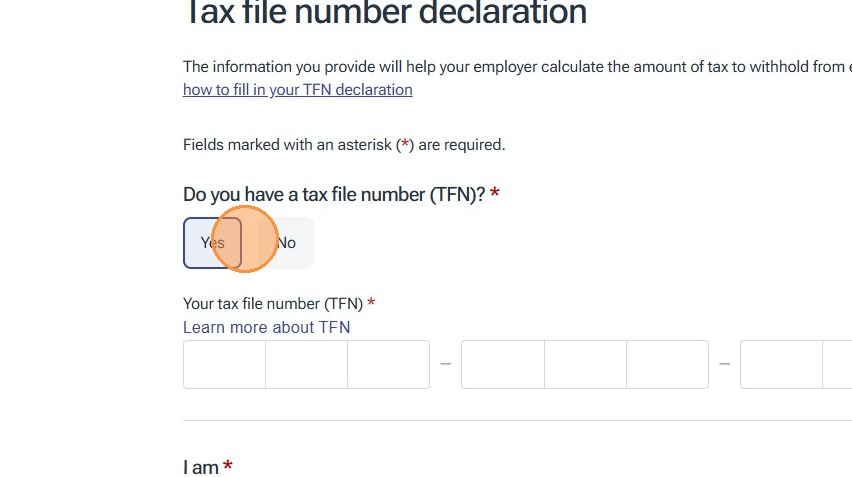
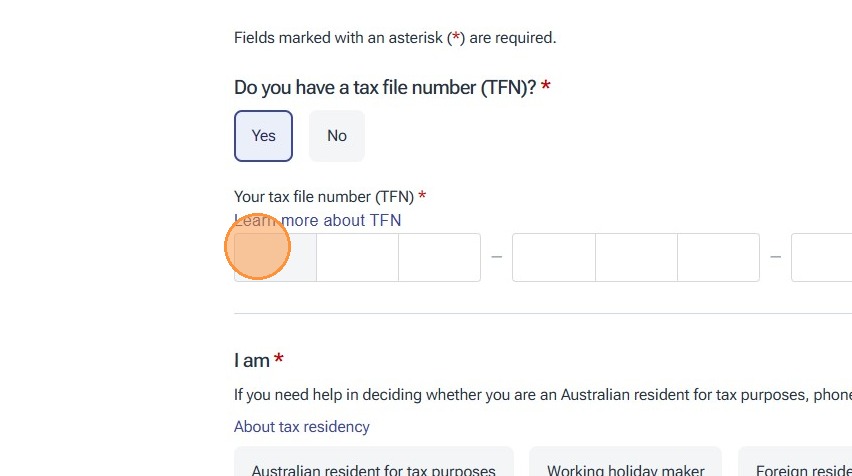
14. If you selected Yes to the question above, enter your Tax File Number
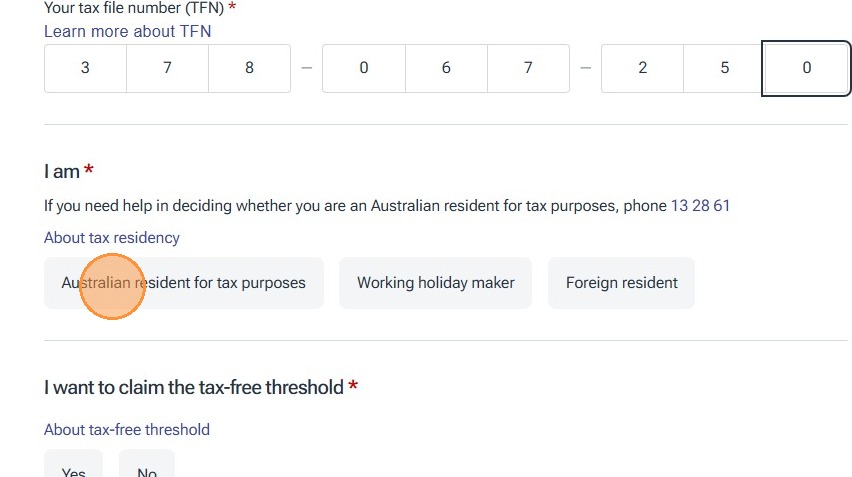
15. Choose your applicable answer
16. Answer if you want to claim the tax free threshold
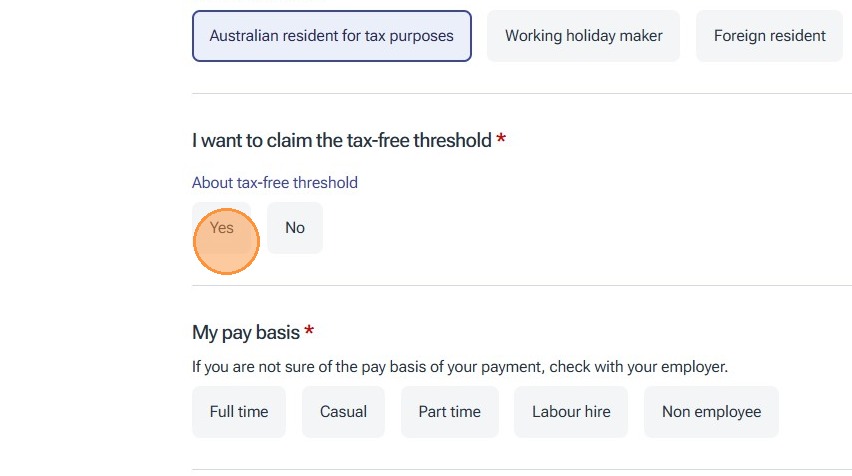
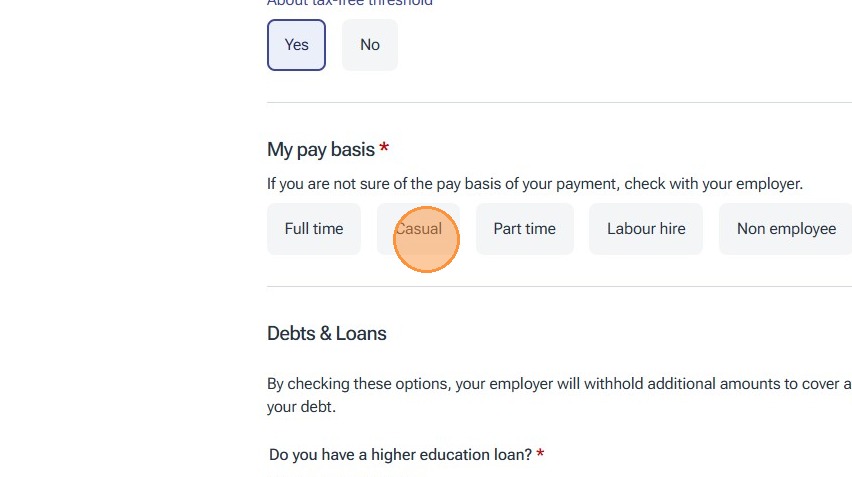
17. Choose your applicable pay basis option
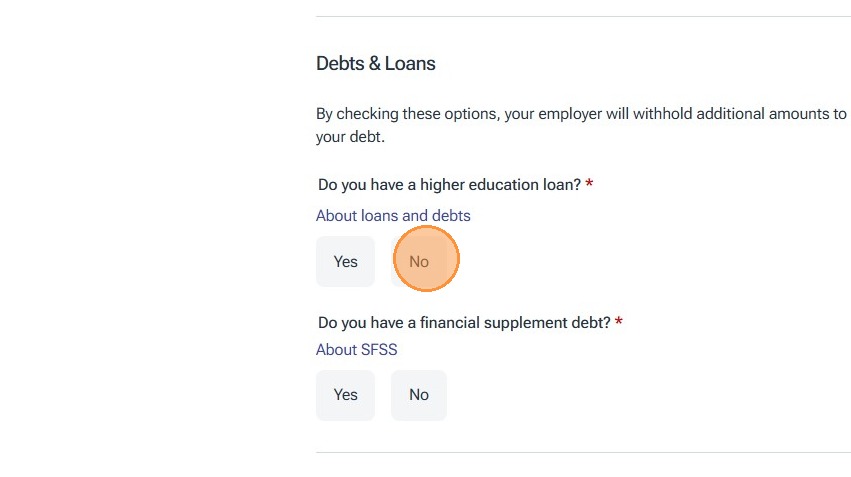
18. Answer the questions about debts and loans
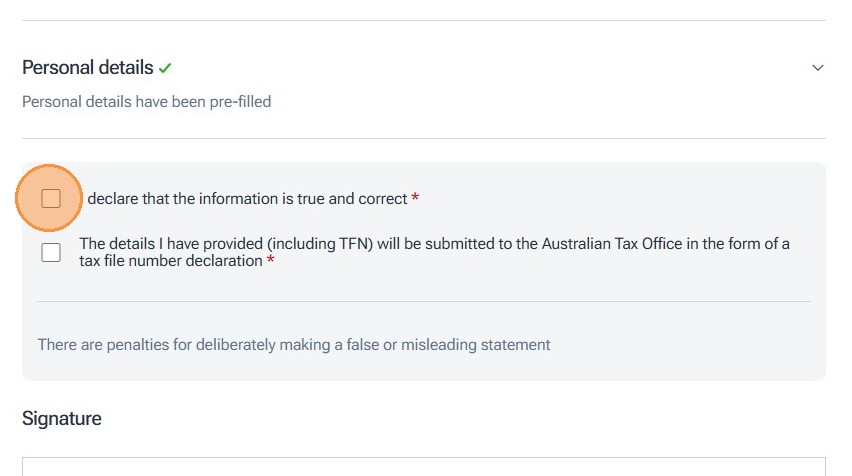
19. Click the boxes
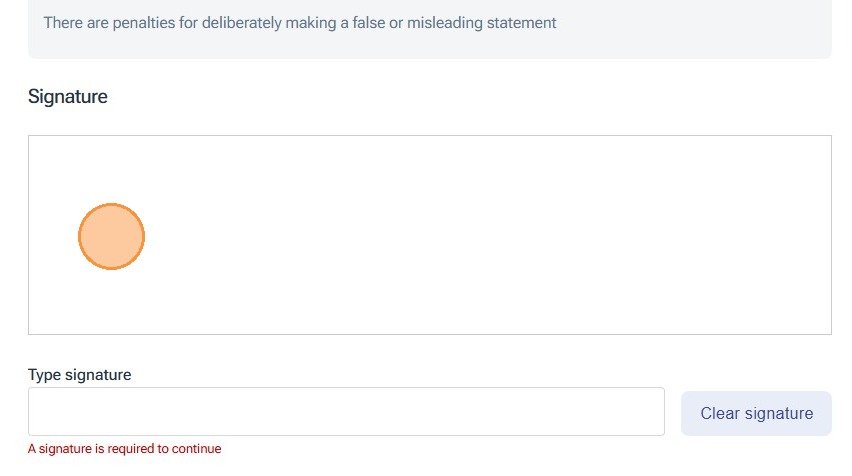
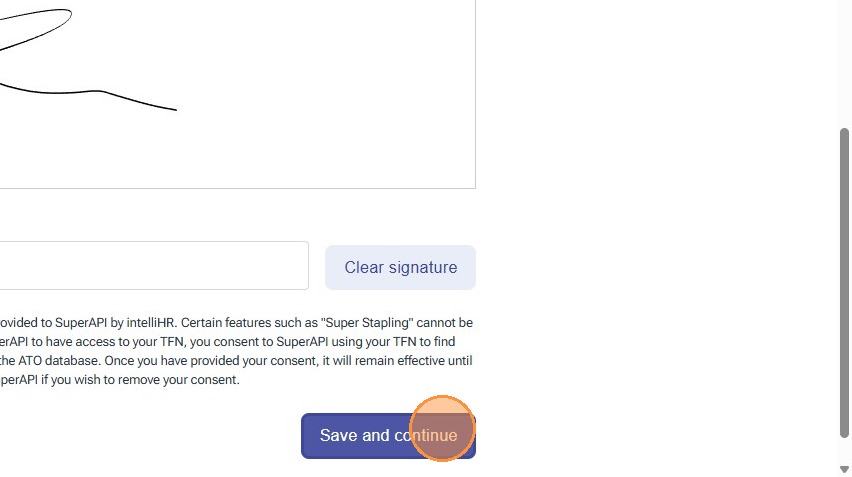
20. Sign the declaration
21. Click "Save and continue"
Enter Your Bank Details
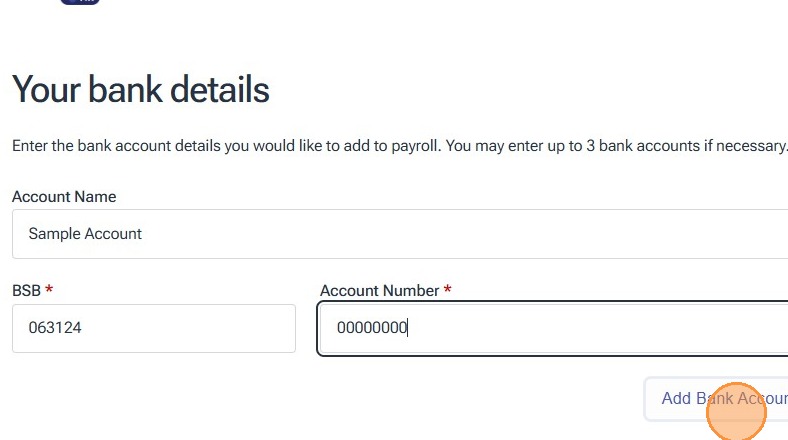
22. Fill in the form, then click "Add Bank Account".
Check these details are correct to ensure that you recieve your pay in your account.
23. The system will check the BSB is valid and will show you a summary of what has been entered so far.
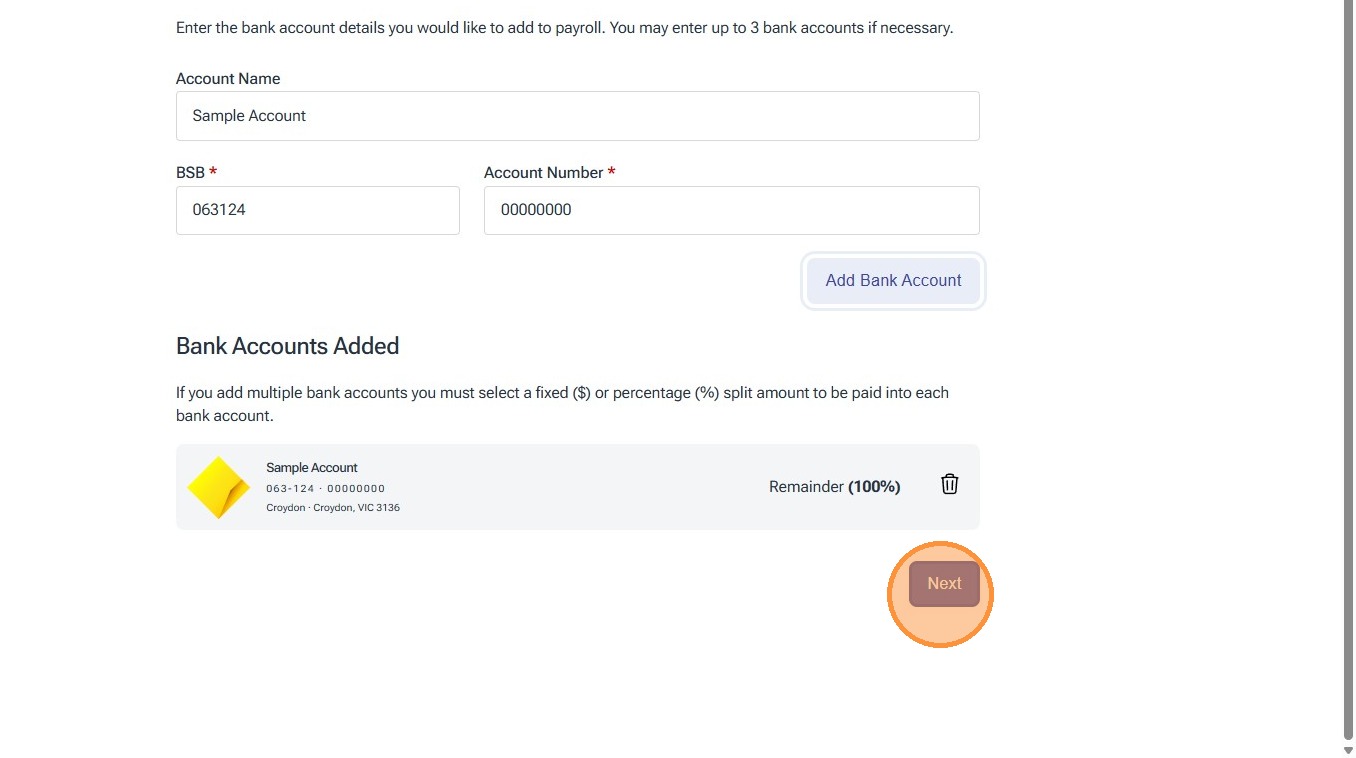
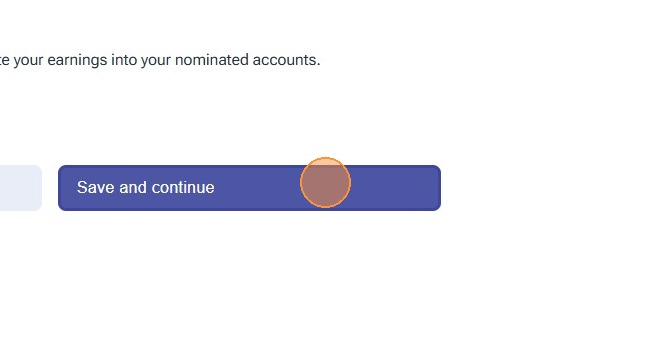
24. Click "Save and continue"
Super Choice Form
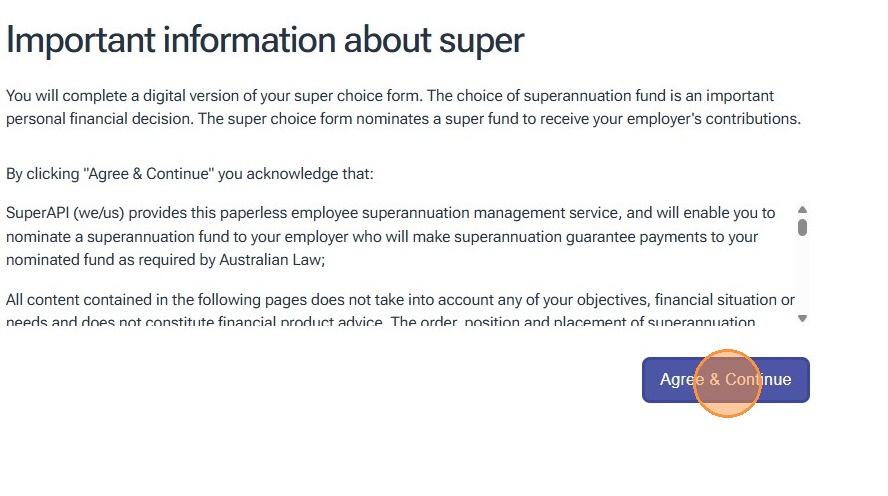
25. Review the information on the screen, then click "Agree & Continue"
26. Select the appropiate option.
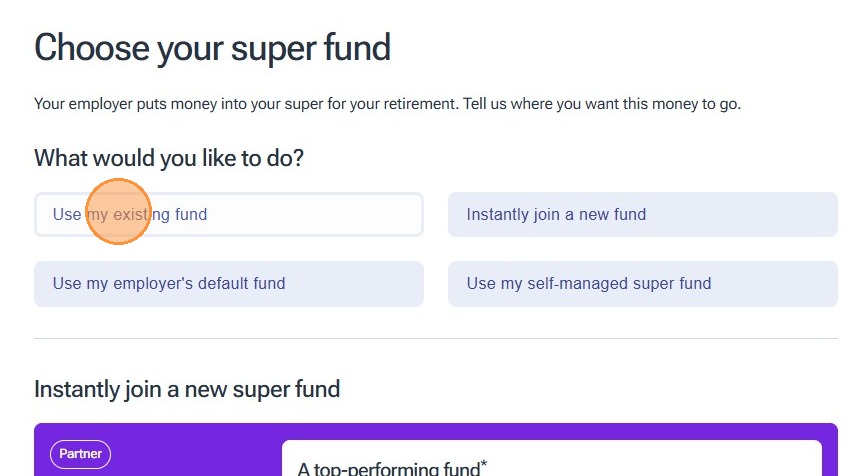
Tip: For the purposes of this instruction guide we have selected "Use my existing fund", however you will need to select the option most relevant to you.
If you choose another option please follow the steps on screen as they may not match the next few steps.
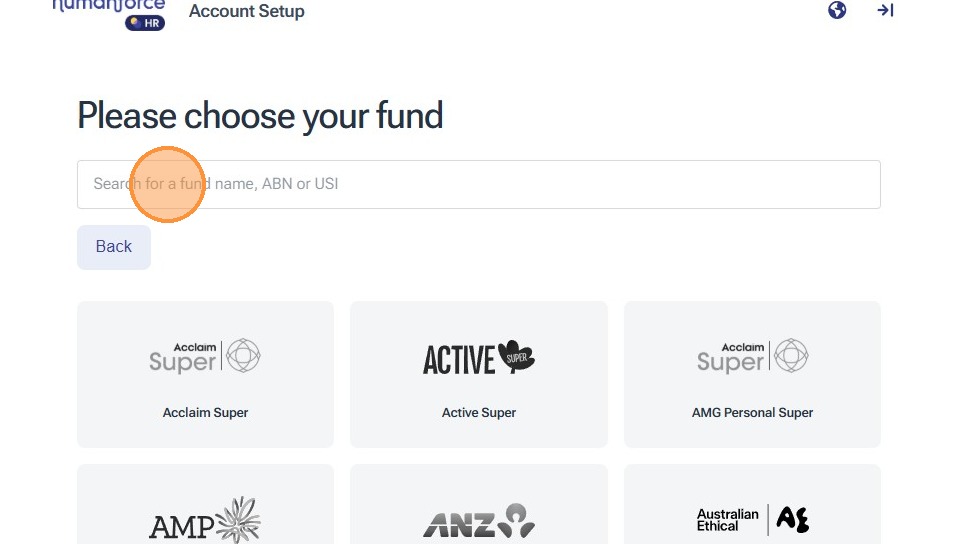
27. Enter your super fund name
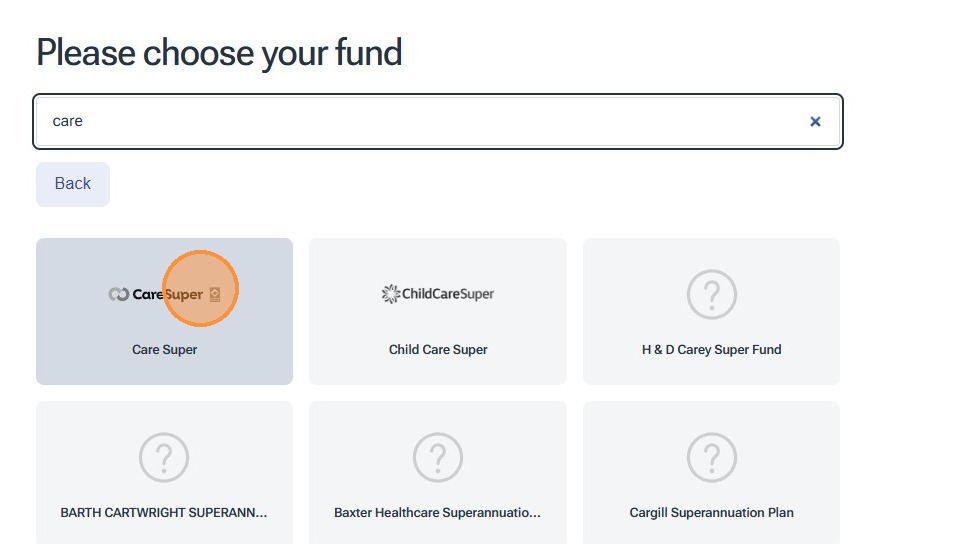
28. Select the applicable option
29. Enter your member number
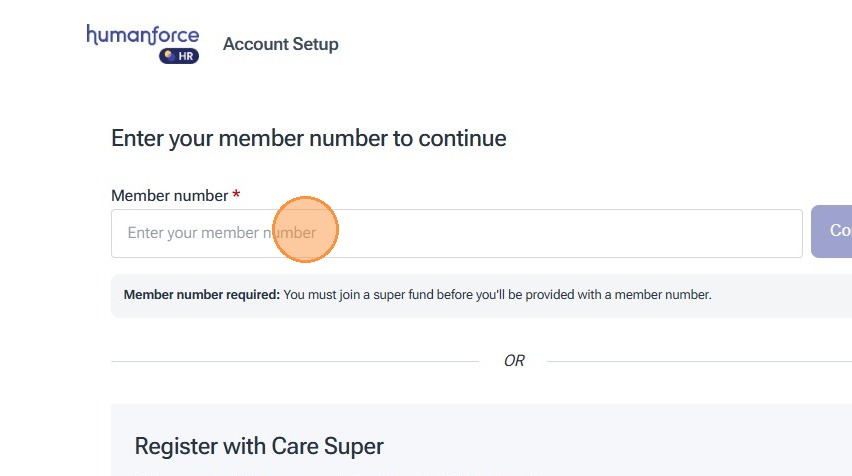
30. Click "Continue"
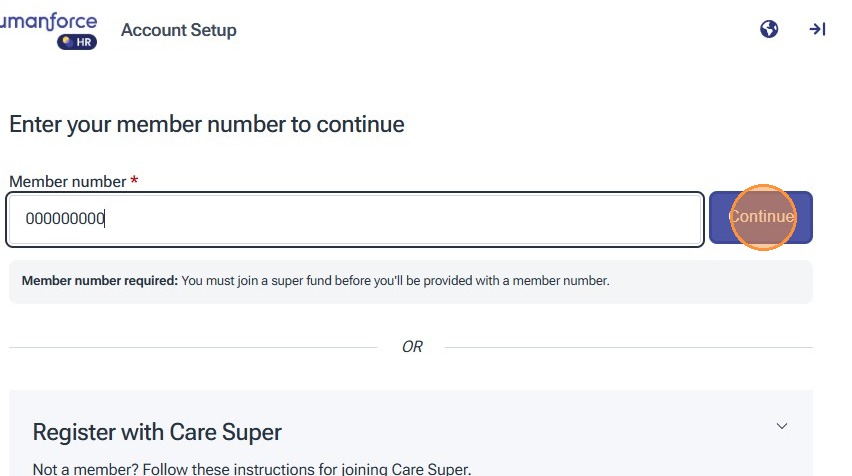
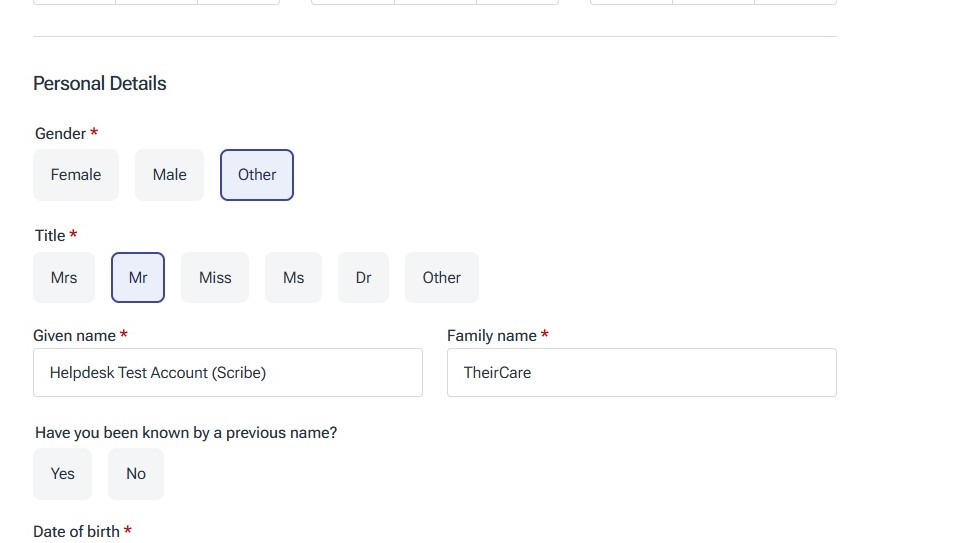
31. Fill in the personal details section
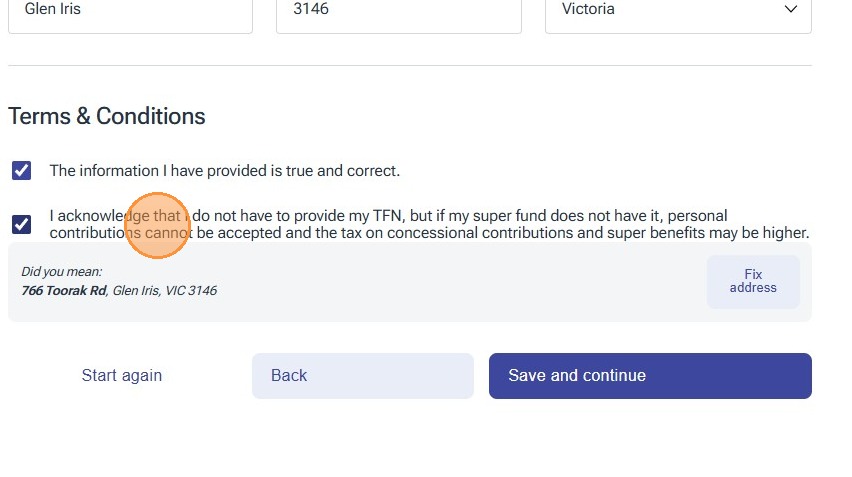
32. Click "The information I have provided is true and correct."
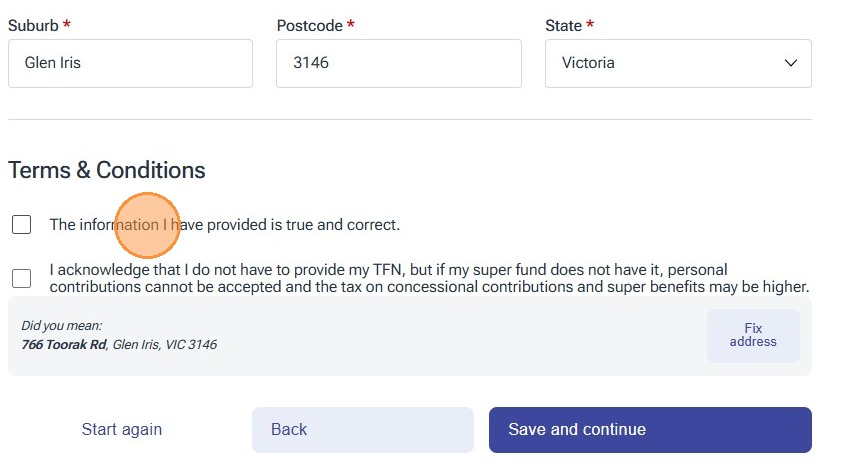
33. Click "I acknowledge that I do not have to provide my TFN, but if my super fund does not have it, personal contributions cannot be accepted and the tax..."
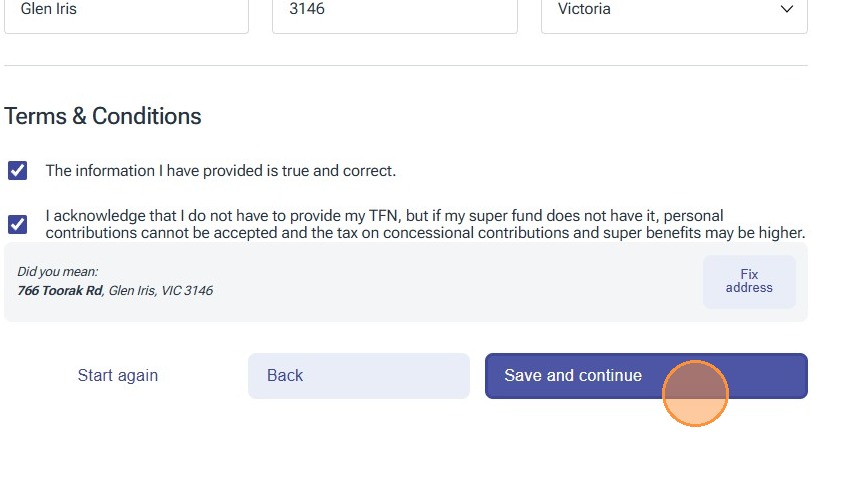
34. Click "Save and continue"
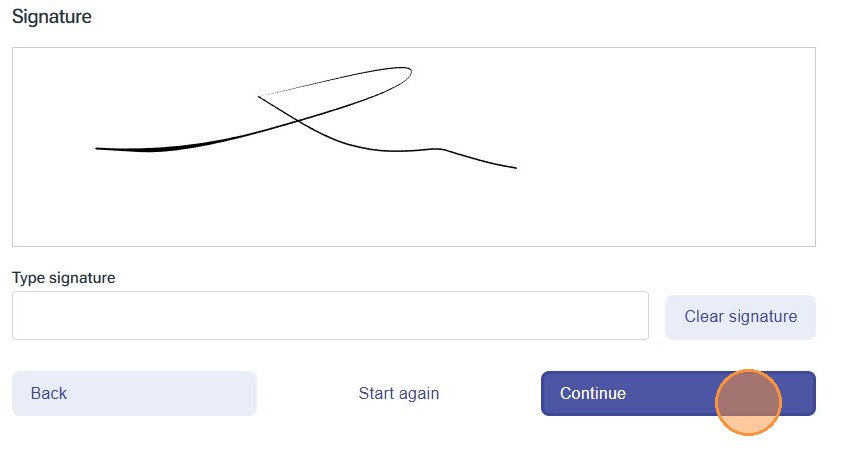
35. Click "Continue"
36. Click "Continue"
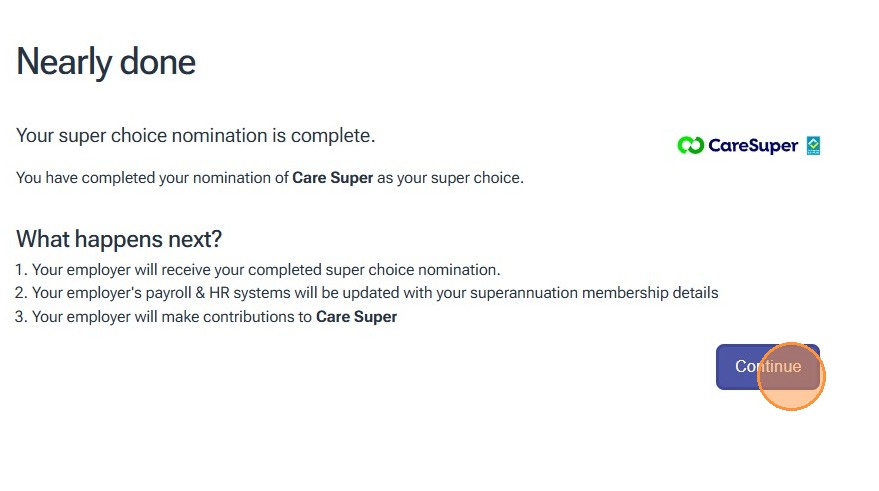
37. Done
Video Guide
Getting more support
Contact Employee Support
* Email: employeesupport@theircare.com.au
* Phone: 1300 614 111, option 1
Was this article helpful?
That’s Great!
Thank you for your feedback
Sorry! We couldn't be helpful
Thank you for your feedback
Feedback sent
We appreciate your effort and will try to fix the article