Humanforce HR is our staff record management platform. The instructions below show how to log into Humanforce HR using your TheirCare account.
Note: Humanforce HR used to be called IntelliHR.
Single Sign On via your Microsoft (work email) account is the only way to access the platform.
TABLE OF CONTENTS
Logging into Humanforce HR (Formerly IntelliHR) with SSO
1. Open your web browser and go to https://hr.theircare.edu.au/
Click "Sign in with SSO"

Alert: If you have already signed into another TheirCare SSO application on the browser you may not be required to complete steps 2-4
2. Enter your @theircare.edu.au email address and press next or enter
If you have signed in before it may appear on the pick an account screen
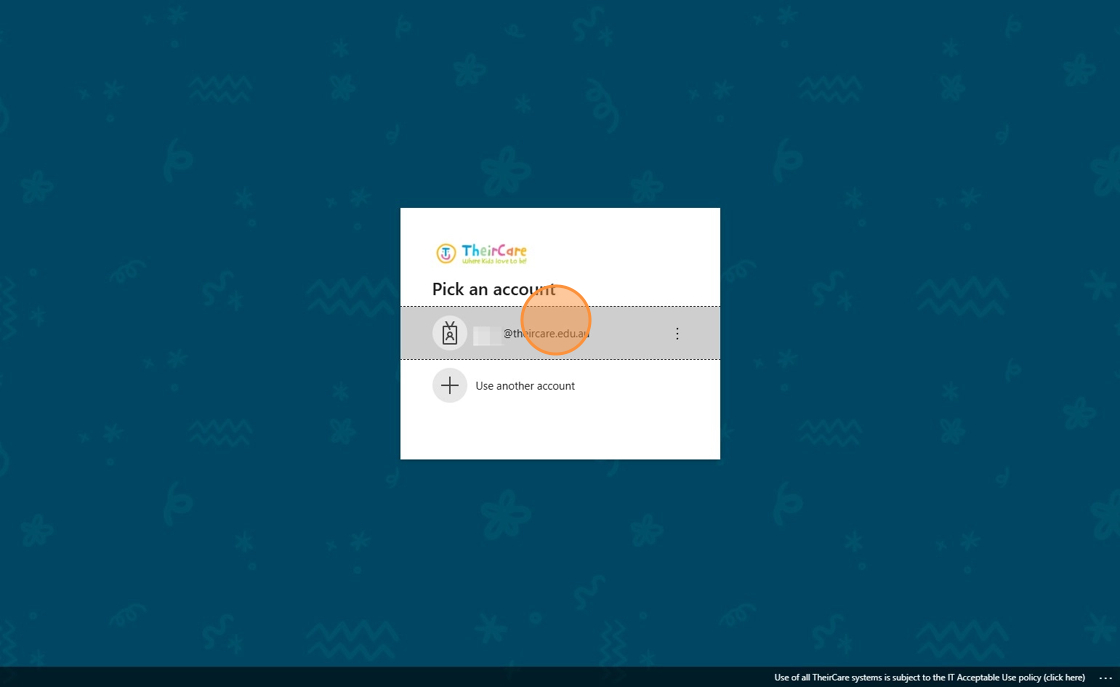
3. Enter your password and click Sign in.
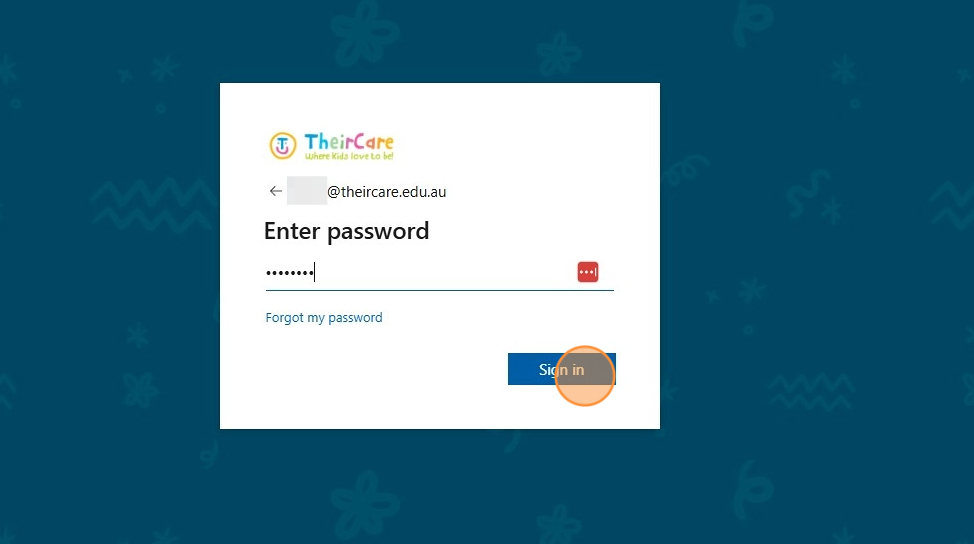
Tip: You will be prompted to enter a verification code either through the Microsoft Authenticator application or by SMS. Follow the instructions on screen or your phone.
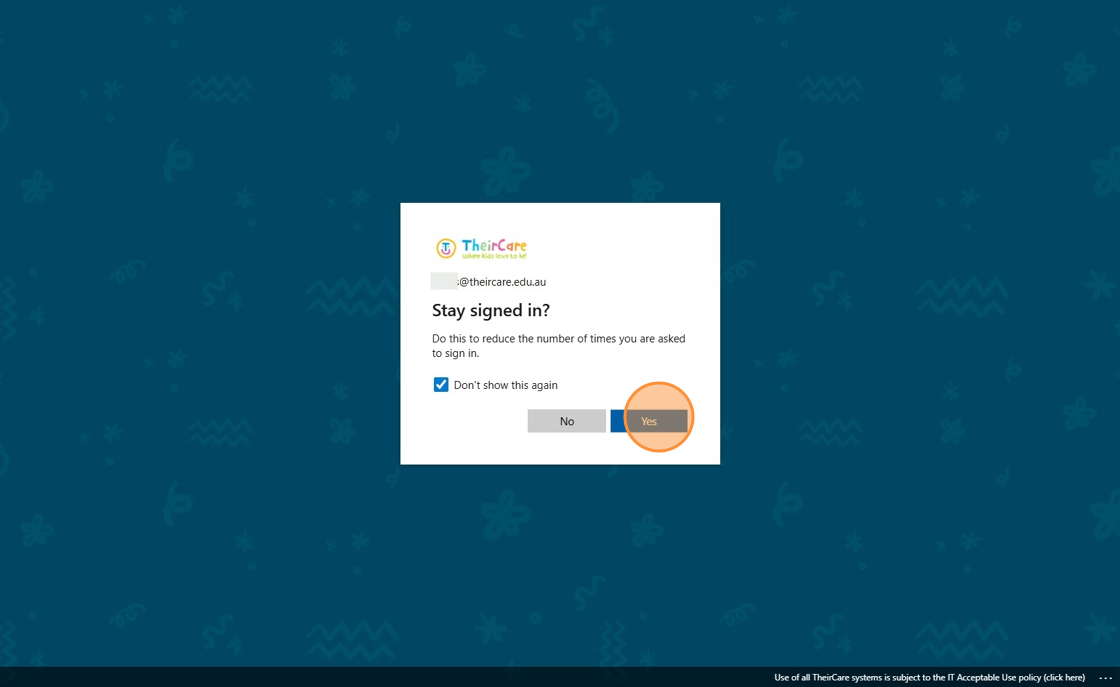
4. Click Yes.
Instruction Video
Troubleshooting
| My Microsoft account does not let me log in | 1. Check you are logging in with your correct work email login. 2. If you have forgotten the password follow these instructions: https://help.theircare.edu.au/support/solutions/articles/44002663589 3. Contact ithelpdesk@theircare.edu.au |
You are asked to enter a 6 digit code as seen in the example below: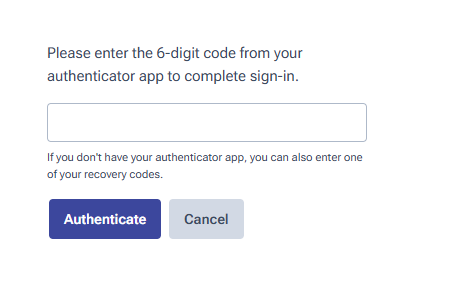 | This is a separate MFA code to your Microsoft account and is not required for almost all staff members. If you are prompted to enter the code but dont know it please reach out to staffengagement@theircare.com.au to have it removed from your account. |
| Is there a Humanforce HR mobile application? | No - But the website can be accessed via mobile and will automatically resize to the smaller screen size, including menu options. |
Was this article helpful?
That’s Great!
Thank you for your feedback
Sorry! We couldn't be helpful
Thank you for your feedback
Feedback sent
We appreciate your effort and will try to fix the article