TABLE OF CONTENTS
- Before Starting This Guide:
- Downloading the Application:
- Logging In:
- Troubleshooting:
- Video Instructions
The Humanforce Mobile application will only allow you to log in from your official start date with TheirCare. The Learning & Development team will cover the process of logging in during the Launchpad Induction session.

Prior to the induction session, we encourage you to download the application from the App Store / Play Store so you are ready to go on your first day.
Before Starting This Guide:
Before starting this process, please check that you have finalised the set up of your Work Microsoft (email) account as you will be using this account to sign in via Single Sign On (SSO).
The Humanforce Mobile Application will only allow access from the start date on your contract, you will not be able to log in until your official start of employment.
Downloading the Application:
Alert: To log into your account, you must ensure that you download the Humanforce Mobile Application to your personal phone. When searching through the store for your mobile, please ensure that you select the Humanforce Work application with the blue background icon.
1. For Apple devices, open the app store and search for Humanforce Work (New) or use this link: https://apps.apple.com/au/app/humanforce-work-new/id1550225245

2. For Android devices, open the Google Play store and search for Humanforce Work or use this link: https://play.google.com/store/apps/details?id=com.humanforce.app&hl=en_AU

Logging In:
3. Locate the Humanforce application on your mobile. Tap to open.

4. On the first time running the application you may be asked to confirm some settings and functions.
Click Continue.

You may be prompted to allow the app access to some functions on your mobile such as notifications and location. Select YES when prompted.

For timesheets to be recorded you must allow access to GPS/Location for the application to work as the system will require that you are physically located at the service to clock in and out.
5. Select Log in with SSO
Important: Do not enter your username and password into this screen as it will not work, you must use the Login in with SSO button only.

6. Enter your TheirCare Microsoft account username (email address)

7. Click Sign In

The system will check if the email address is set up within the Humanforce system to permit log in access - e.g. must end in theircare.edu.au
- If it fails at this stage, check your email address is correct and ends in @theircare.edu.au.
- If OK you will be taken to the Microsoft log in screen.
8. Enter your TheirCare Microsoft account email address.

9. Click Next

10. Enter your password

11. Click Sign In

12. Press the blue YES button to remain signed into your account

13. Done
Troubleshooting:
| The app advises that there is no account available. | Check that you have logged in with the correct username and password. You must use your TheirCare-issued Microsoft account to sign in. This will end in @theircare.edu.au. If the date on your contract has not passed, the system will not allow you to log in. Wait until your employment start date before attempting to sign in. |
| You can not remember the password for your TheirCare-issued Microsoft account. | Follow these instructions: https://help.theircare.edu.au/support/solutions/articles/44002663589-resetting-your-microsoft-password |
| The application freezes or will not show the login screen. | There may be an issue or bug with the copy of the application downloaded on your phone. Delete the application and download it again from the App Store or Play Store. |
| There is no option to sign in using SSO | You will likely be using the old/legacy version of the Humanforce application with the yellow background on the app icon. Please download the correct version. |
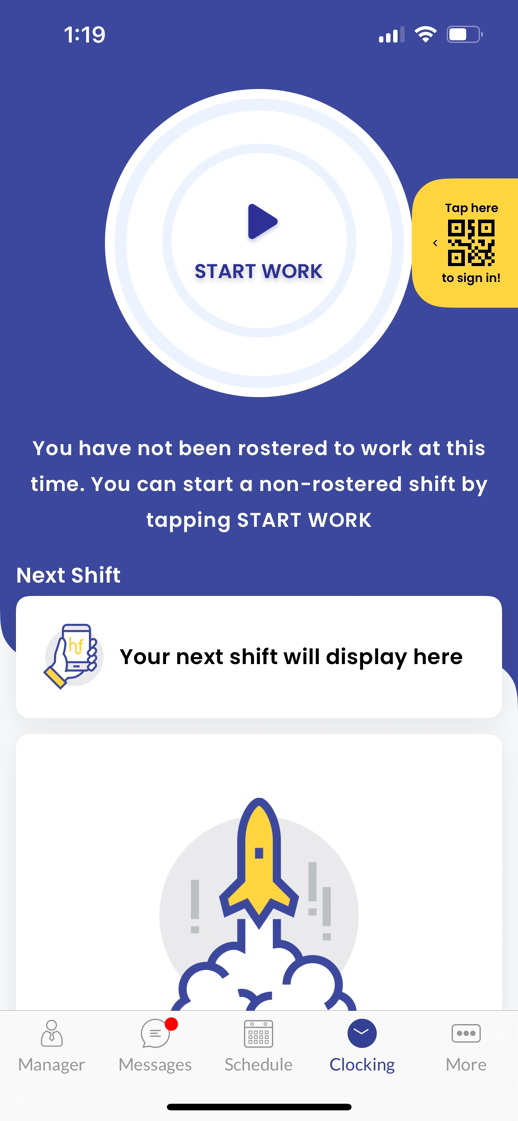
| When you log in, you do not see any shifts or can not clock in/out. | The application will only show you details if you have been rostered for a shift. You will need to contact your manager for more information as IT Helpdesk and Staff Engagement can not assist with this issue. |
If the above do not resolve your issue please email ithelpdesk@theircare.edu.au with a full descriptionm of what is happening including:
- Your name
- A short description of the problem you are experiencing
- When did the issue start happening (e.g. has it never worked, or just stopped working today)
- The platform you are having issues with (Microsoft/emails, Humanforce HR, Humanforce WFM, Humanforce Mobile App, TERRIE, Ignite)
- Device you are using (Windows, Mac, mobile, web, etc.)
- Any error messages you are seeing
- A screenshot or photo of the issue, if possible
Video Instructions
Was this article helpful?
That’s Great!
Thank you for your feedback
Sorry! We couldn't be helpful
Thank you for your feedback
Feedback sent
We appreciate your effort and will try to fix the article