Self-Service Password Reset lets you reset your work password anytime, without needing to contact the IT Helpdesk. If you forget your password or get locked out, use this tool to quickly regain access. It’s secure, simple, and available 24/7.
This will only work for staff email accounts. Service email accounts can not be reset this way
TABLE OF CONTENTS
Instructions:
1. Navigate to emails.theircare.edu.au
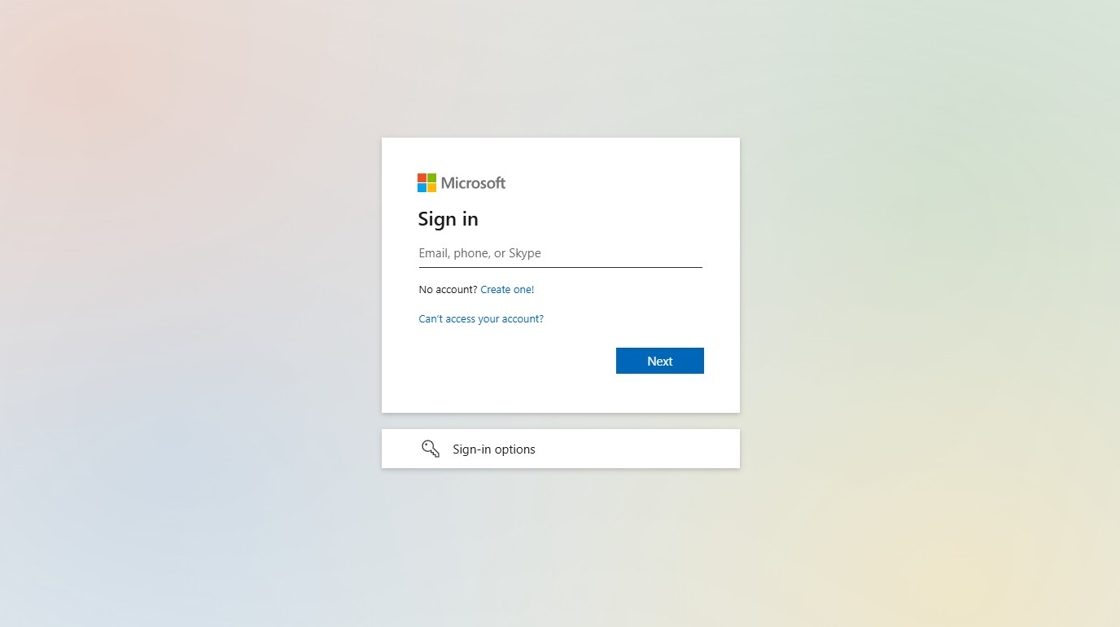
2. Enter your work email adress
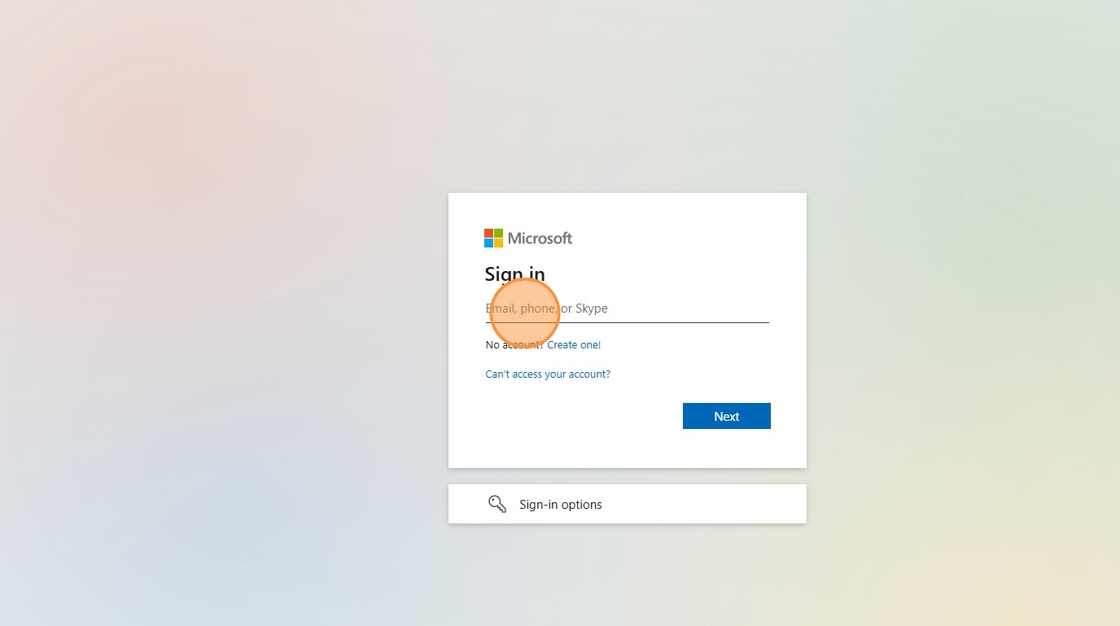
3. Click "Next"
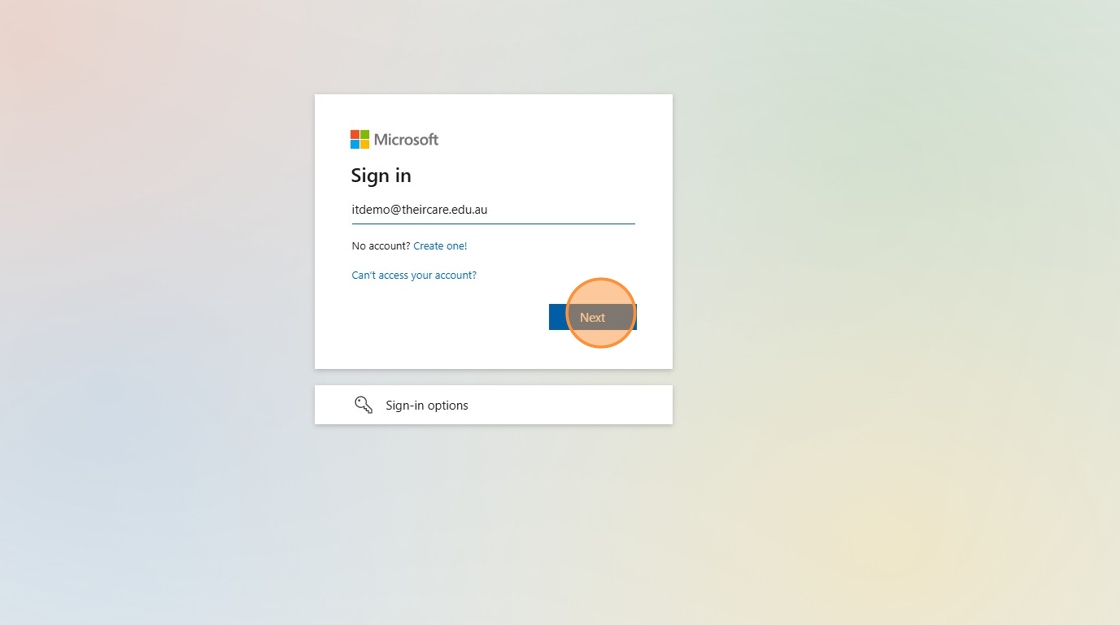
4. Click "Forgot my password"
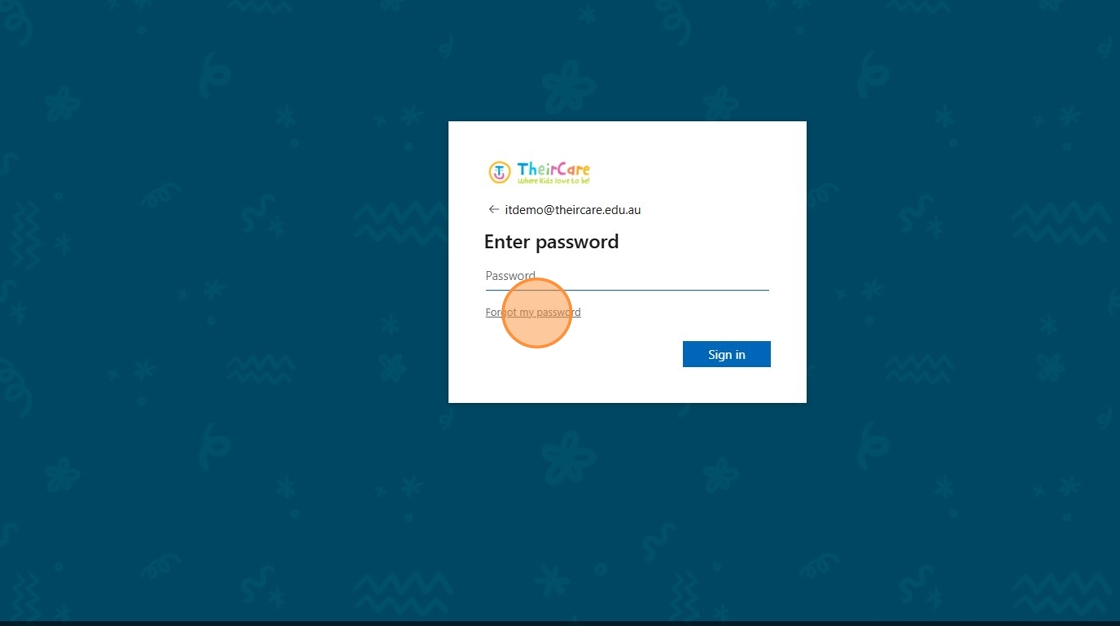
5. Enter your work email address
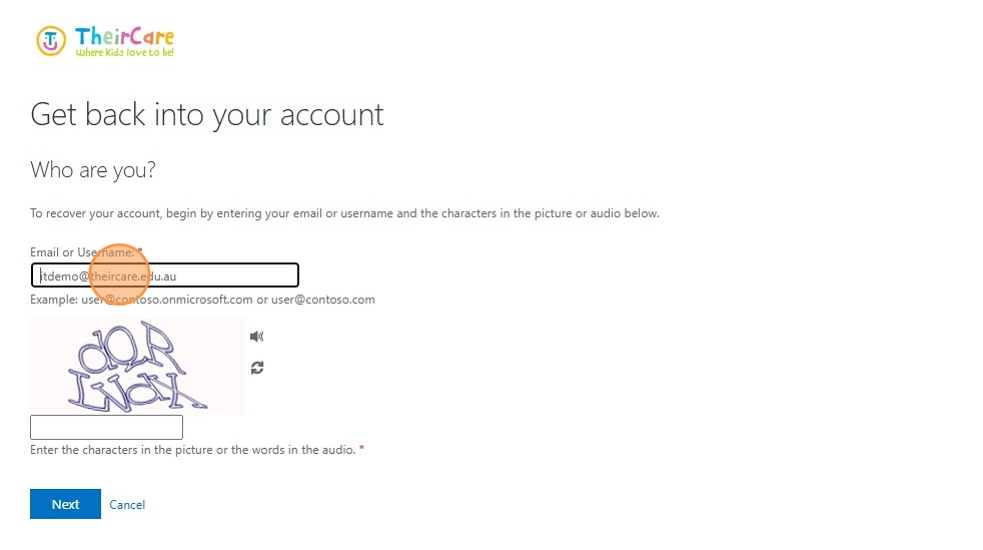
6. Enter the letters in the security capcha
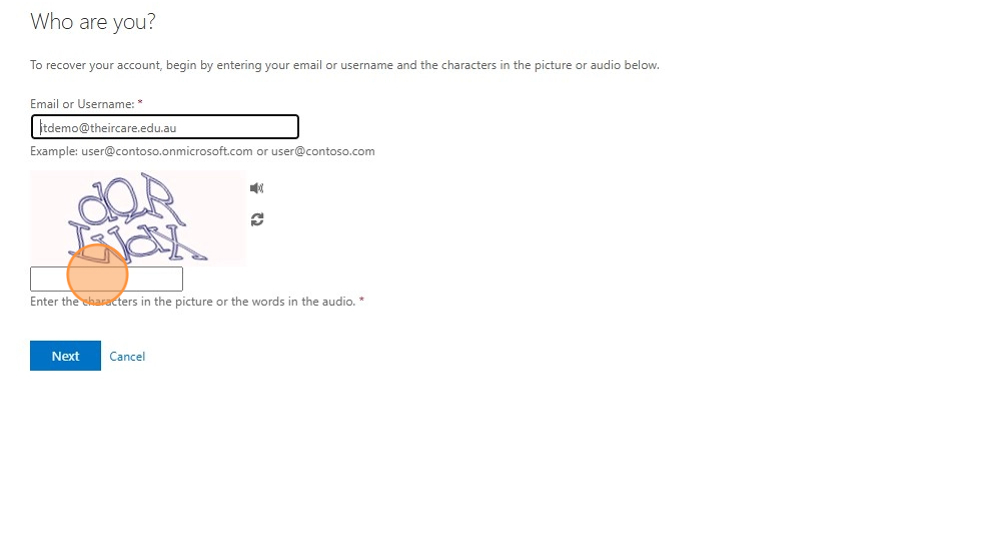
7. Click "Next"
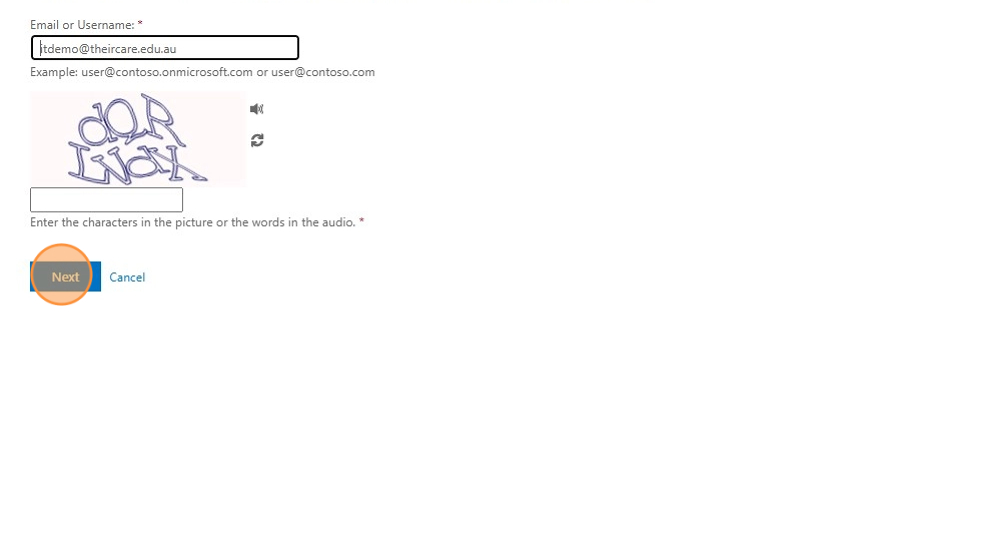
8. Choose your preferred verification method.
Note: For this example we are using alternative email
Click "Email"
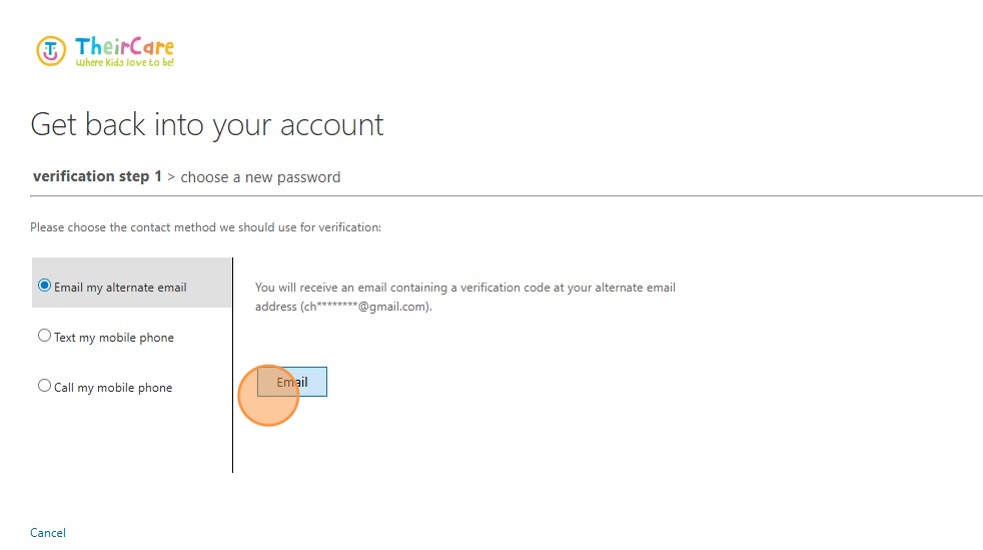
9. A code will be sent to your preferred recovery method
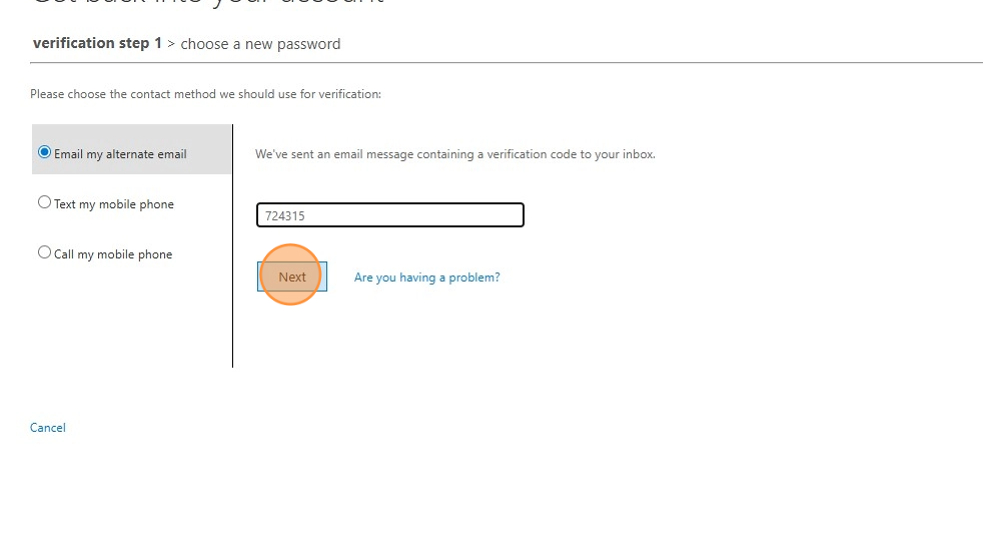
Enter the code onto your screen in the box
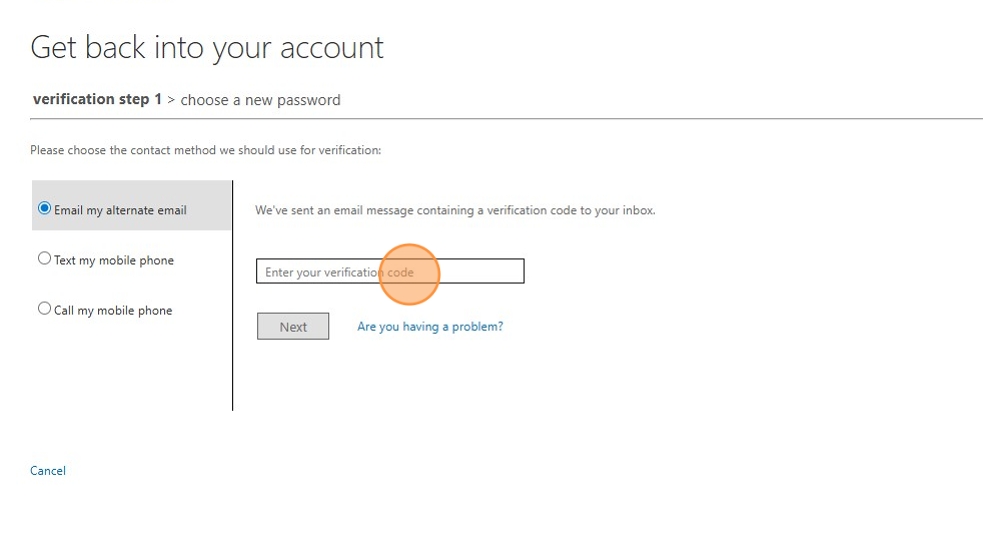
10. Click "Next"
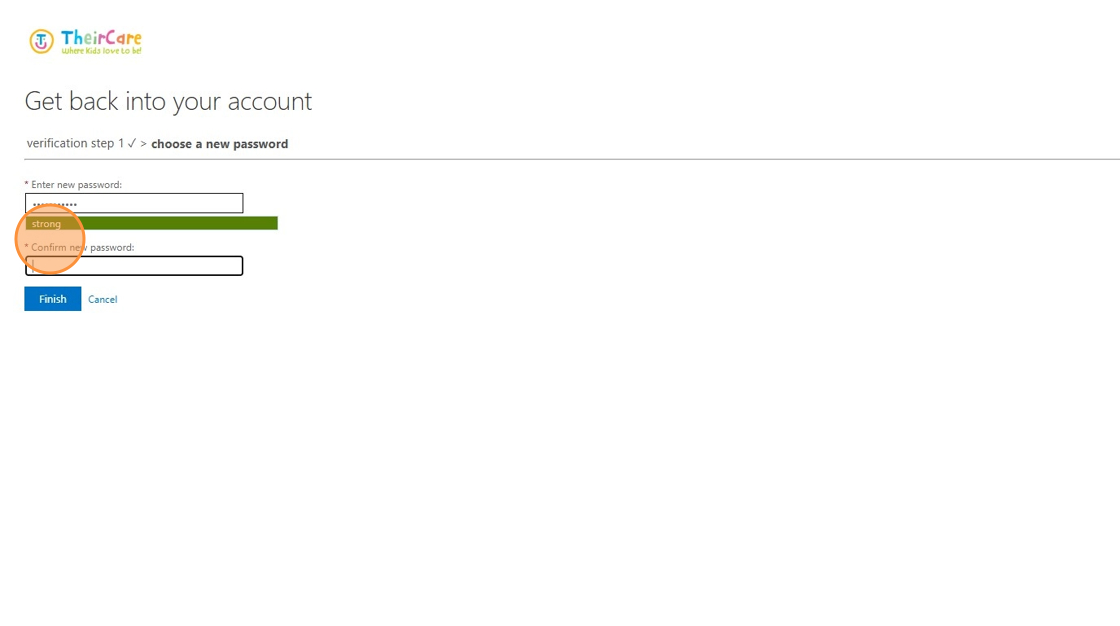
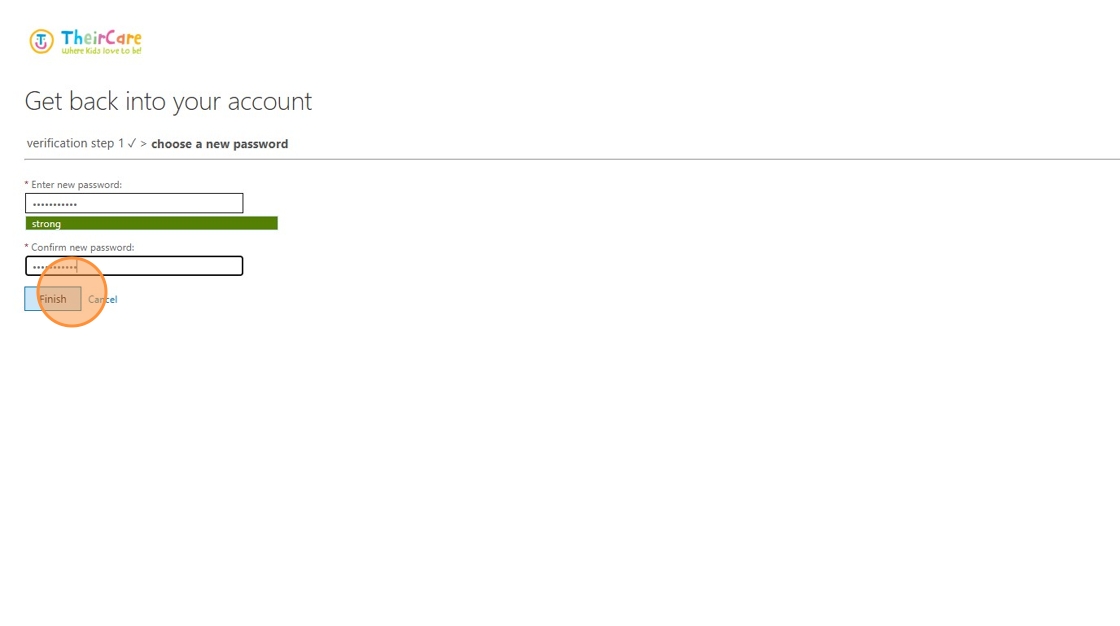
11. Enter your new password in the boxes
12. Click "Finish"
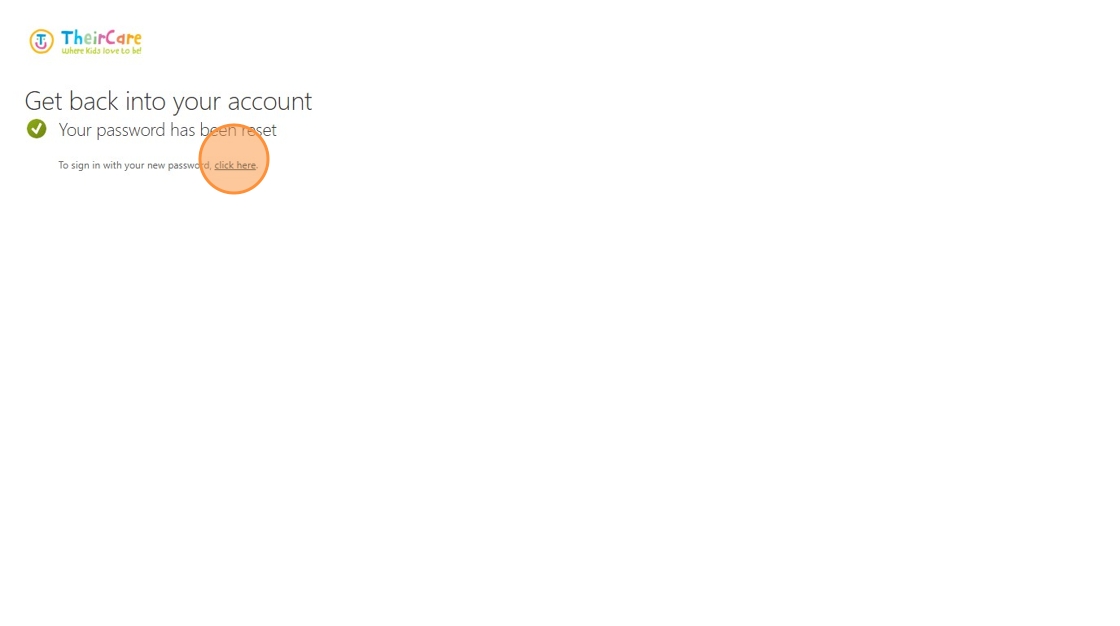
13. Click "Click Here" to be taken back to the sign in screen
Video
Troubleshooting:
| You do not have any recovery options or get an error message that you can not use this method. | Email itehelpdesk@theircare.com.au as the password will need to be reset manually. |
| You do not get the recovery code to your selected method. | The code can take a few minutes to come through. If it does not show after 2-3 minutres you should see an option to resend it or you can choose another method. |
Was this article helpful?
That’s Great!
Thank you for your feedback
Sorry! We couldn't be helpful
Thank you for your feedback
Feedback sent
We appreciate your effort and will try to fix the article