This guide provides essential steps for Coordinators, 2ICs, and Responsible Persons to efficiently access service inboxes through Outlook and TERRIE. It outlines two methods tailored for different roles - one for ongoing access and another for temporary use - ensuring users can manage communications effectively.
Access for service inboxes will apply for the following team members:
- 2IC (2IC Educator)
- Coordinator
- Program Manager
- Mentor Coordinator
- Area Manager
These team members will only see services where they have been linked to.
Log in to your own email account:
- Go to emails.theircare.edu.au
- If prompted, sign in with your own Microsoft (email) account credentials
Option 1: Add to your Outlook account
Tip: This option is best suited towards Coordinators and 2IC who work on an ongoing basis at a service.
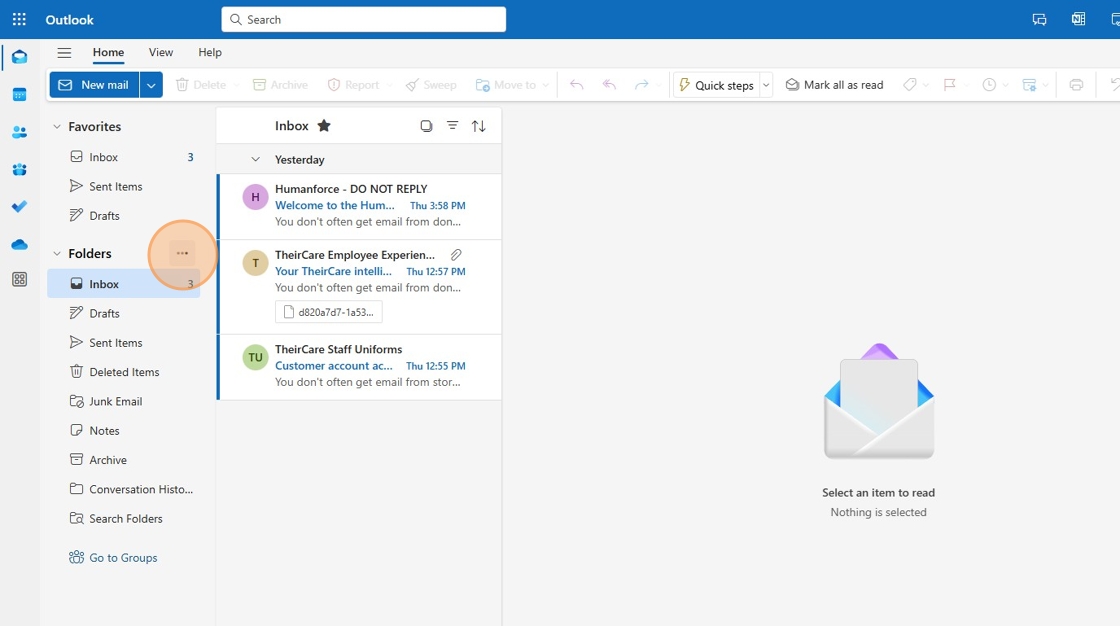
1. Click the three dots next to Folders
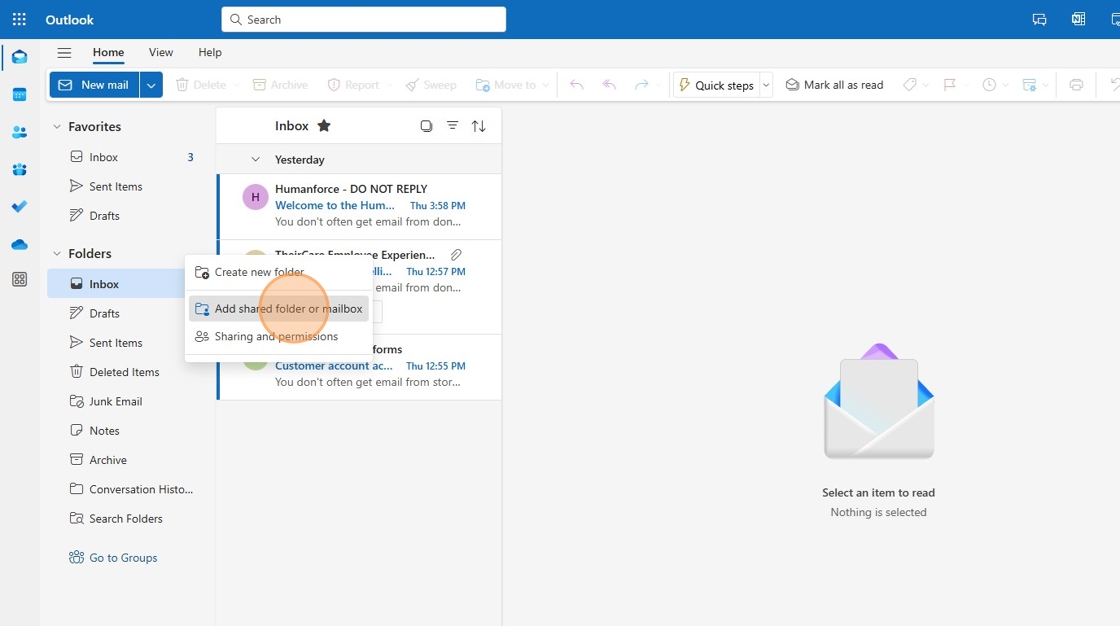
2. Click "Add shared folder or mailbox"
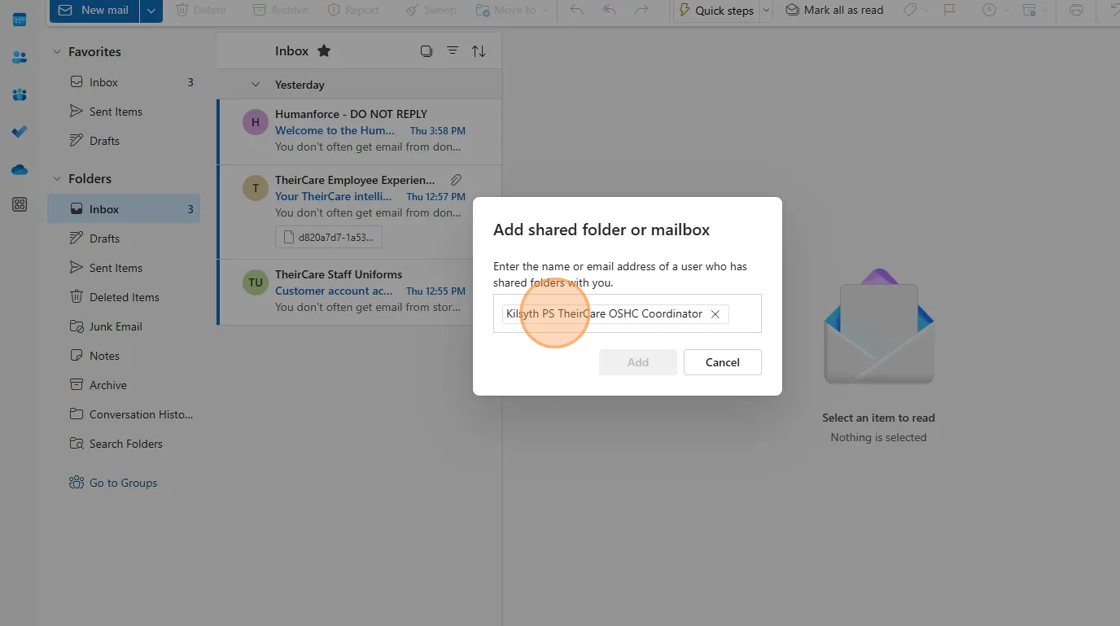
3. Type in the service email address you want to access
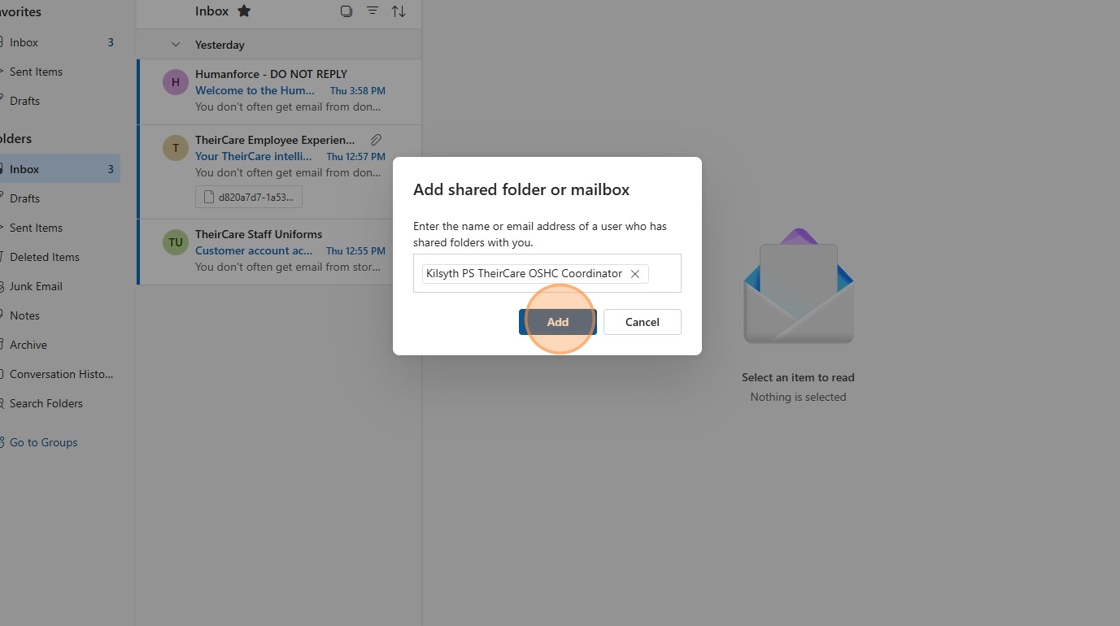
4. Click "Add"
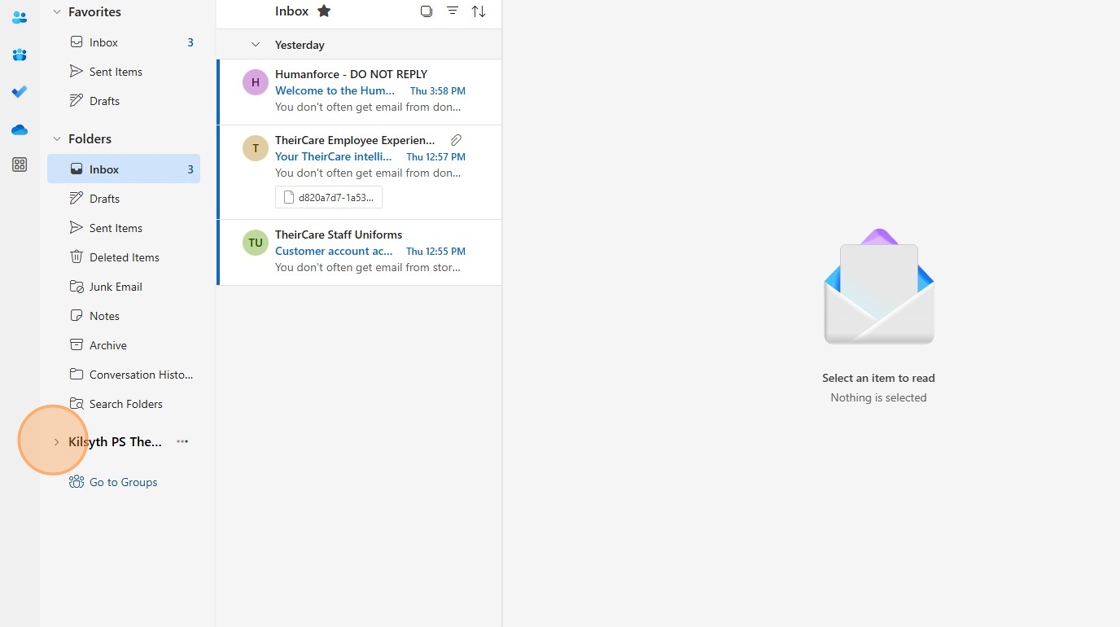
5. Expand the service inbox by pressing the arrow next to the service name
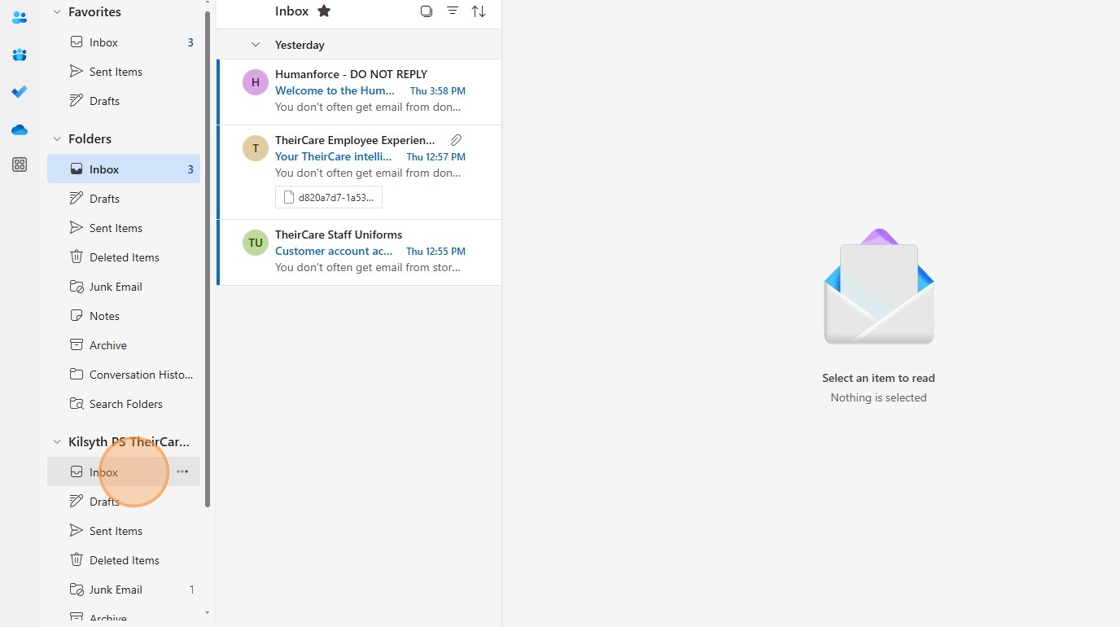
6. Click "Inbox"
Option 2: Add via "Other Mailbox" option
Tip: This option is best suited for those who are stepping up or temporarily Coordinating a service.
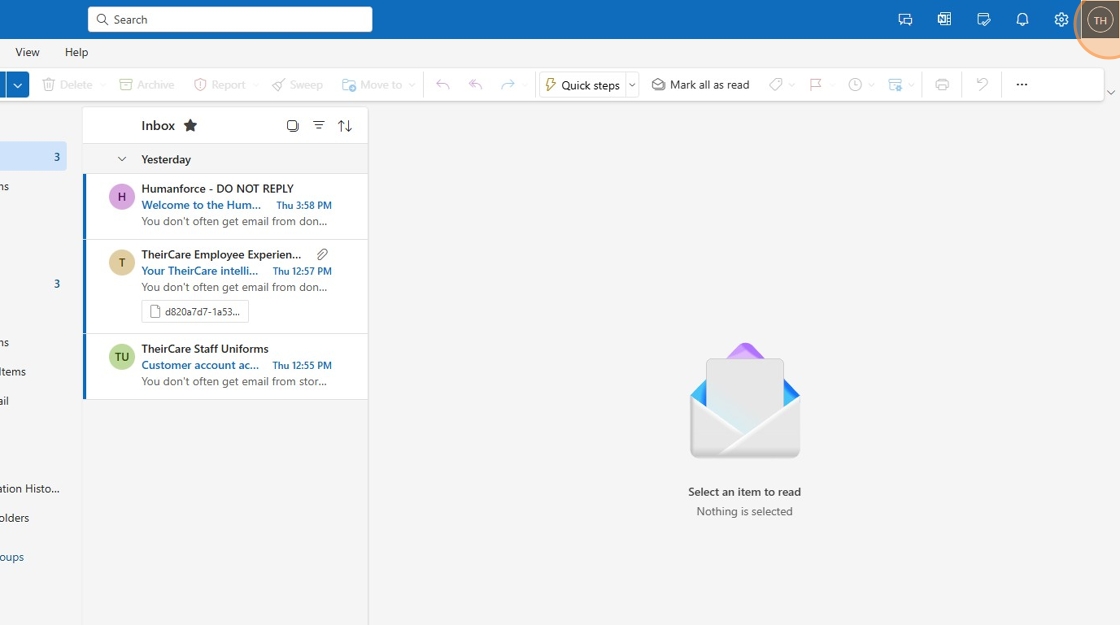
1. Click your initials in the top right corner
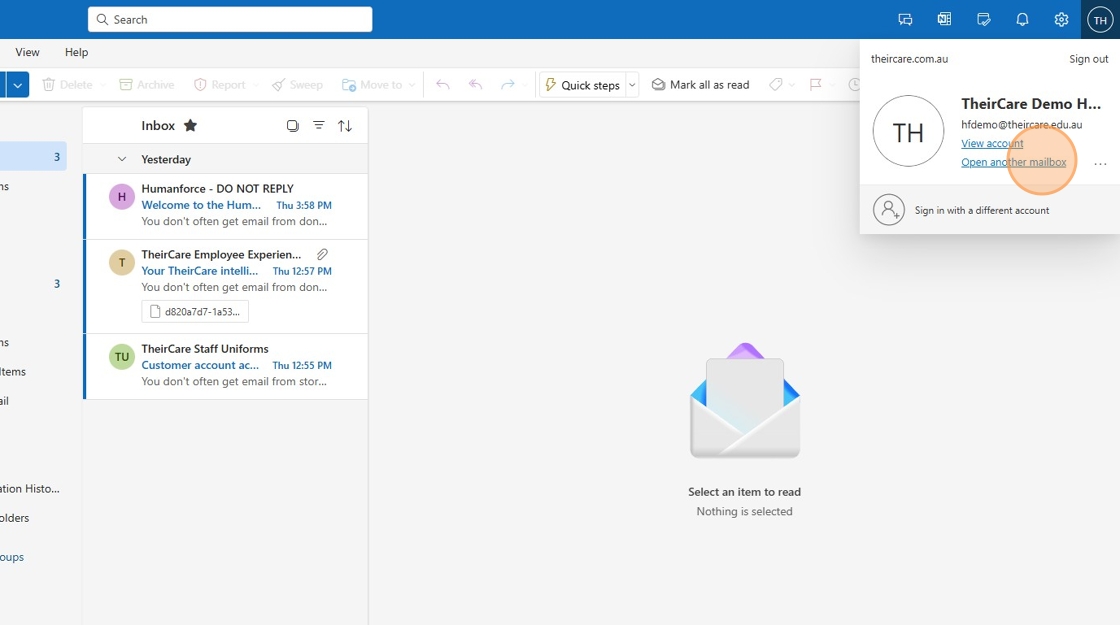
2. Click "Open another mailbox"
3. Type in the service email address you want to access
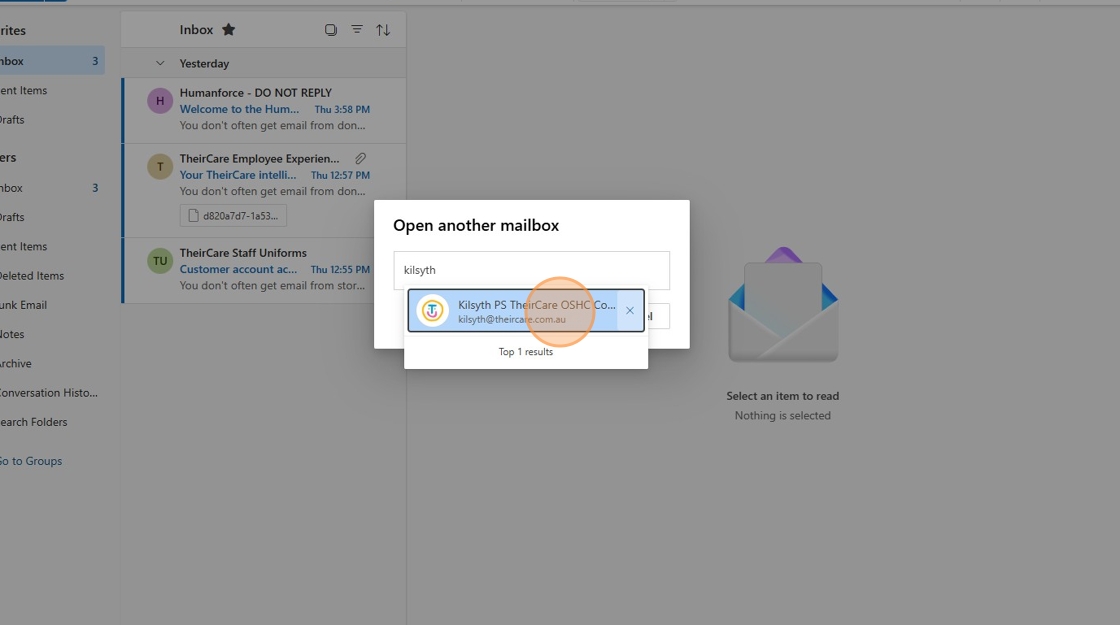
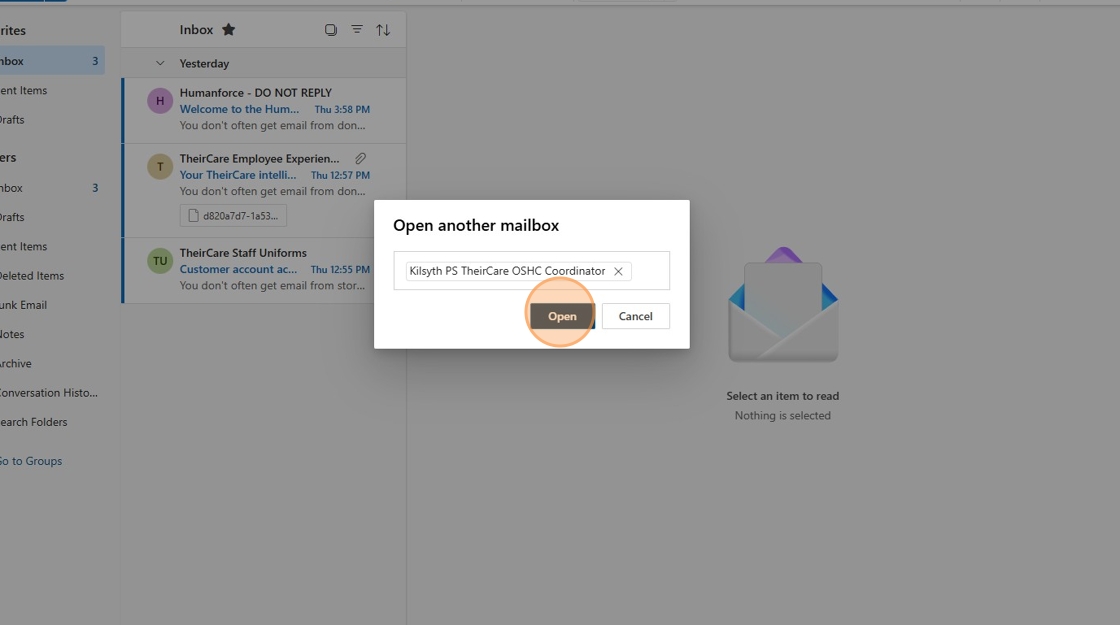
4. Click "Open"
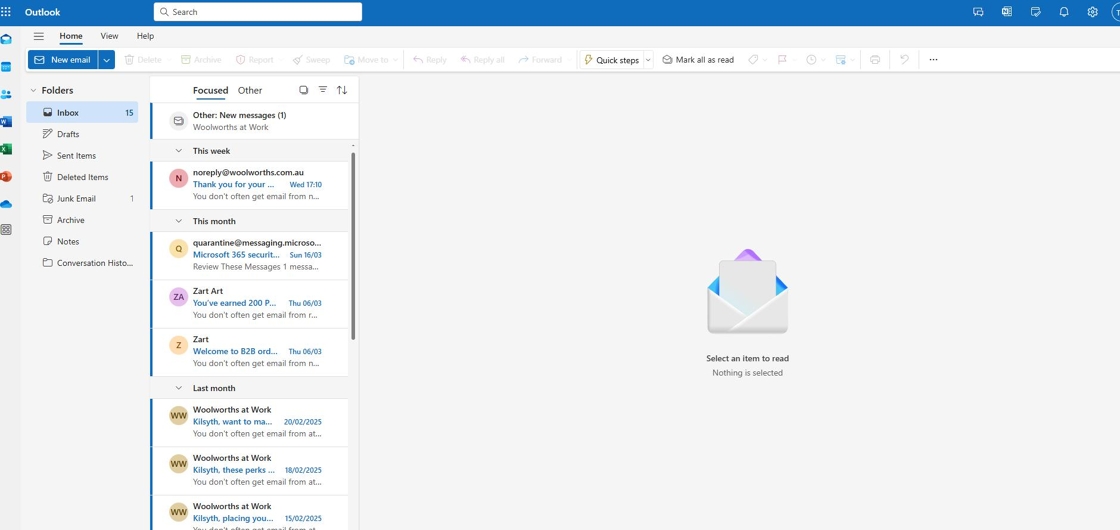
5. The inbox will open
Video Instructions
Was this article helpful?
That’s Great!
Thank you for your feedback
Sorry! We couldn't be helpful
Thank you for your feedback
Feedback sent
We appreciate your effort and will try to fix the article