These instructions shows users how to upload documents to the Service Files shared folder.
This is where your files are stored. This can be used for anything which may be shared between different team member working at the service such as medicals, photos, reports, QIP, SIP etc.
Anything opened in Office Online will automatically save.
TABLE OF CONTENTS
Getting to the Folder
1. Navigate to https://terrie.theircare.com.au/
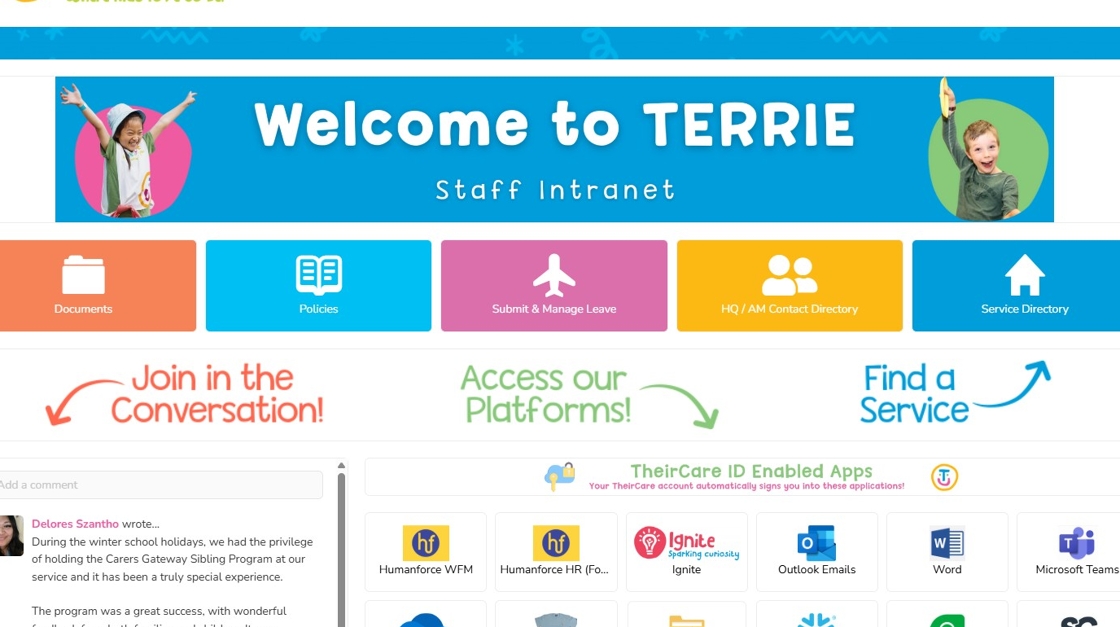
2. Click on Service File from the buttons area.

You will need to be logged into the browser as you own @theircare.edu.au email address not the service email to access the service folders.3. Open your service folder
Note: You will only see a small number of schools which you are linked to.

To Upload Files
1. Click "Upload"

2. Click "Files"

3. Search for the file and click upload

4. Click the file to open it or edit it using Office Online.
Video Instructions:
Troubleshooting
| I don't see the service in the storage location. | This could indicate that your account does not have permission to access the folder. Permissions are linked to your Humanforce account and the default service set for Coordiantor + 2IC roles and should automatically update with the services you need access to. In the event that this does not occur send an email to ithelpdesk@theircare.com.au and we can manually make the change for you. |
| What files can be uploaded? | This folder can have just about any type of file uploaded into it. To open the file online using your Microsoft Office licence the following file types are best supported:
Any of these can be opened just by clicking the file in the folder. |
Was this article helpful?
That’s Great!
Thank you for your feedback
Sorry! We couldn't be helpful
Thank you for your feedback
Feedback sent
We appreciate your effort and will try to fix the article