The instructions below show how to sign out of the current Apple account on the mobile, then sign into a new one.
Note: This process is needed to change from a temporary account to the new managed account.
TABLE OF CONTENTS
Instructions
1. Open the Settings application
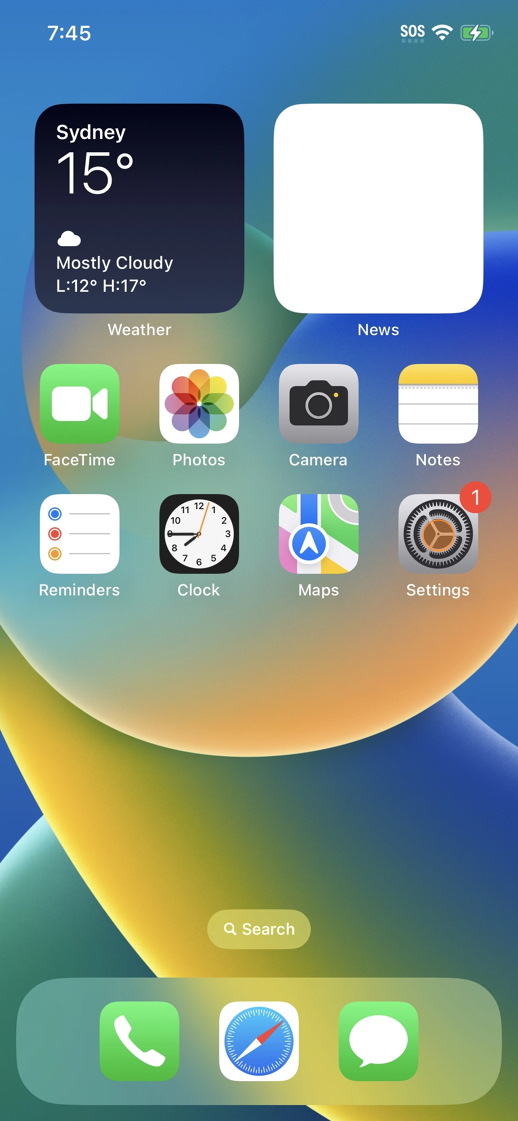
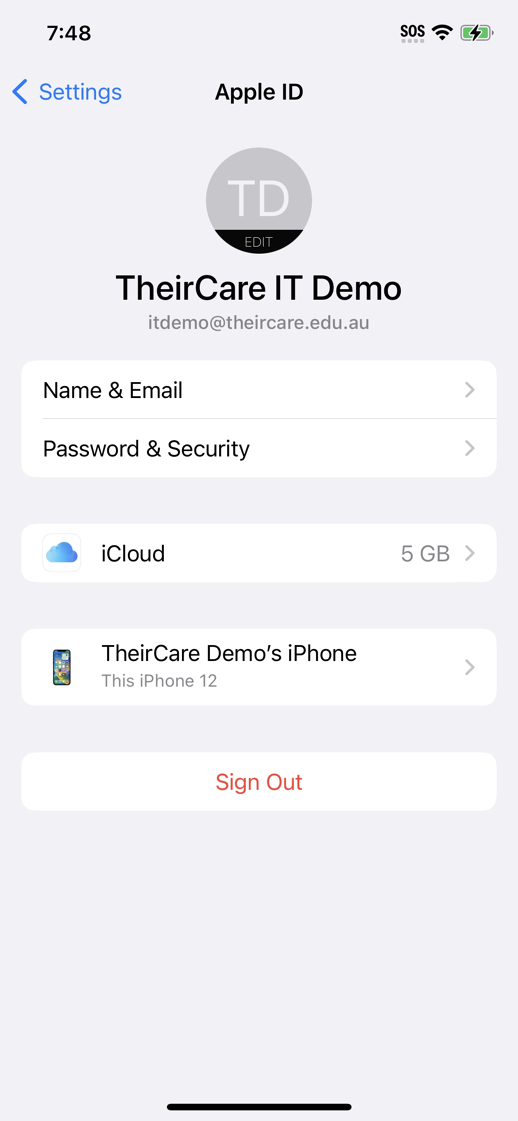
2. Click the account information at the top
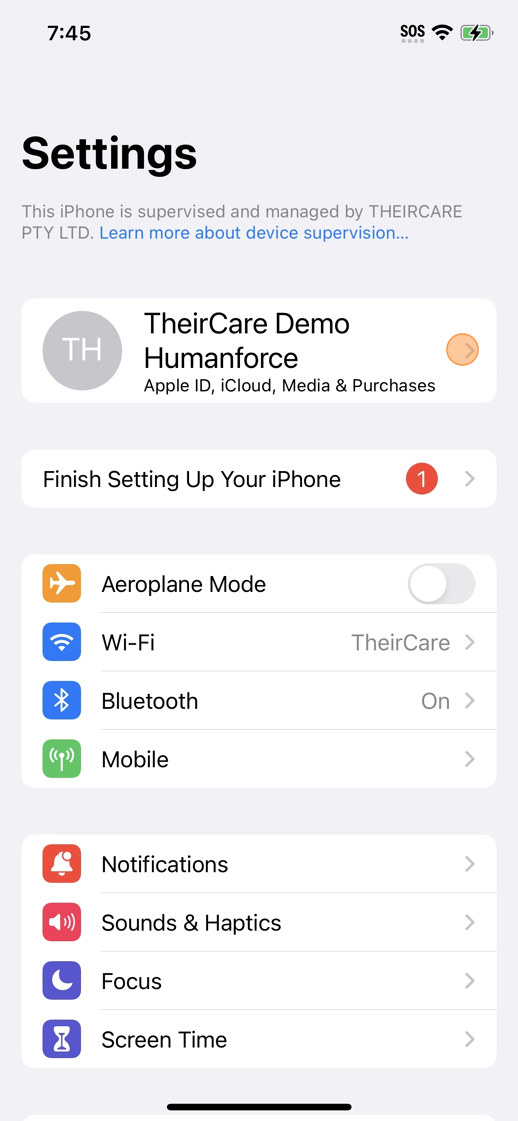
3. Scroll down and select Sign Out
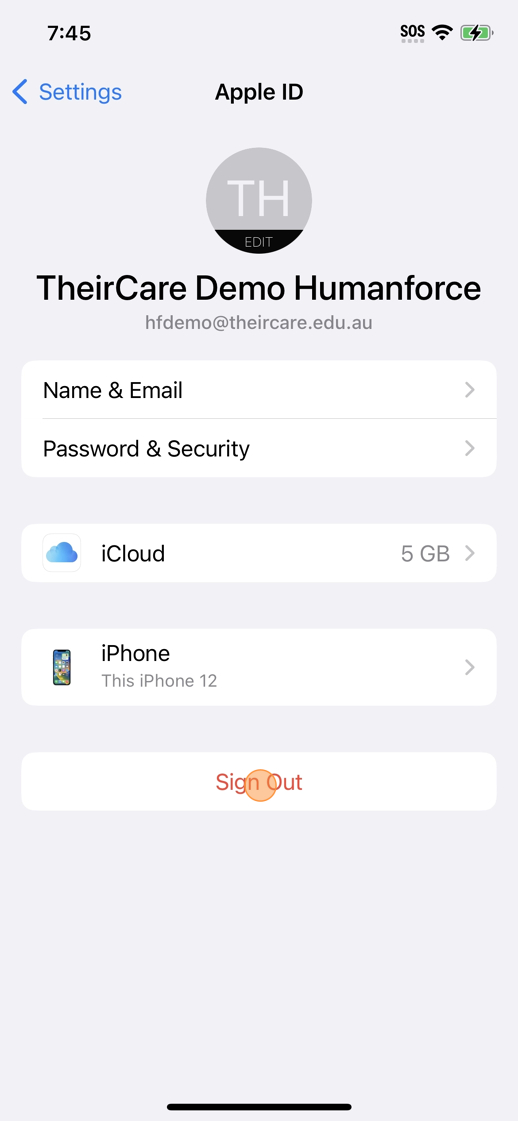
Tip: If prompted, enter the password for the account in. This will usually be one of the older default ones, likely 17C__________$

(fill in the missing characters, usually written somewhere at the service)
4. When prompted if you want to keep a copy of the data select yes for all of the options.
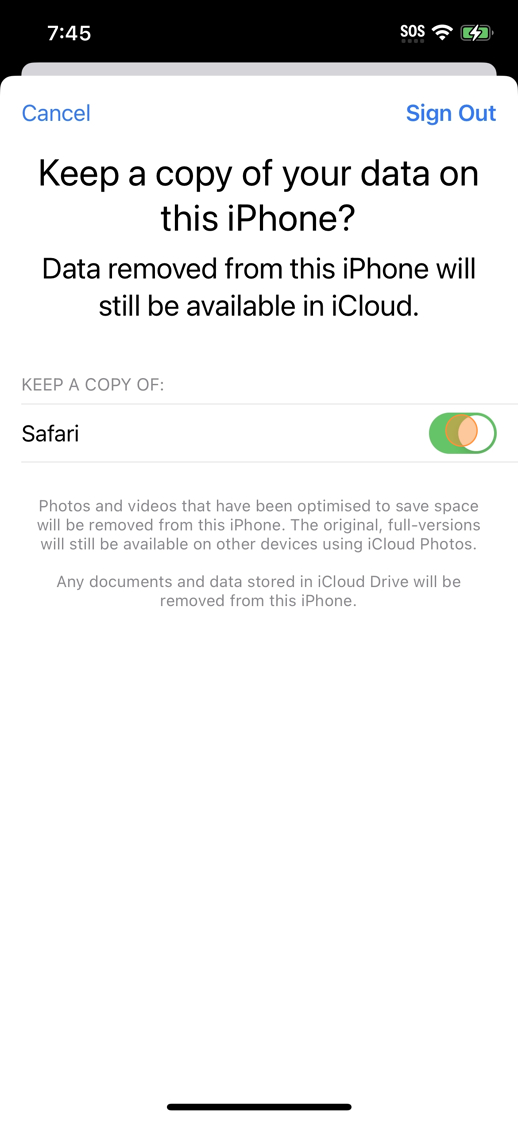
5. Click Sign Out
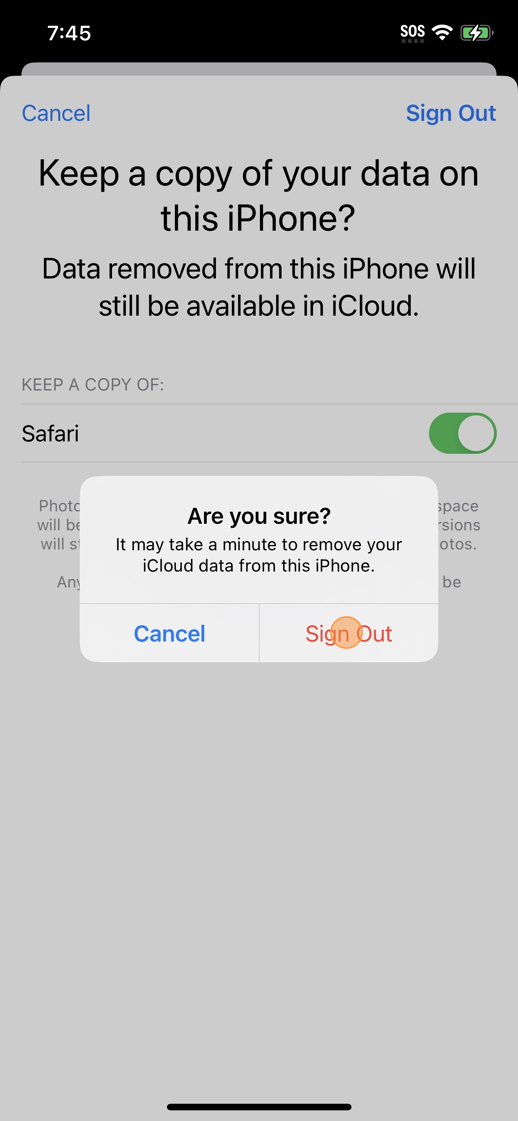
6. Click Sign Out
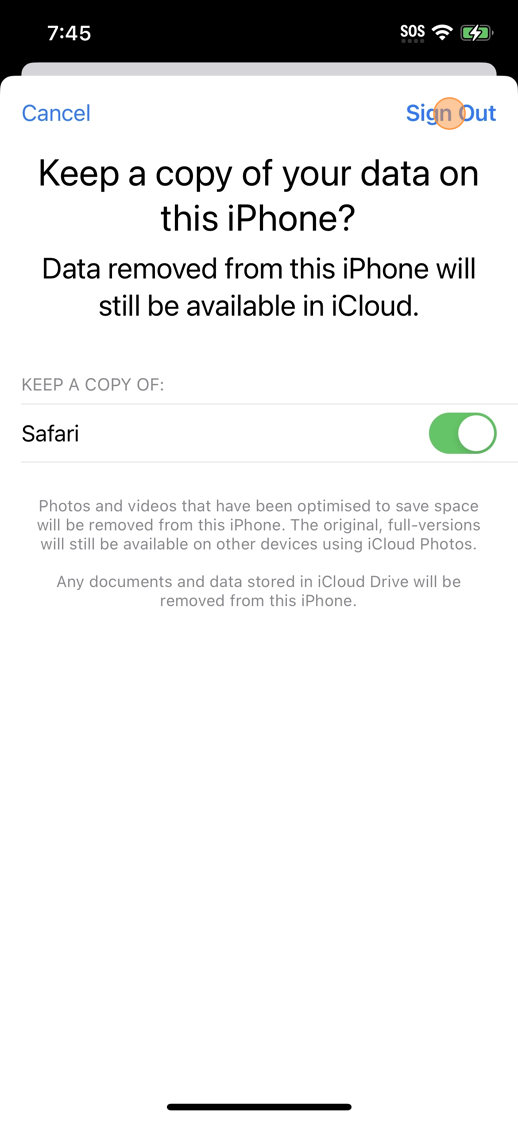
7. The phone will sign out of the user account

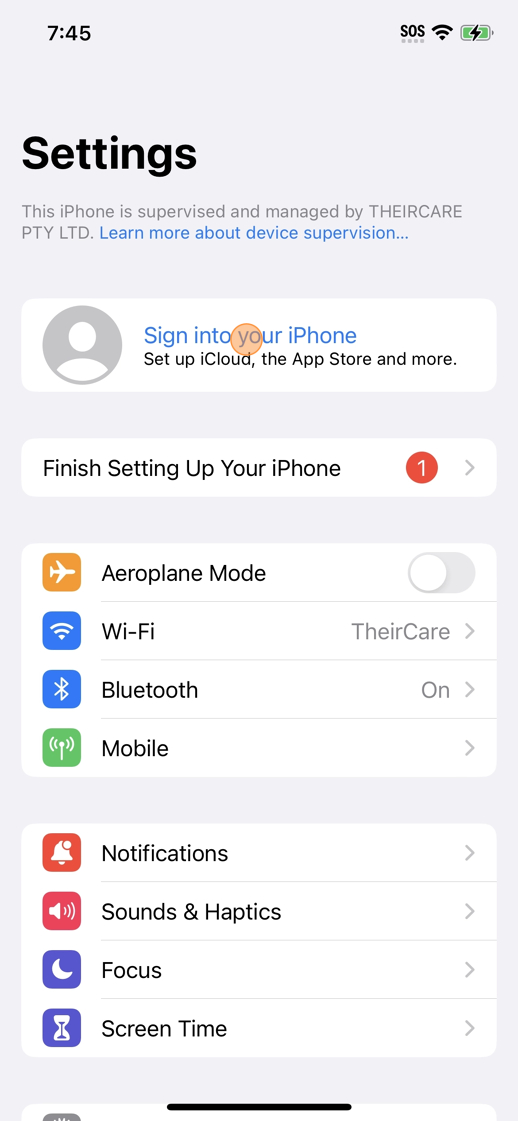
The phone will ask you to sign in again.
8. Click the Sign into your iPhone button at the top.
9. Enter in either your service email address OR the Coordinator's email address
Example:
- For services: sample@theircare.com.au will end in .com.au
- For staff: demo@theircare.edu.au will end in .edu.au
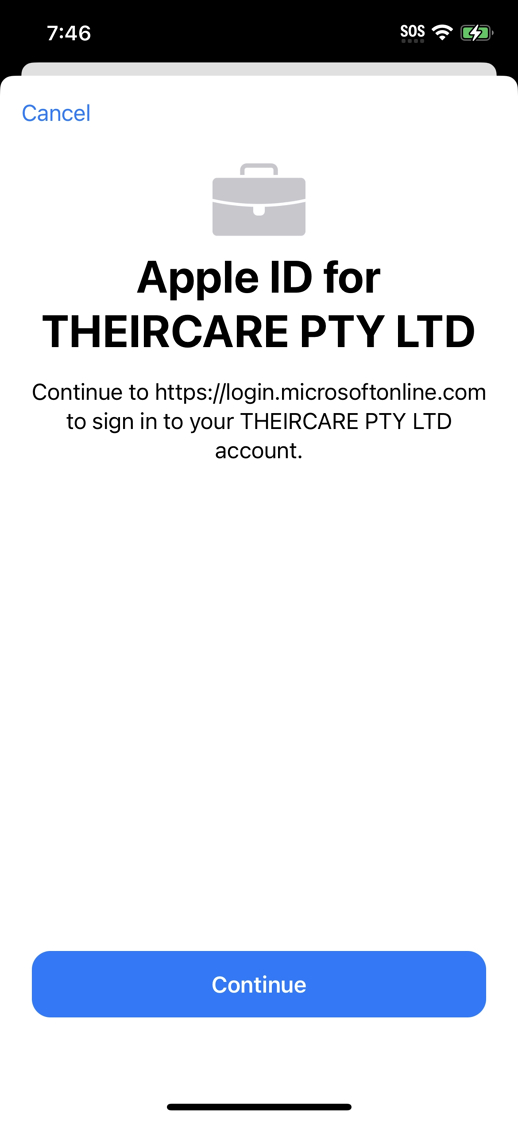
If your service no longer has access to the direct log in for the service email account (with a shared username and password), please use the Coordinator's email.

When a Coordinator leaves, they can be logged out of the phone and the new person logs in.
10. Enter your password
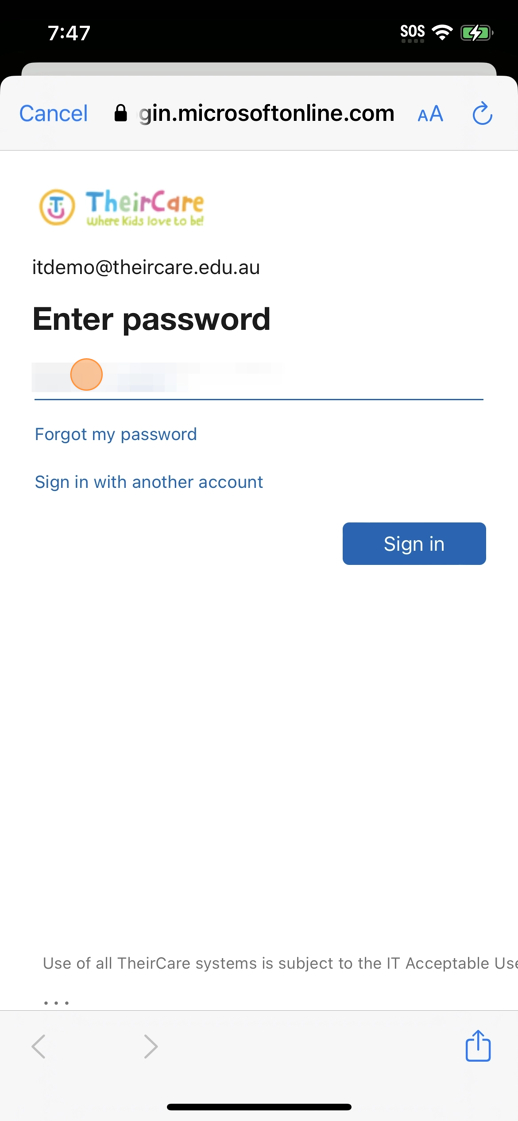
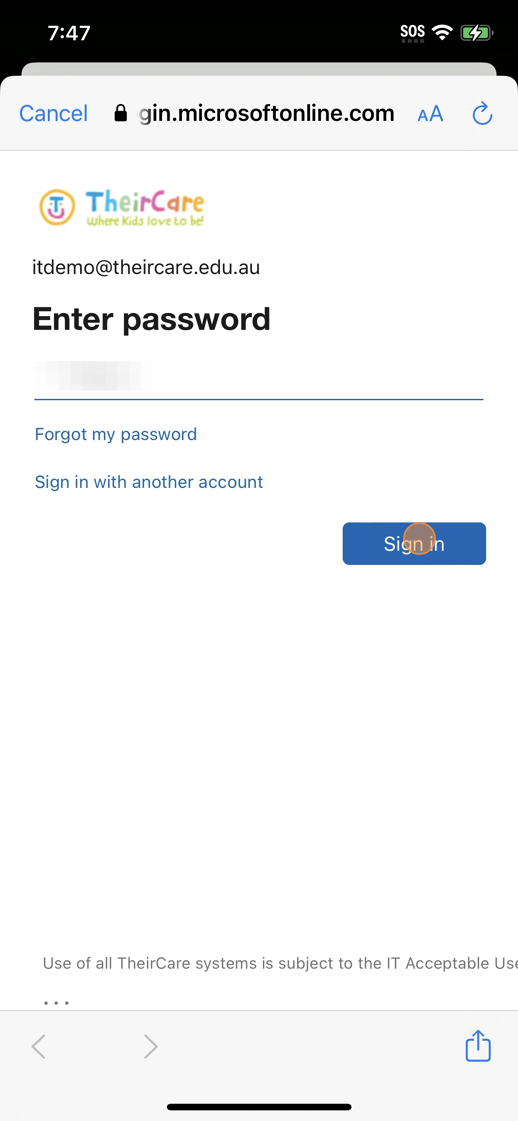
11. Click Sign In
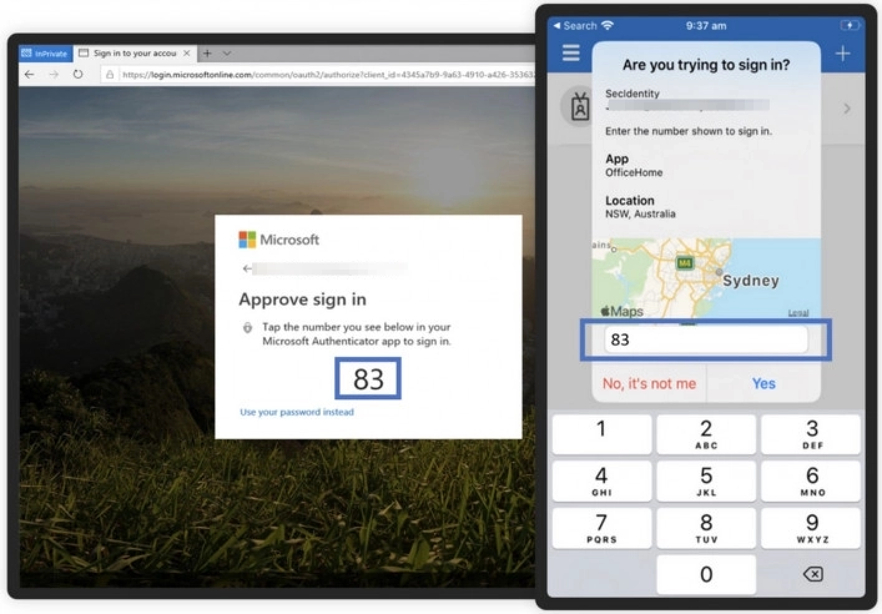
12. You may be prompted to complete Multifactor Authentication (MFA) by getting a verification code either by SMS or through the Microsoft Authenticator application.
Refer to the instructions on the phone or device for steps.
13. Click the box next to "Don't show this again"
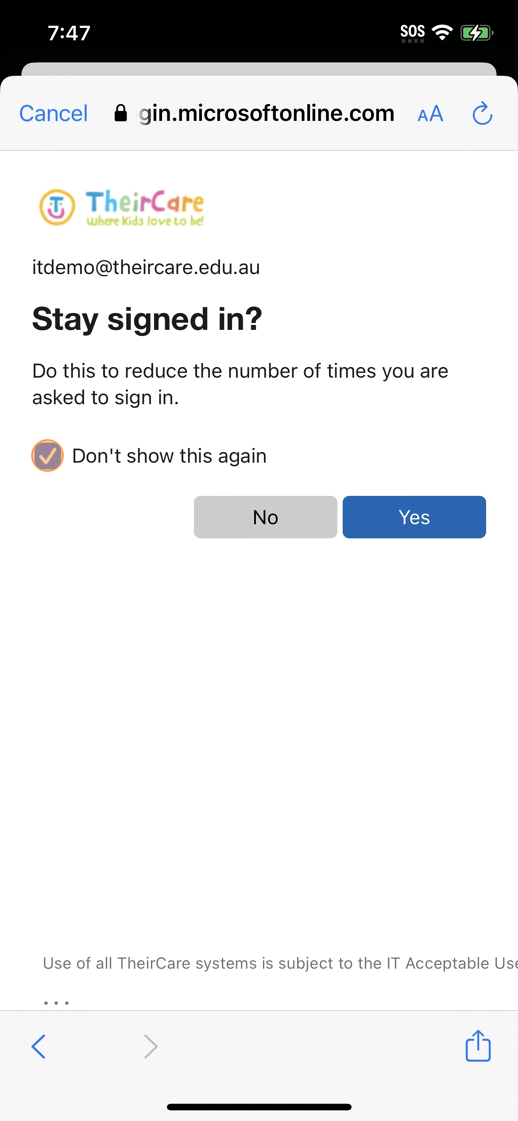
14. Click Yes
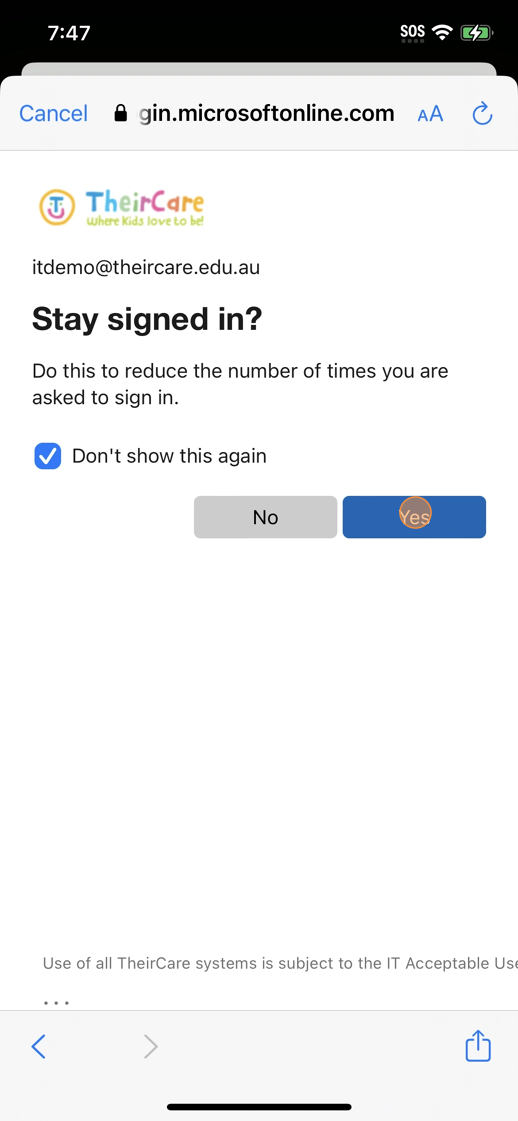
15. Done! You have now been signed in.
Video
Troubleshooting
Was this article helpful?
That’s Great!
Thank you for your feedback
Sorry! We couldn't be helpful
Thank you for your feedback
Feedback sent
We appreciate your effort and will try to fix the article