Walkie talkies are a simple and reliable way for staff to stay in touch across your child care service. They provide instant communication at the push of a button — perfect for playground supervision, excursions, or coordinating between rooms.
The Retevis RB67AU walkie talkies are easy to use, durable, and safe, and they can talk to any other UHF walkie talkies you may already have on-site, no matter the brand. This ensures all staff can stay connected and responsive, helping create a safer and more efficient environment for children and educators alike.
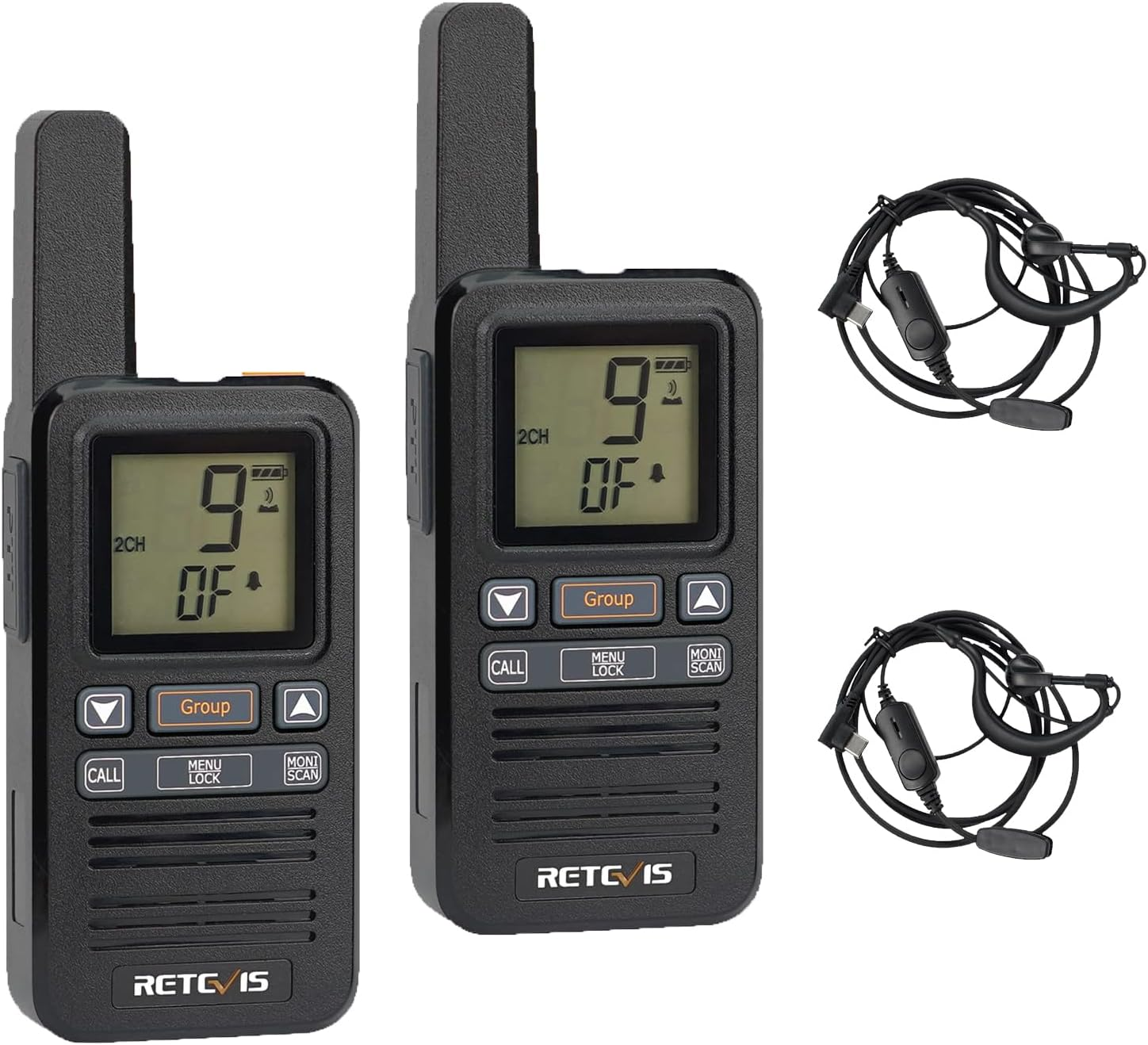
TABLE OF CONTENTS
- Best Practice for Communication
- Important Privacy Information
- 1. Buttons & Getting to Know Your Device
- 2. Power & Charging
- 3. Turning On the Device
- 4. Choosing a Channel
- 5. Setting the Volume
- 6. To Talk
- 7. Troubleshooting:
- 8. Optional: Headset
- 9. Optional: CTCSS & DCS
Best Practice for Communication
Use for quick updates (e.g., moving children between areas, requesting assistance, safety checks).
Always identify yourself at the start of a call (e.g., “Room 1 to Office”).
Keep conversations professional and relevant — avoid casual chatter.
Important Privacy Information
Walkie talkies are open-channel devices, which means:
Anyone using another UHF/CB radio nearby may hear your conversations.
There is no encryption — messages are not private.
Avoid sharing sensitive or personal information (e.g., children’s full names (first names are OK), addresses, health details).
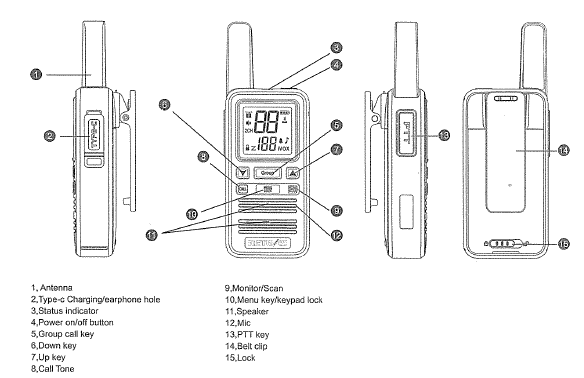
1. Buttons & Getting to Know Your Device
2. Power & Charging
Please ensure that you charge the radios before first use. This is completed by attaching the USB-C cable (provided) into the side of the device (under the little flap). The other end needs to be plugged into a USB plug/wall charger.
The device will be fully charged when the red light is off.
3. Turning On the Device
Hold down the power button on the top. The screen will turn on and you will hear a beep.
4. Choosing a Channel
There are 80 channels that this device can access. These are public channels, like similar walkie talkies so it may take some trial and error to find a channel which works for your area.
To set the channel,
- Press the menu button
- Press the up and down arrow buttons to select the channel - it will change on the screen
- Press the talk button on the side
Recommendation: The following channels should be avoided as they are either legally restricted, or are commonly used by truck drivers, construction sites and caravan/campers:
- Channel 5 - Repeater (Restricted Use)
- Channel 10 - 4WD Clubs
- Channel 11 - (Restricted Use)
- Channel 18 - Caravan Owners
- Channel 22 - (Restricted Use)
- Channel 23 - (Restricted Use)
- Channel 29 - Road Safety Channel
- Channel 35 - Repeater(Restricted Use)
- Channel 40 - Truck Drivers
- Channel 61 - (Restricted Use)
- Channel 62 - (Restricted Use)
- Channel 63 - (Restricted Use)
5. Setting the Volume
To change the volume, click the up and down buttons until you find the desired setting
6. To Talk

- Hold the radio unit up near your mouth.
- Press and hold the talk button on the side
- Talk clearly into to the radio
- When finished release the talk button
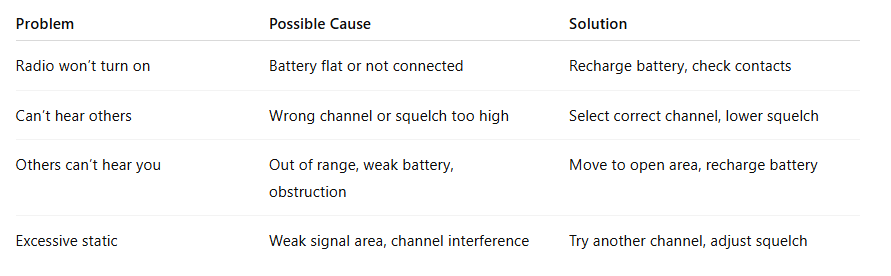
7. Troubleshooting:
8. Optional: Headset
This radio includes a headset which can be used by educators. To connect this, plus the plug into the USB C port on the side of the device. The noise will come out of the ear piece. To talk, press the button on the microphone section.
As these are shared devices, if you wish to use the optional headset please ensure the earpiece is sanitised between each use. This can be done by wiping with disinfecting wipes.
9. Optional: CTCSS & DCS
CTCSS: Continuous Tone Controlled Squelch System
This adds a tone into your transmission at a certain frequency. Other radios must have the same CTCSS tone or code set to hear the transmission. It will also be heard if the radio has CTCSS and DCS off.
Different CTCSS codes have different frequencies, and this is how it filters out other people - as long as they have a different CTCSS, or no CTCSS, then your radio will not pass any audio to the speaker. A radio with CTCSS enabled will only pass audio for the tone it has set.
DCS: Digitally Controlled Squelch
It stands for Digitally Coded Squelch. It sends a number repeatedly encoded in digital as you speak, in the low frequencies so you do not hear it. If someone else transmits on the channel with a different or no DCS, the radio will not unmute. If they transmit with the same DCS as you, then your radio will unmute. DCS is newer than CTCSS, and has more codes. This gives a lower chance of picking the same code as someone else.
To turn this on:
- Press the Menu button twice until CTCSS/DCS comes up on the screen
- Use the up and down buttons to select your encoding number. This must be the same for all devices used at the service.
- Press the talk button to exit the menu mode.
CTCSS & DCS are not encryption, they just assist with filtering out other users. Please keep in mind that everything you say may still be public to anyone who may have a radio.
Was this article helpful?
That’s Great!
Thank you for your feedback
Sorry! We couldn't be helpful
Thank you for your feedback
Feedback sent
We appreciate your effort and will try to fix the article