This information is applicable to setting up the primary service mobile only. If the device is a secondary or subsquent phone please view the alternative instructions.
What is this phone?
We provide services with access to a mobile to assist with essential communications, along with light administrative duties. These phones will provide users with access to the core tool/tasks including phone calls, SMS and the Microsoft suite of applications (Teams, Outlook etc). There will be a range of pre-approved applications available from the Google Play store which can be installed depending on your location or use case.
What phone has been issued?
These instructions will work with any Android based device, however the current model issued is the Samsung A17 5G Enterprise Edition which is more than capable of handling the day to day intended tasks. It has a large touch screen and uses the international standard charger - USB Type C. These phones come with a screen protector and case.
Will I get an iPhone?
No, to provide a consistent managed solution, it is better to reduce the different operating systems to Android (for mobile devices such as phones and tablets) and Windows (for laptops). This will allow us better flexibility to create new functions for you which will make your job easier.
How to I set it up?
Please follow these instructions:
Unboxing Your Phone:
- Unrwap your phone and remove it from the box
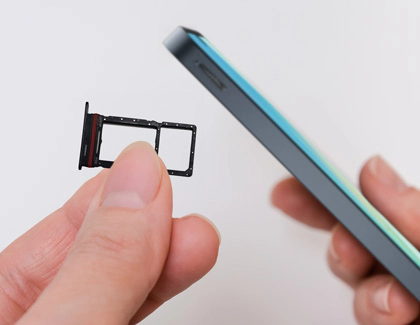
- Take out the inner tray. You will find a SIM card ejector tool along with a charging cable.

Inserting the SIM Card - if this is a replacement phone.
- Take the case off the phone
- Use the ejector tool to remove the SIM card tray.
- Take the SIM card out of your old phone
- Insert the SIM card into the tray of your Samsung mobile
- Reinsert the tray into your mobile
- Put the case back on.
Setting Up Your Mobile:
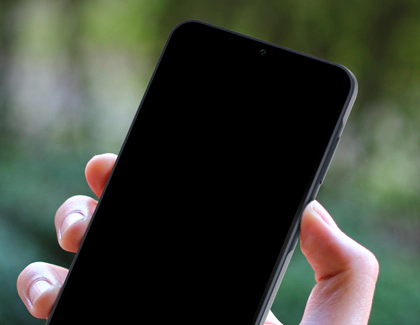
1. Hold down the small button on the right side of the phone to turn it on
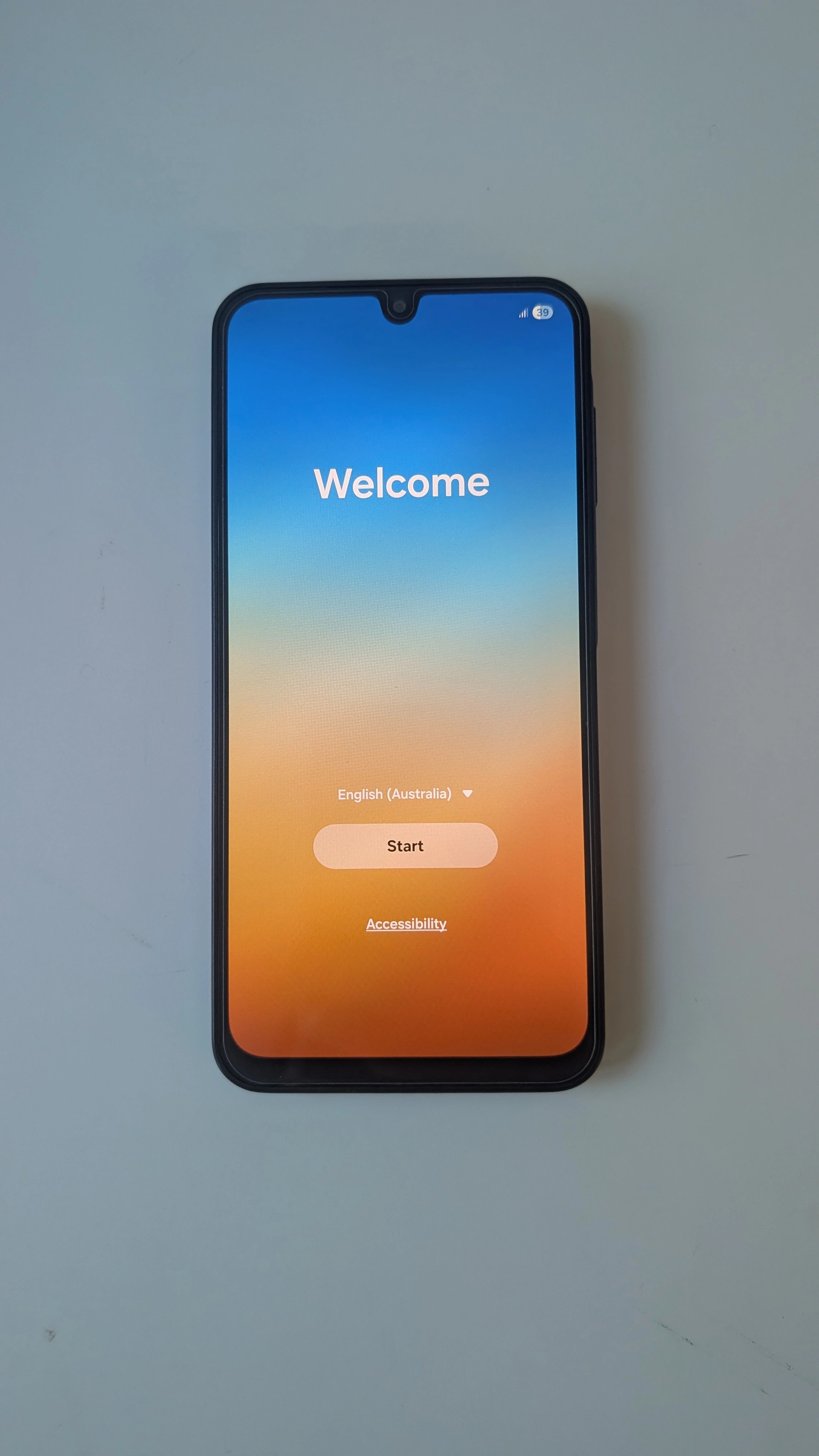
2. On the welcome screen, tap repeatedly until it moves to the next screen
This is a CRITICAL step - Keep tapping until the scan QR code screen appears. Do not tap Start
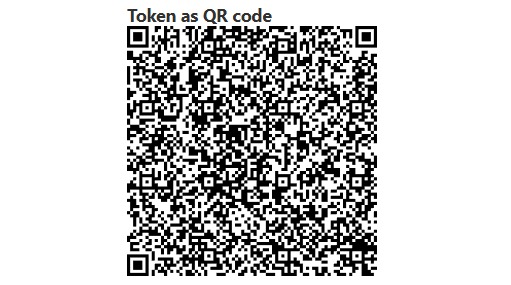
3. The screen will ask you to scan a QR code
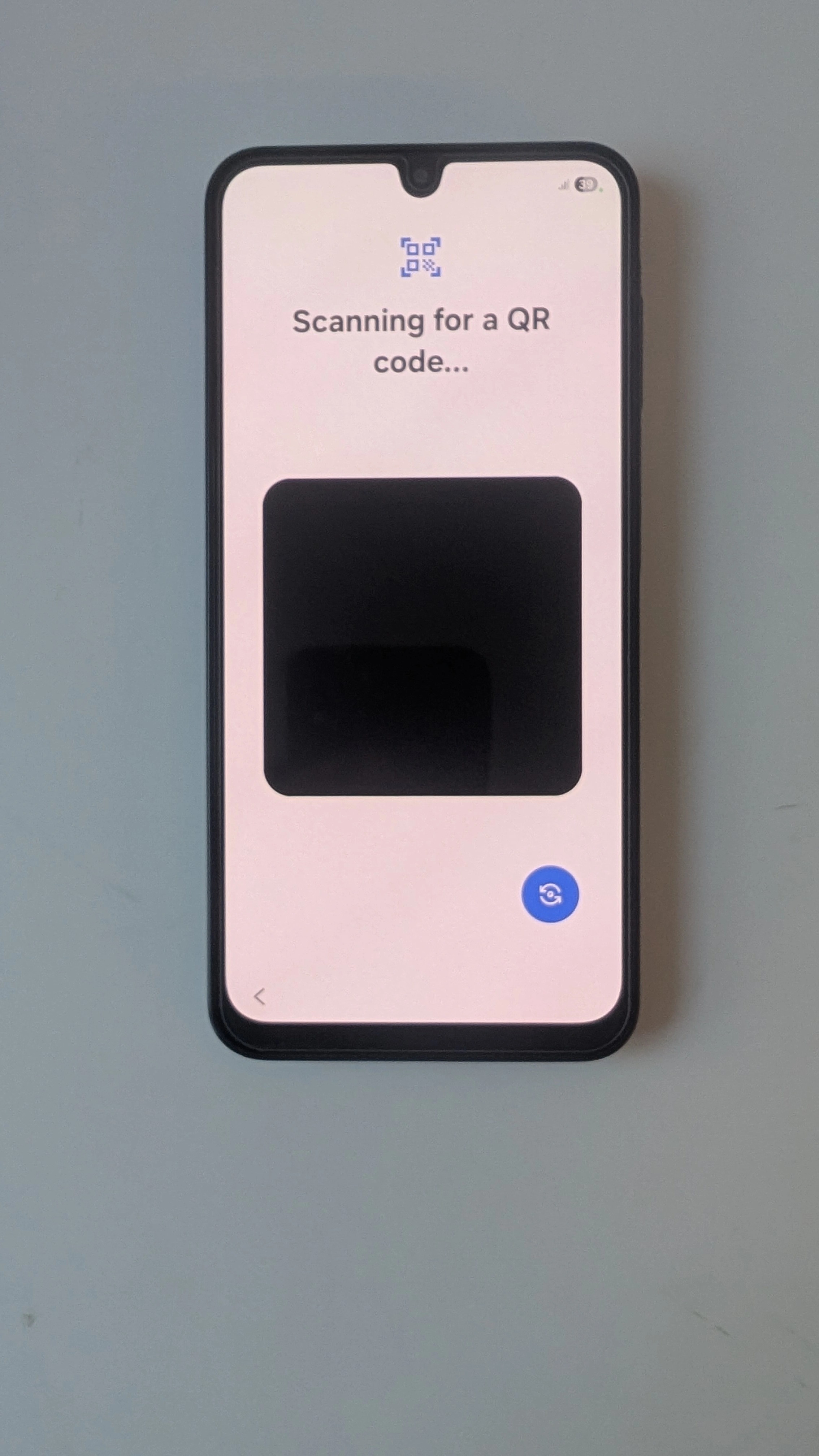
4. Scan the QR code below
5. Select the Wi-Fi network
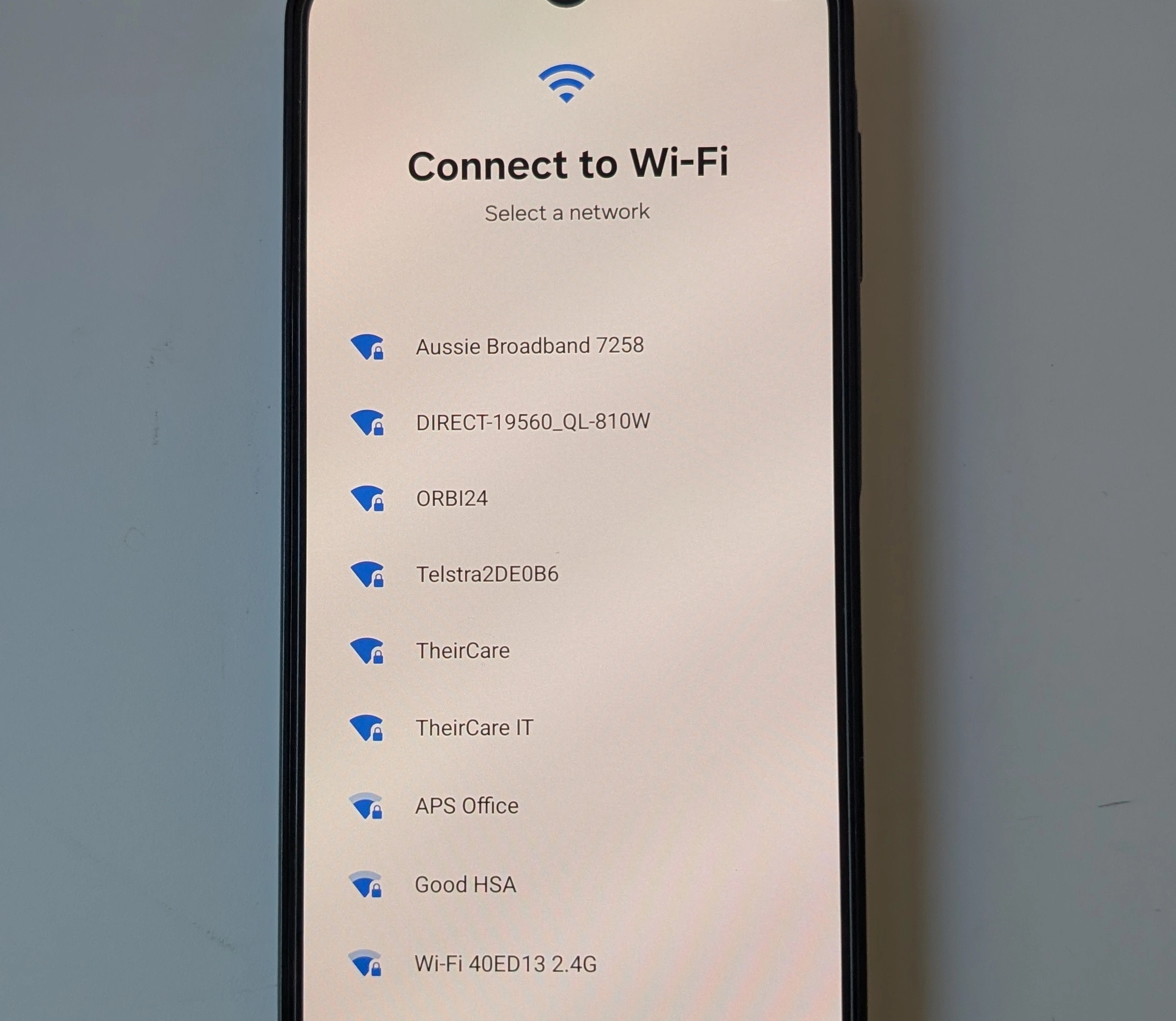
Tip: If you have an active SIM in the phone you may be able to skip this and use mobile data. If available it will appear at the bottom of the Wi-Fi network options.
6. Enter the network password
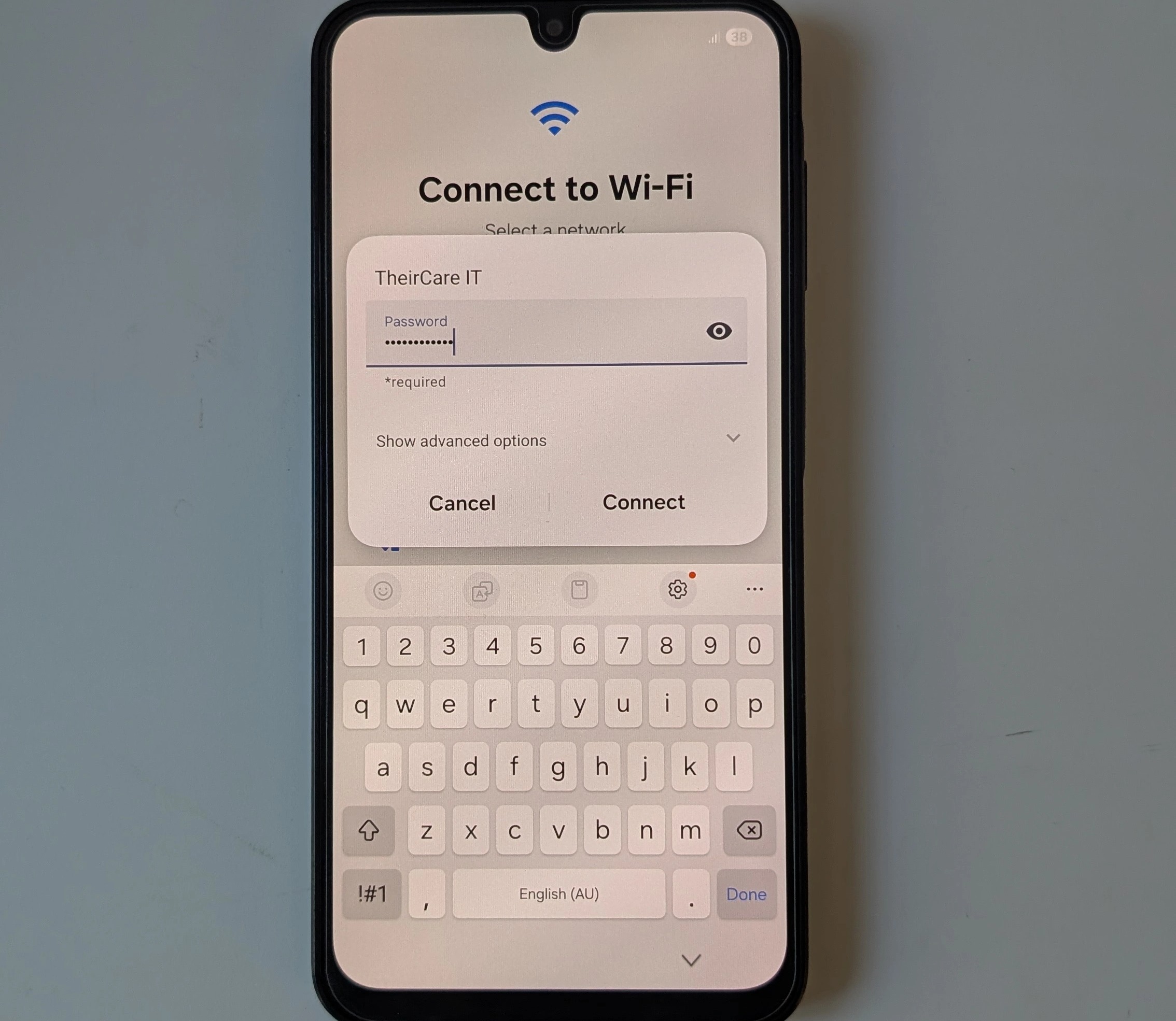
7. The phone will start to download our provisioning package
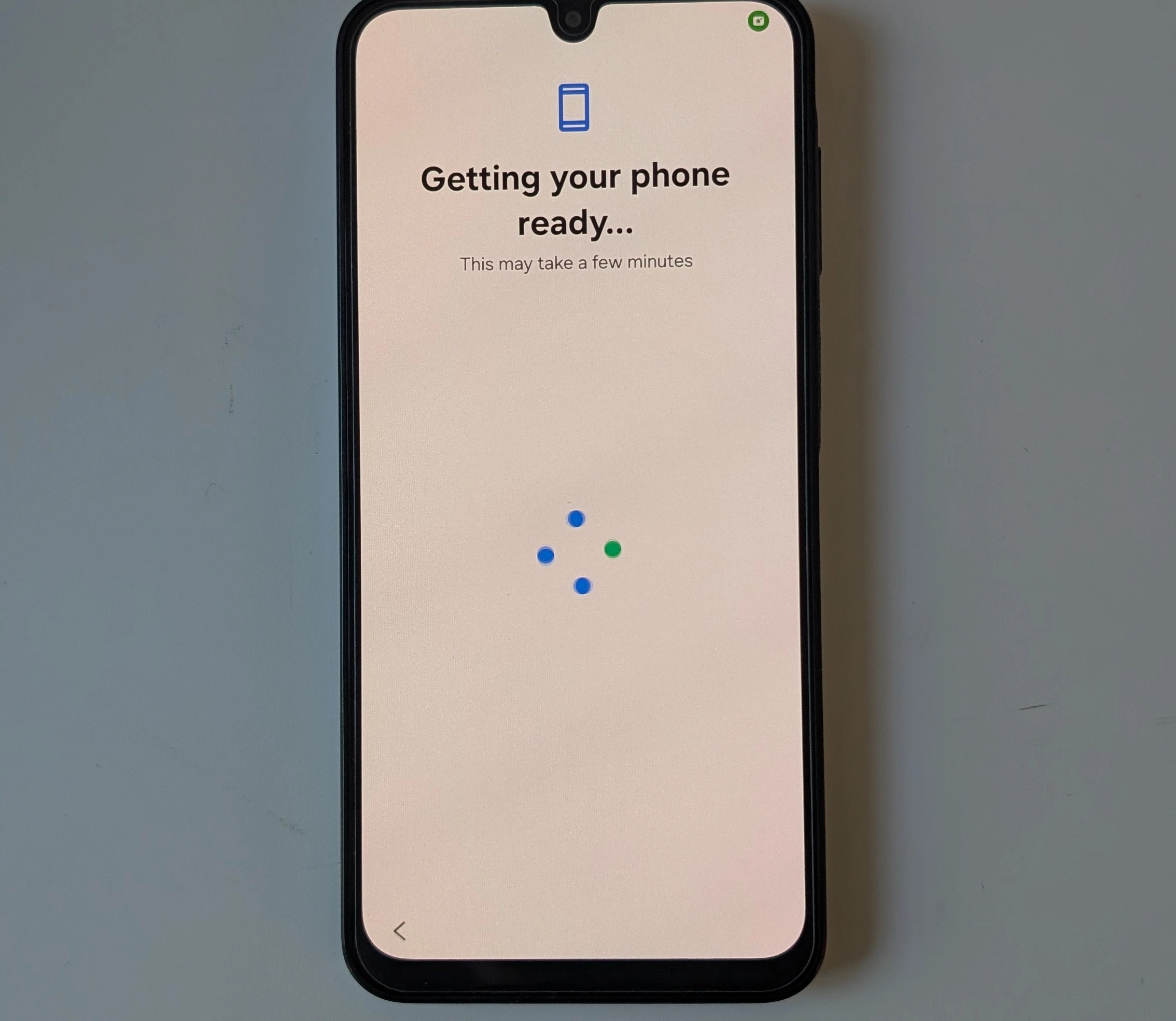
8. Tap "Continue"
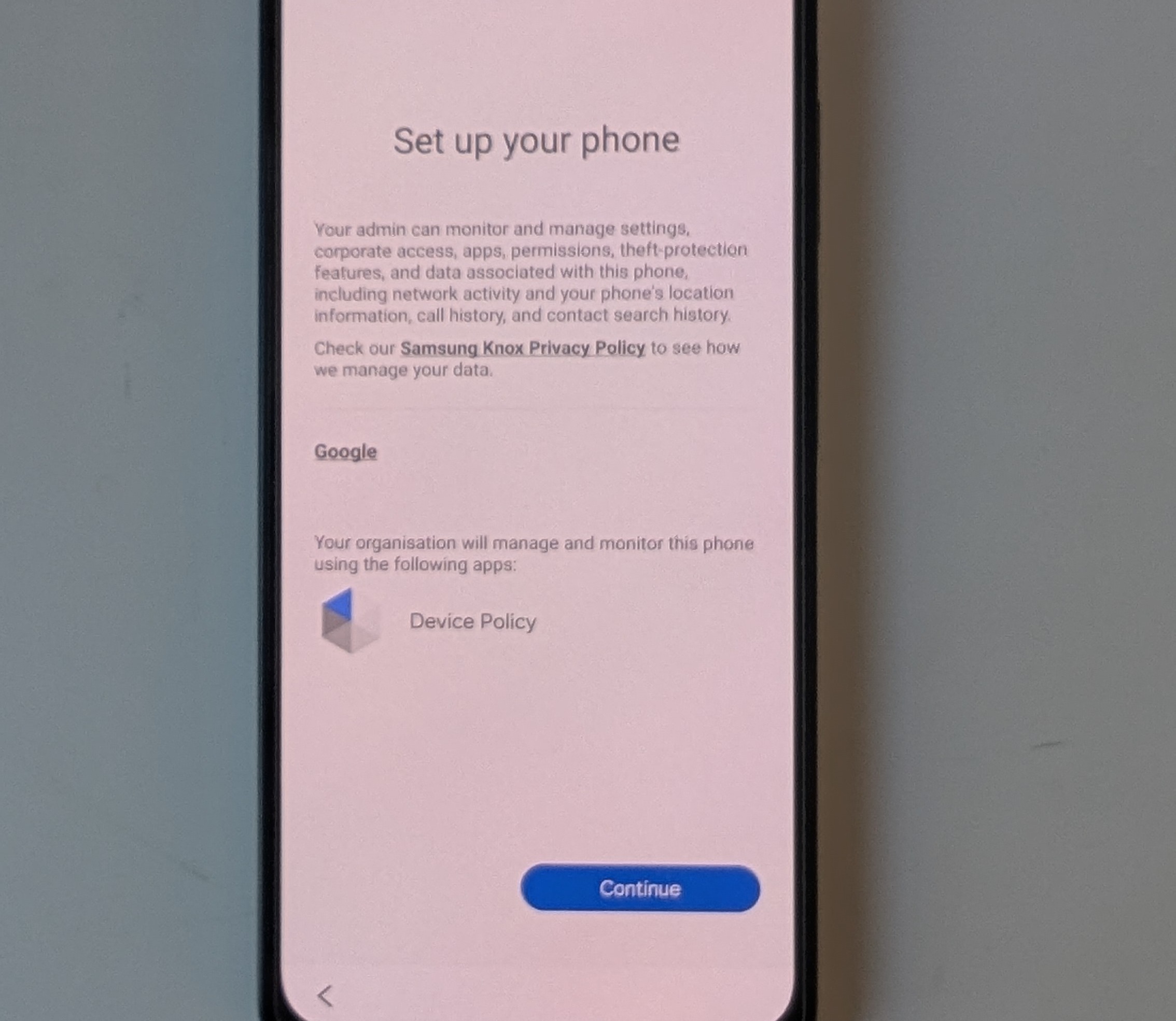
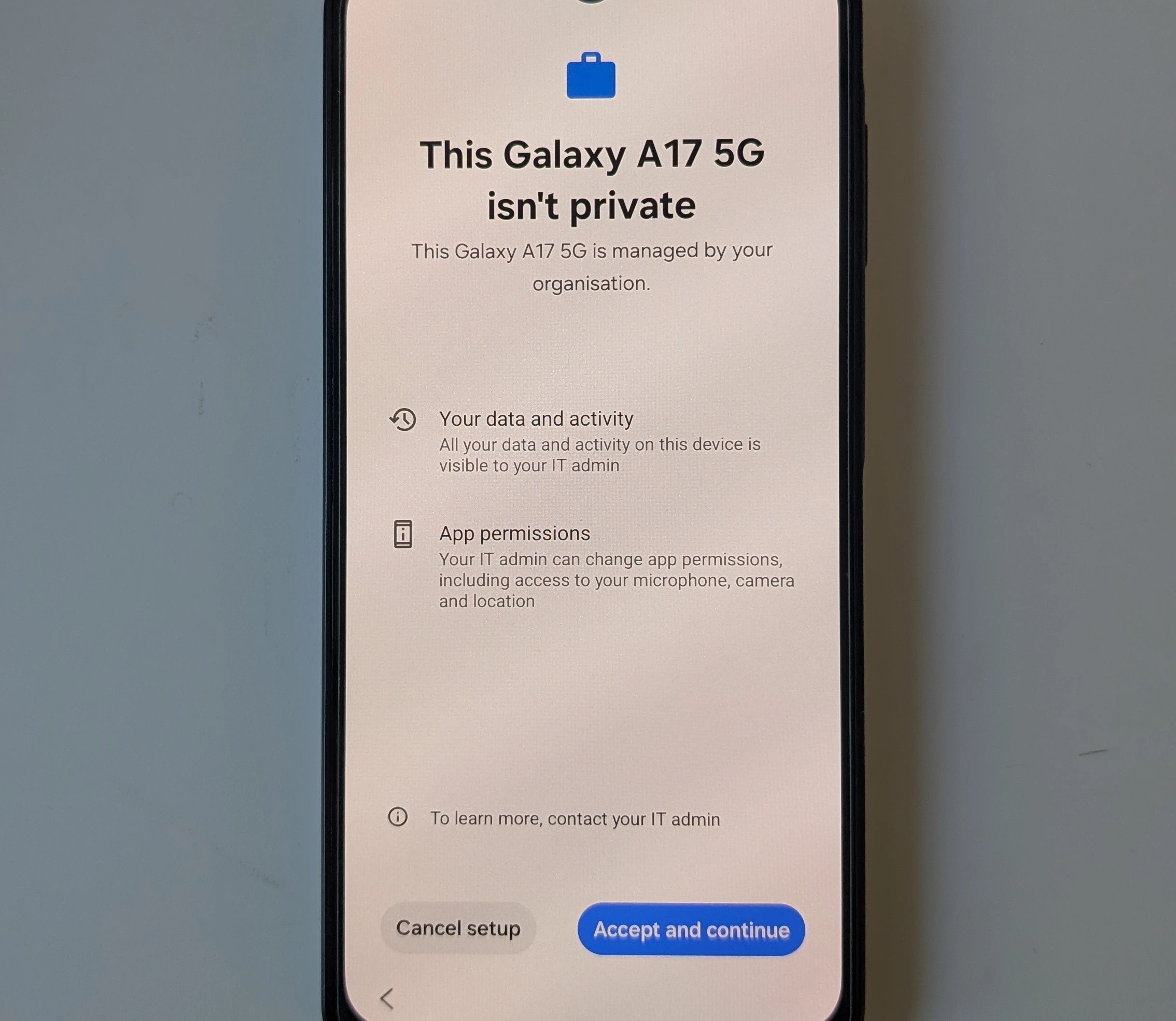
9. Tap "Accept and continue"
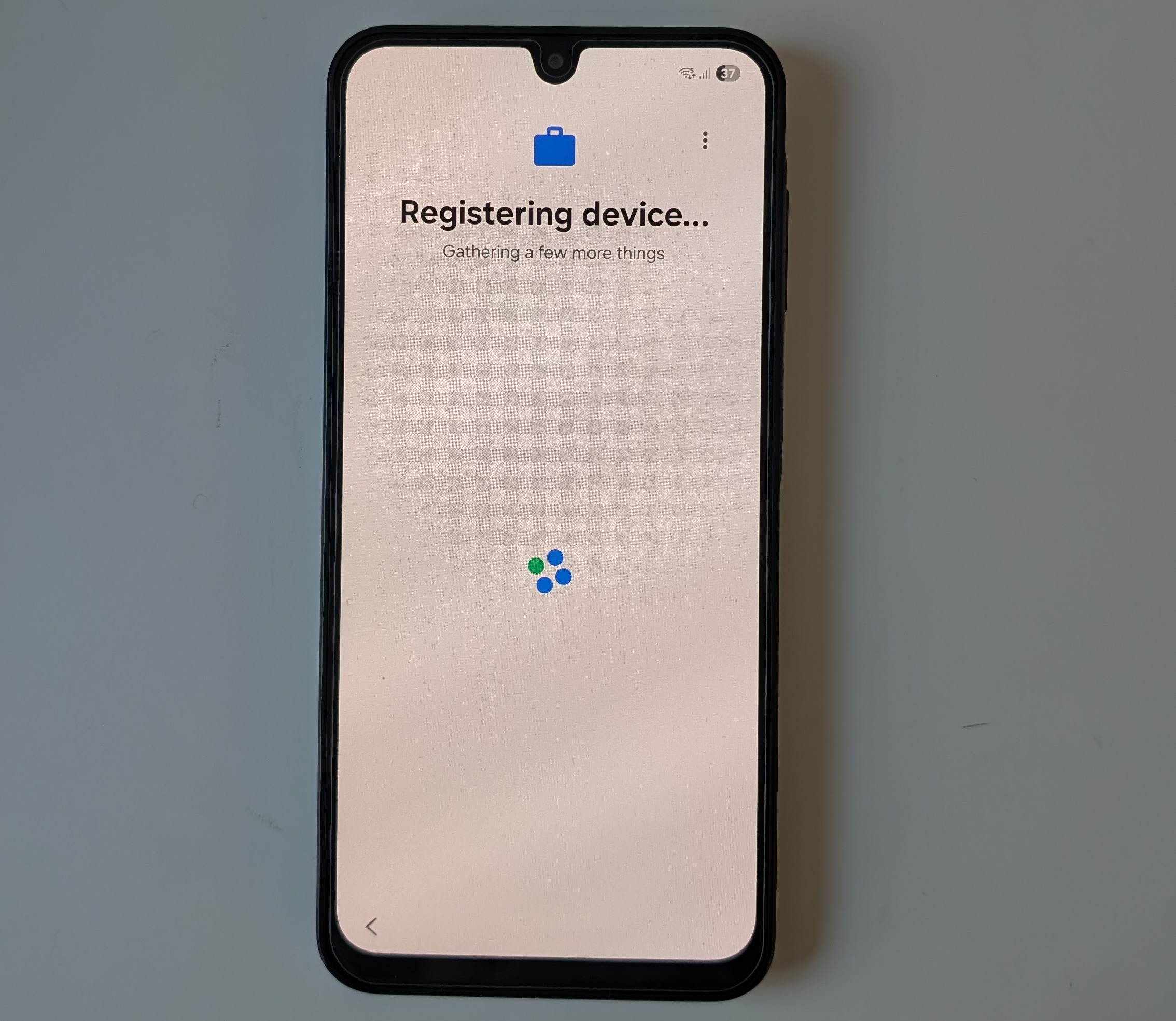
10. Allow the phone to register
11. Enter the email address and tap the "Next" button
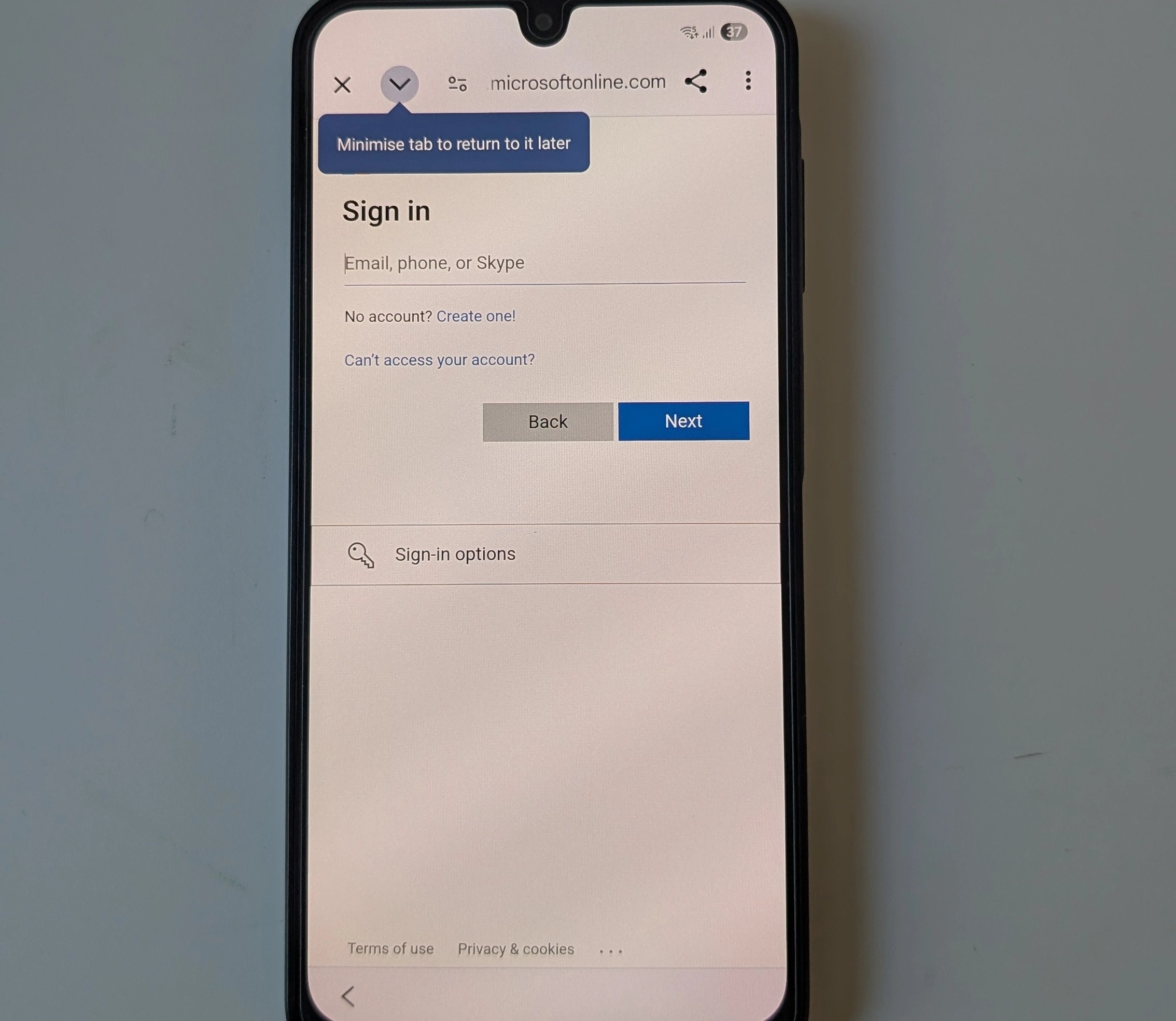
12. Enter the password and tap the "Sign in" button
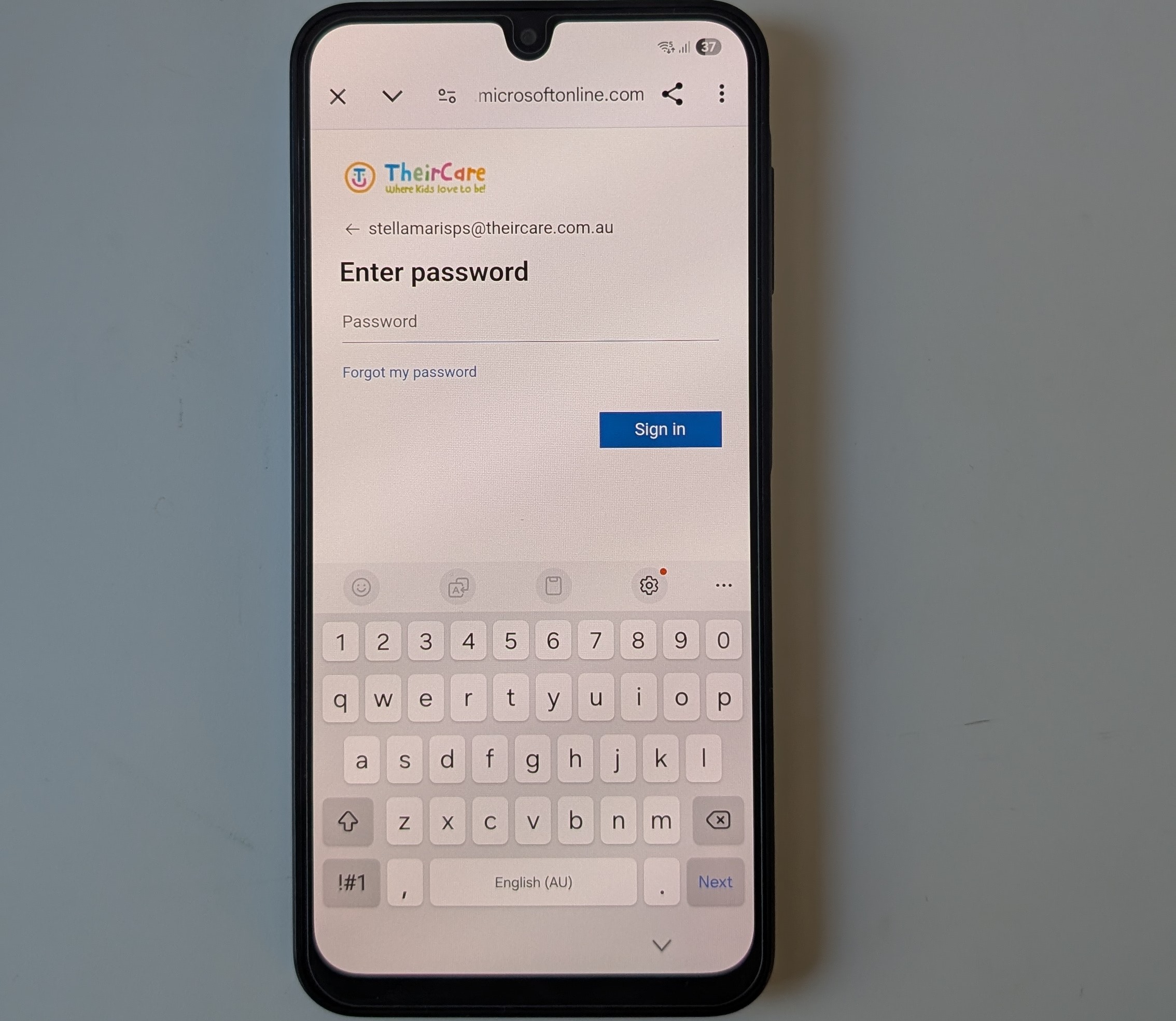
13. Allow the device to load/register
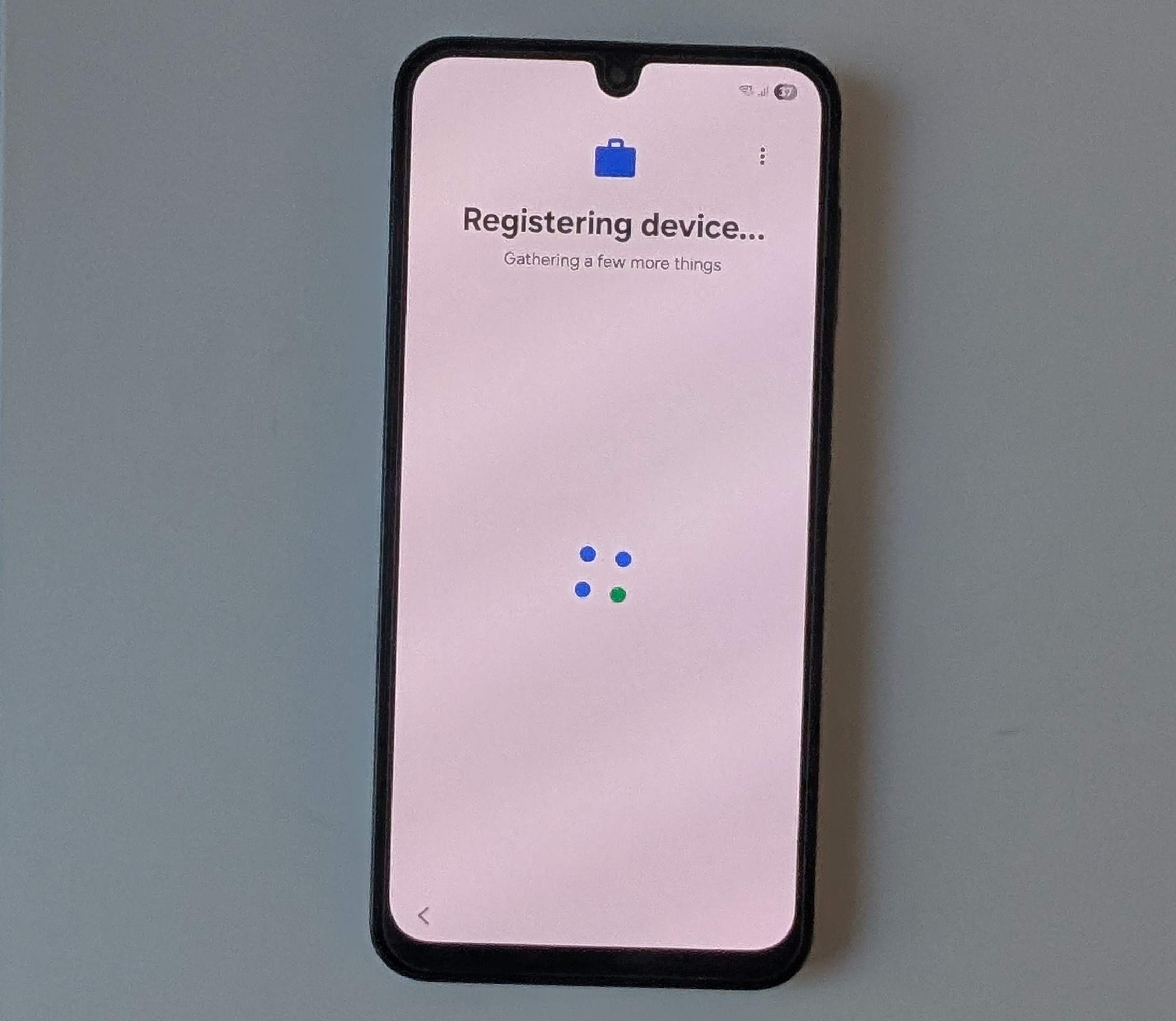
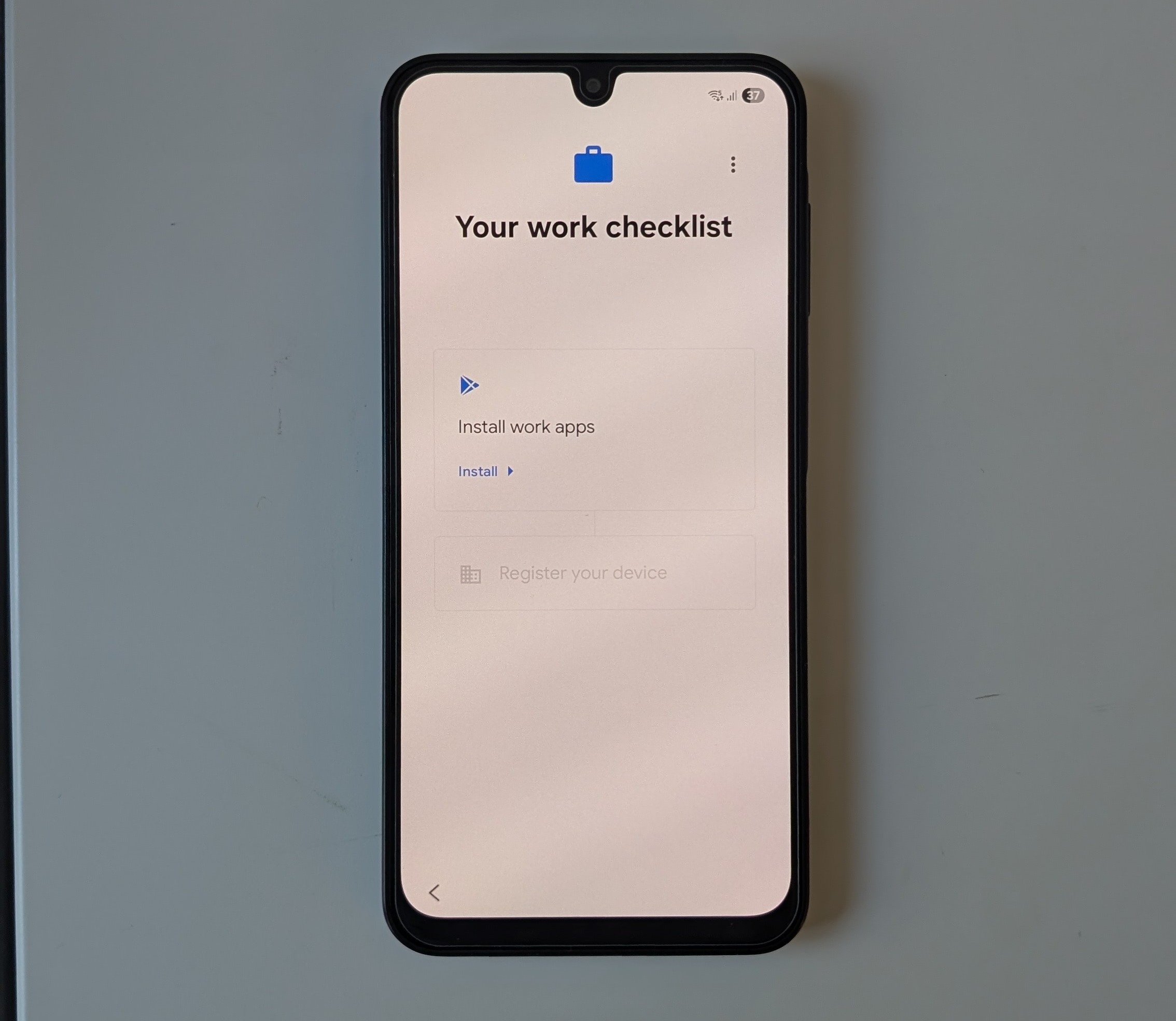
14. Tap "Install"
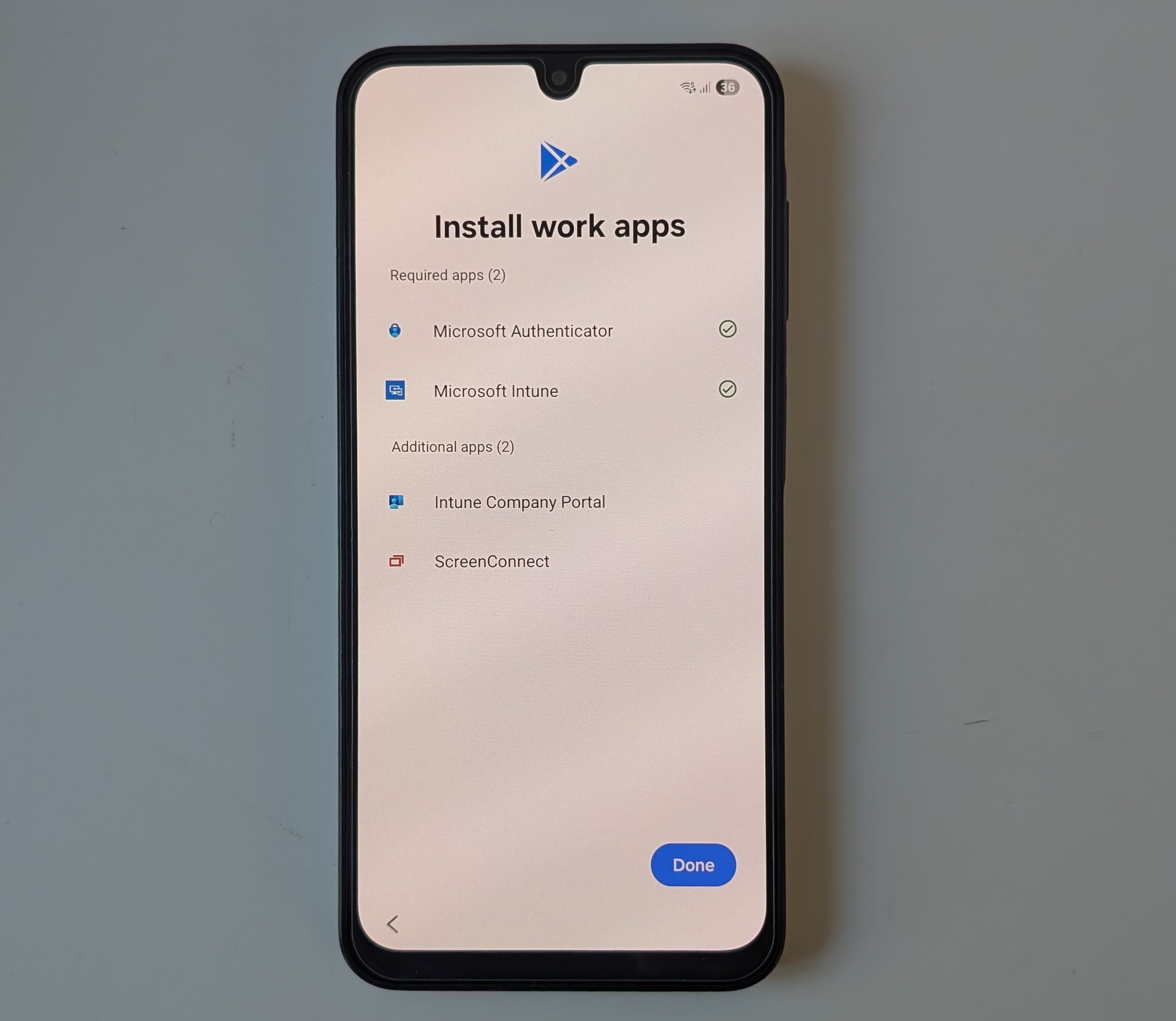
15. One Intune has installed tap "Done"
16. Tap "Set up"
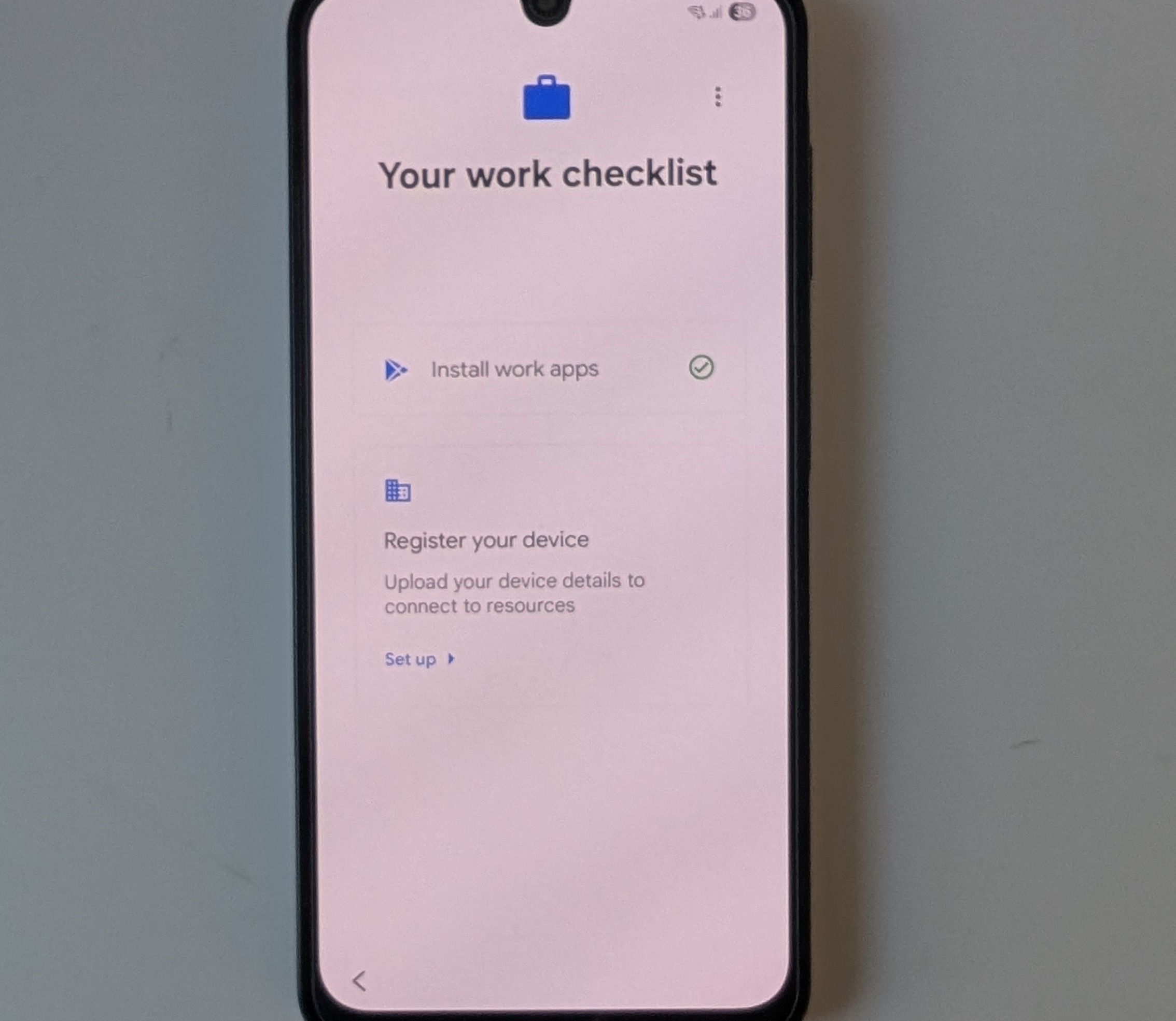
17. Tap "Sign In"
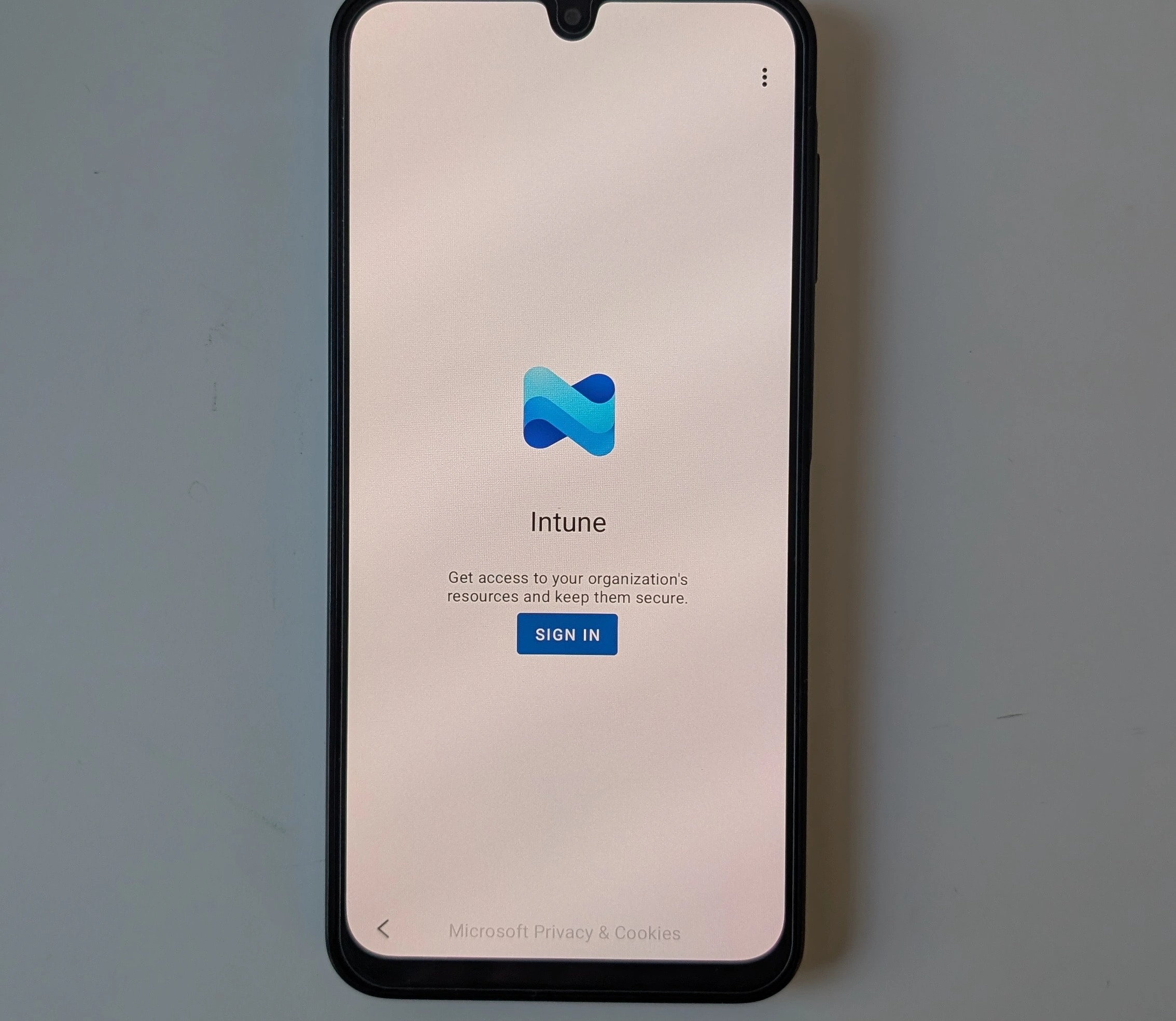
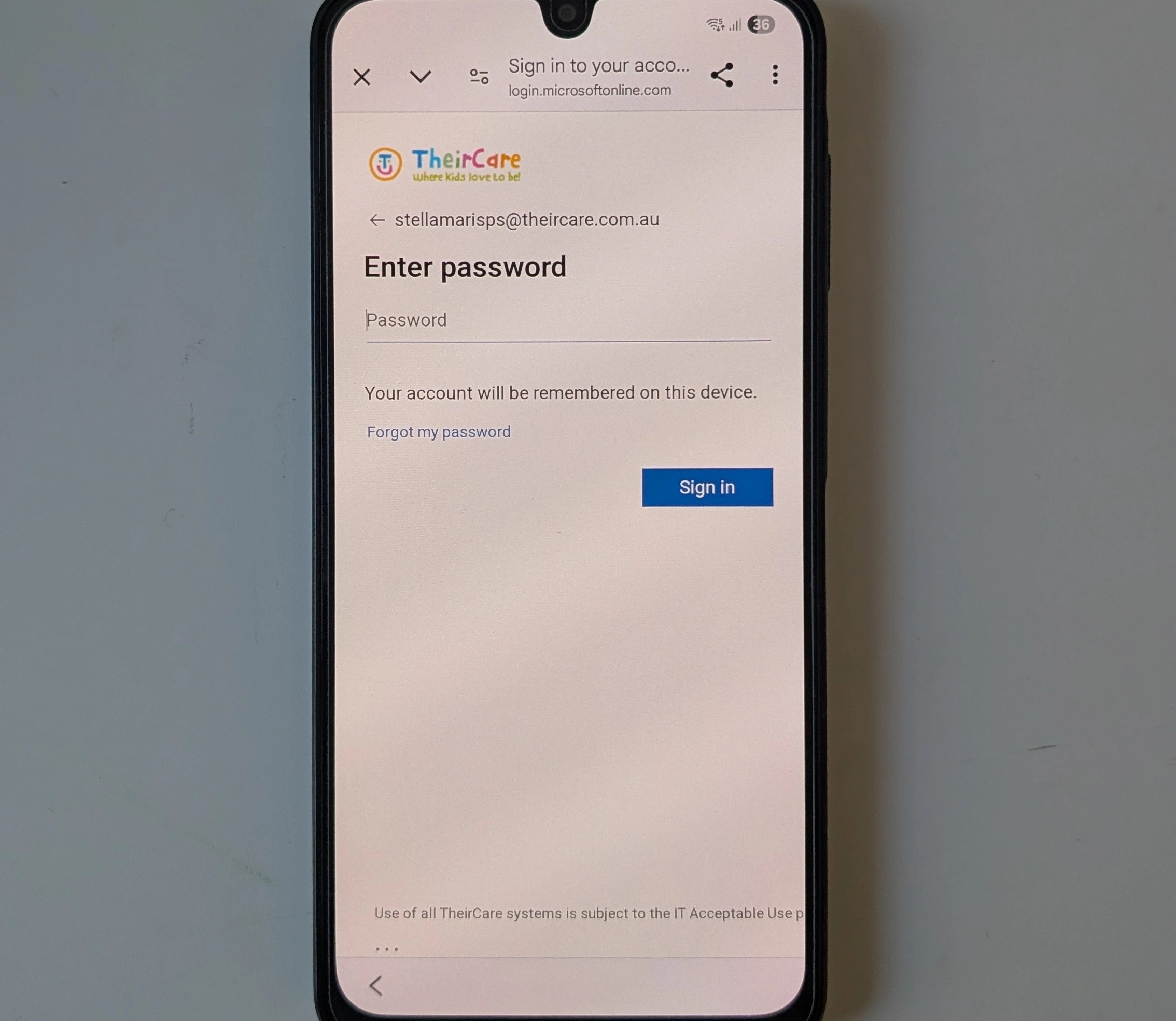
18. Enter the password and tap "Sign in"
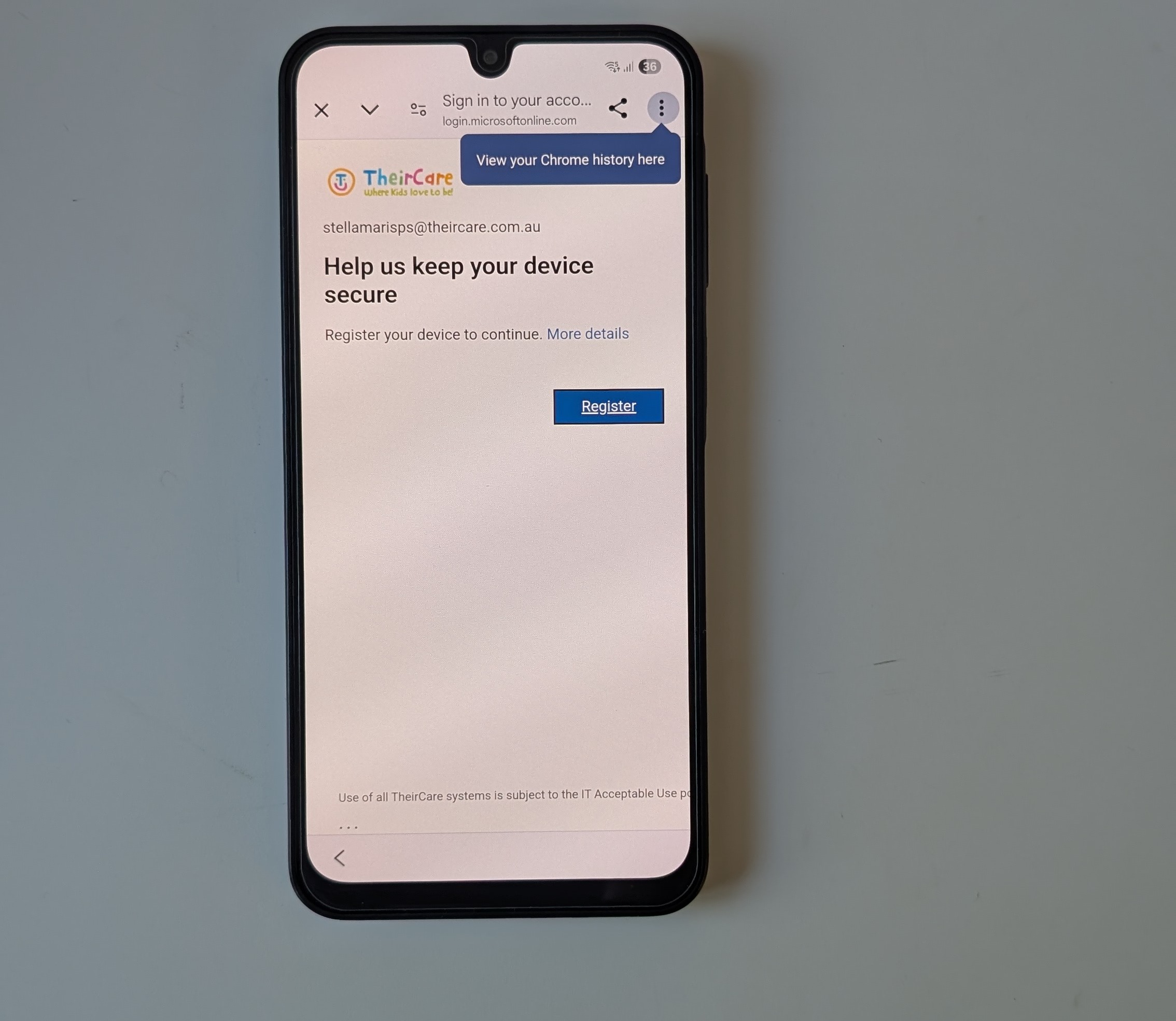
19. Tap "Register"
20. Tap "Next"
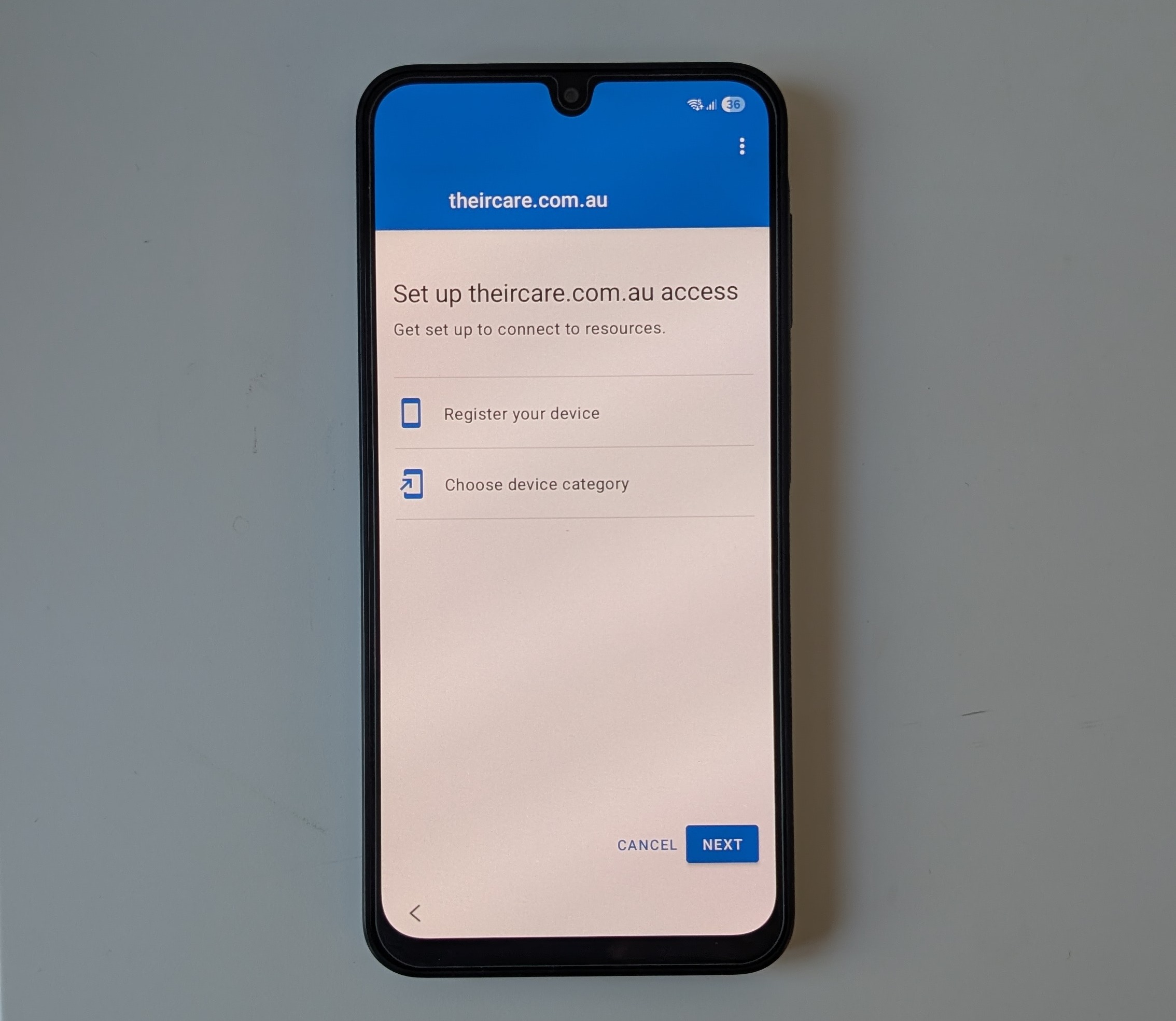
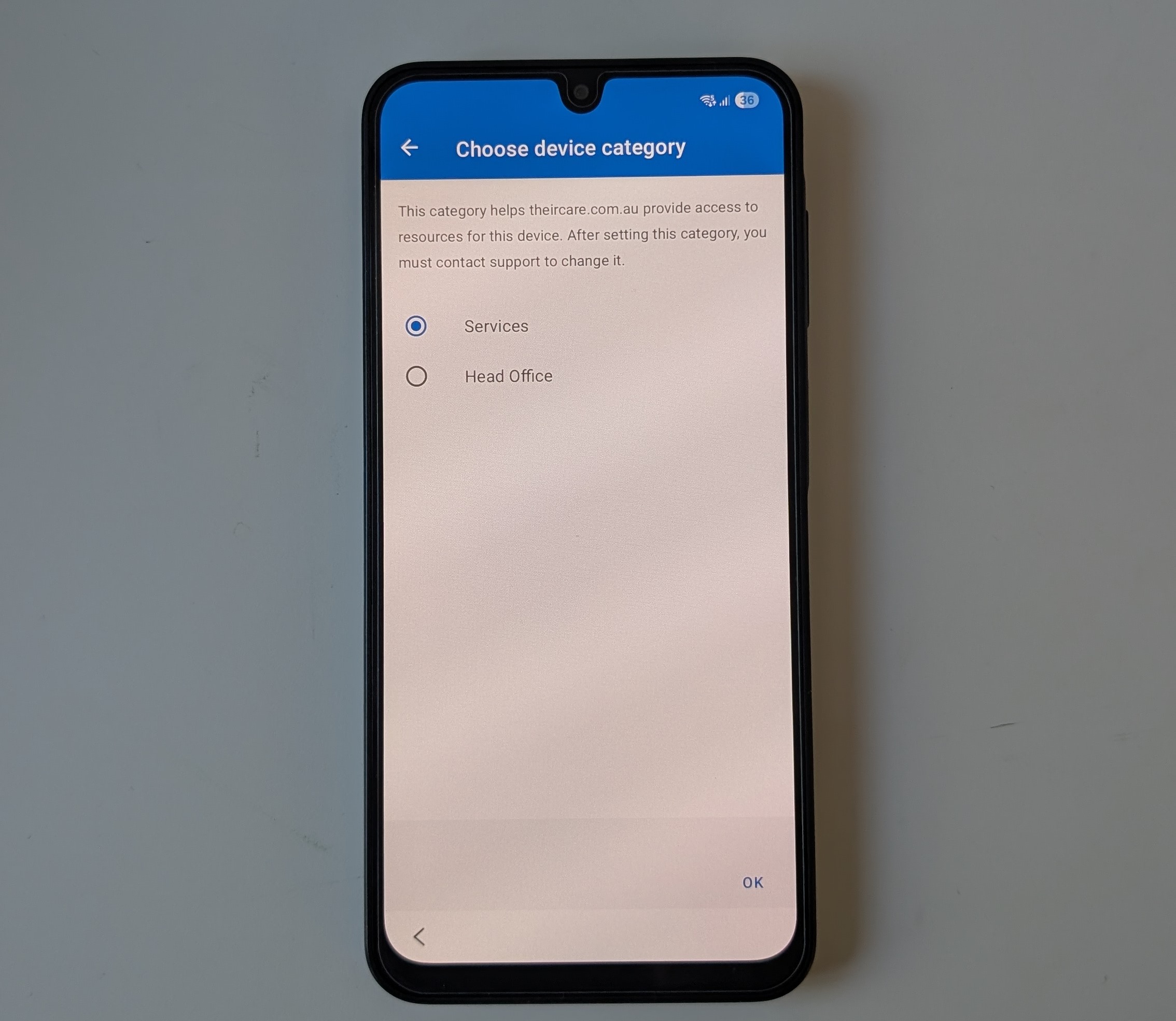
21. Choose the device category, then select "OK"
For a service device select "Service"
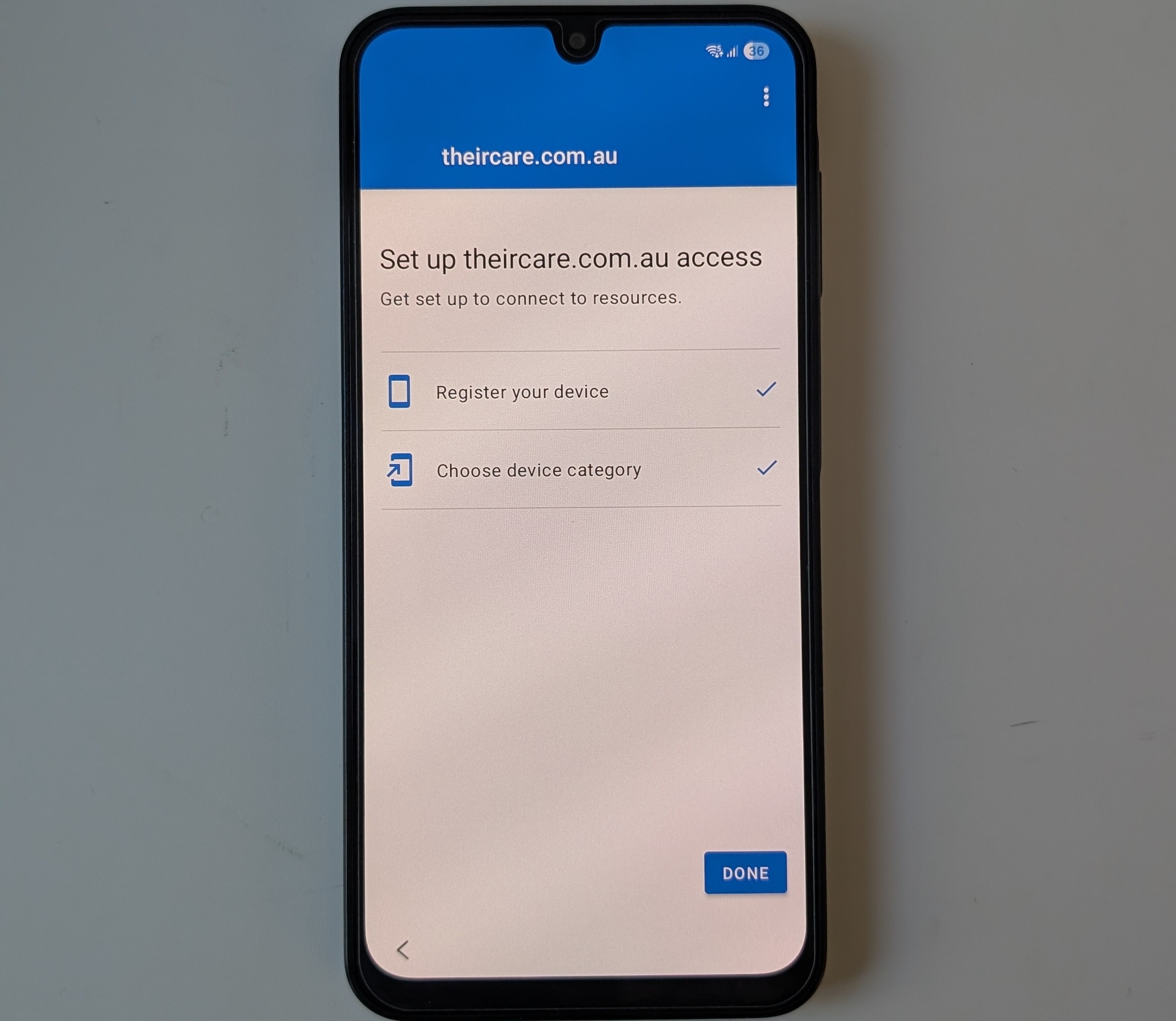
22. Tap "Done"
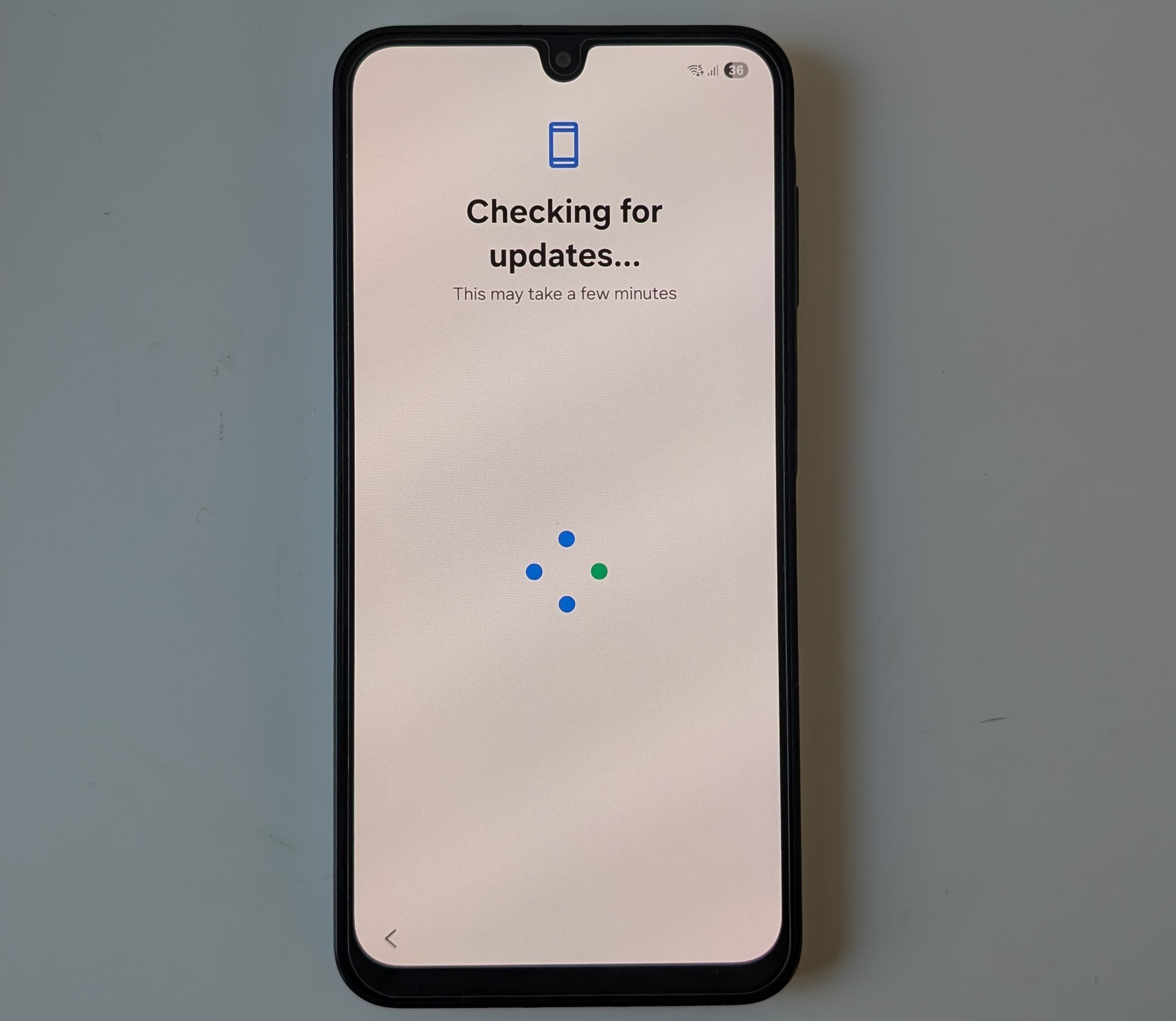
23. The device will take a few minutes to update
24. Tap "More" or "Agree"
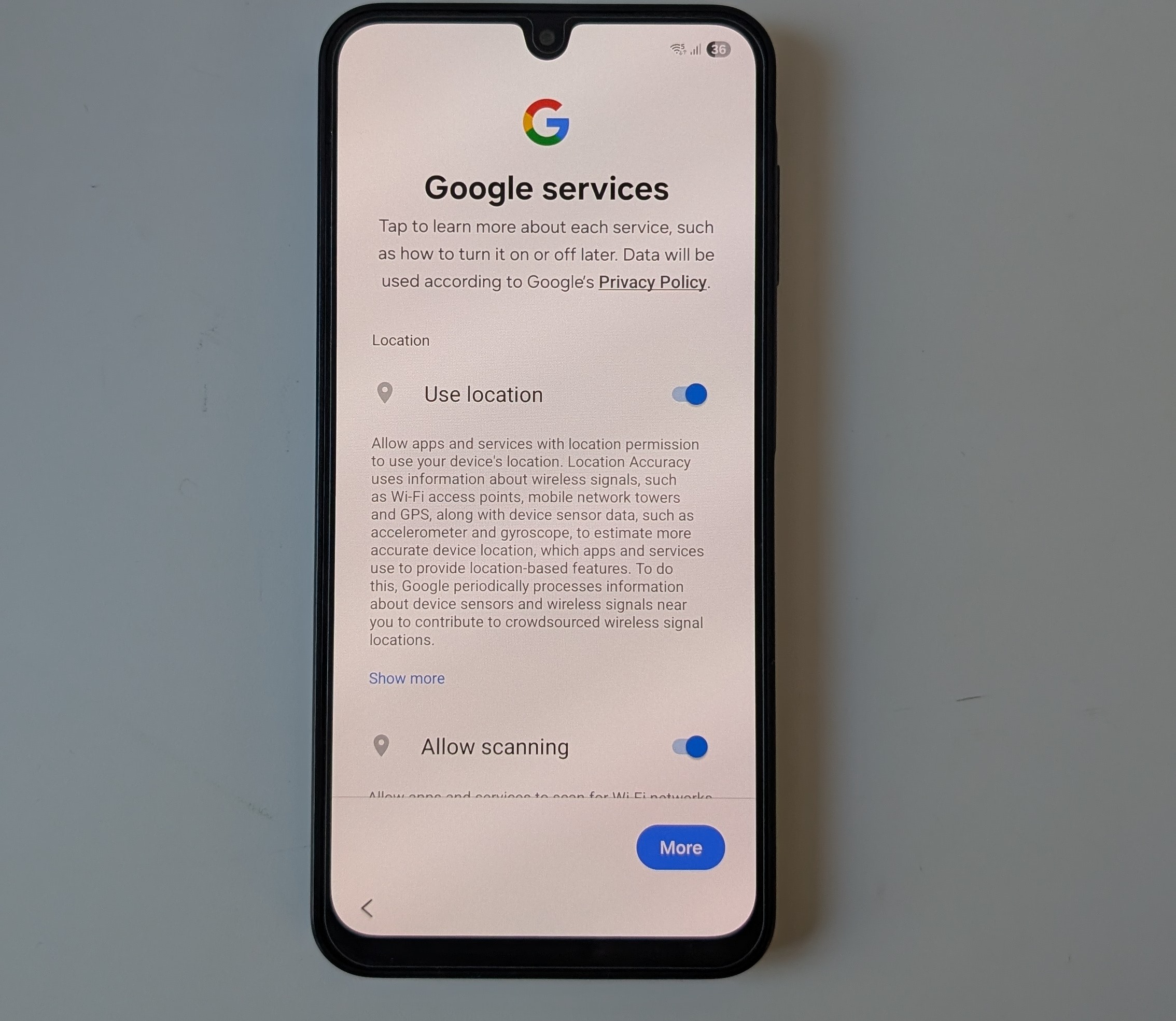
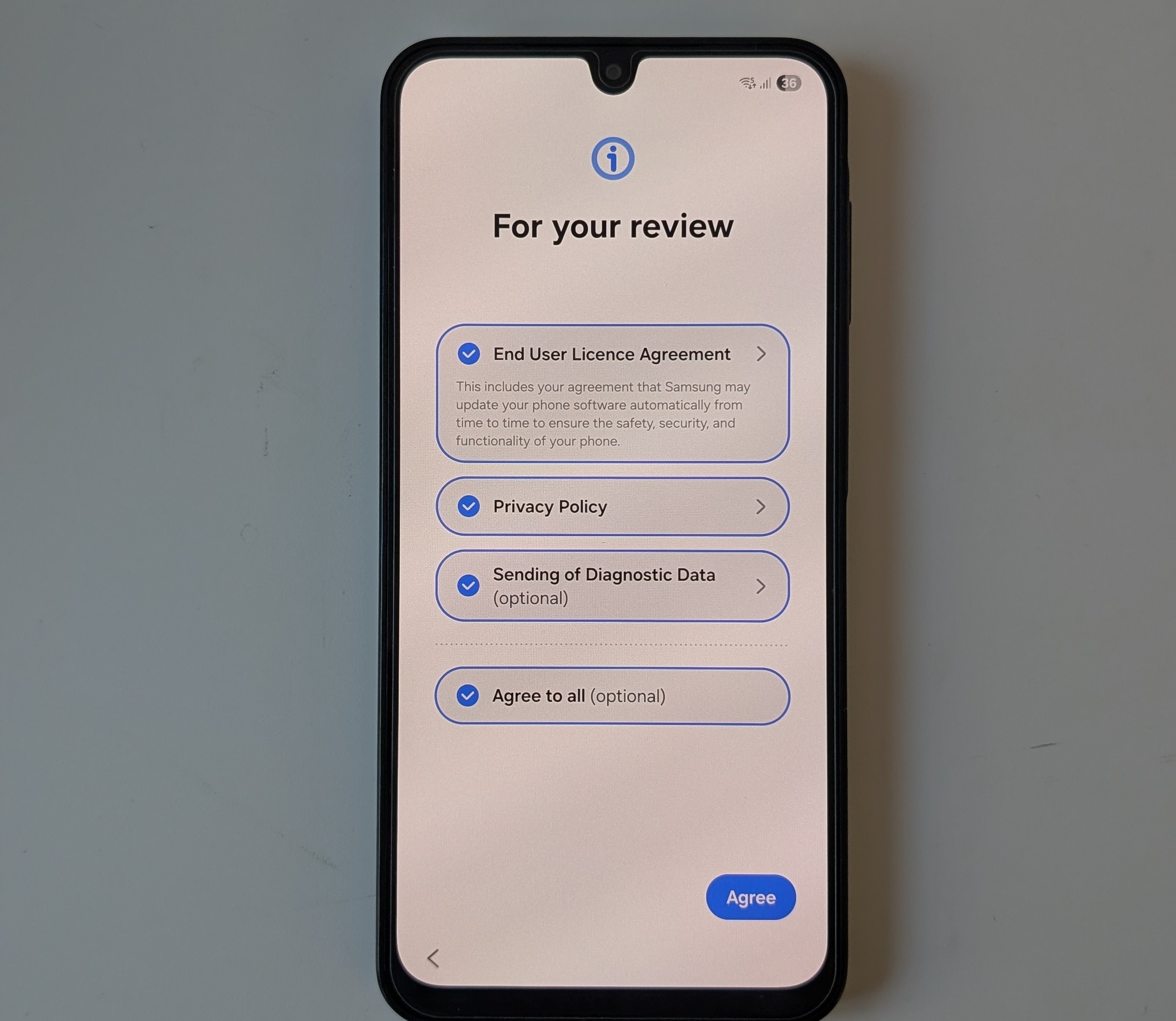
25. Select "Agree to all" and then tap "Agree"
Our policies will overwrite this selection anyway and apply our security policy seperately.
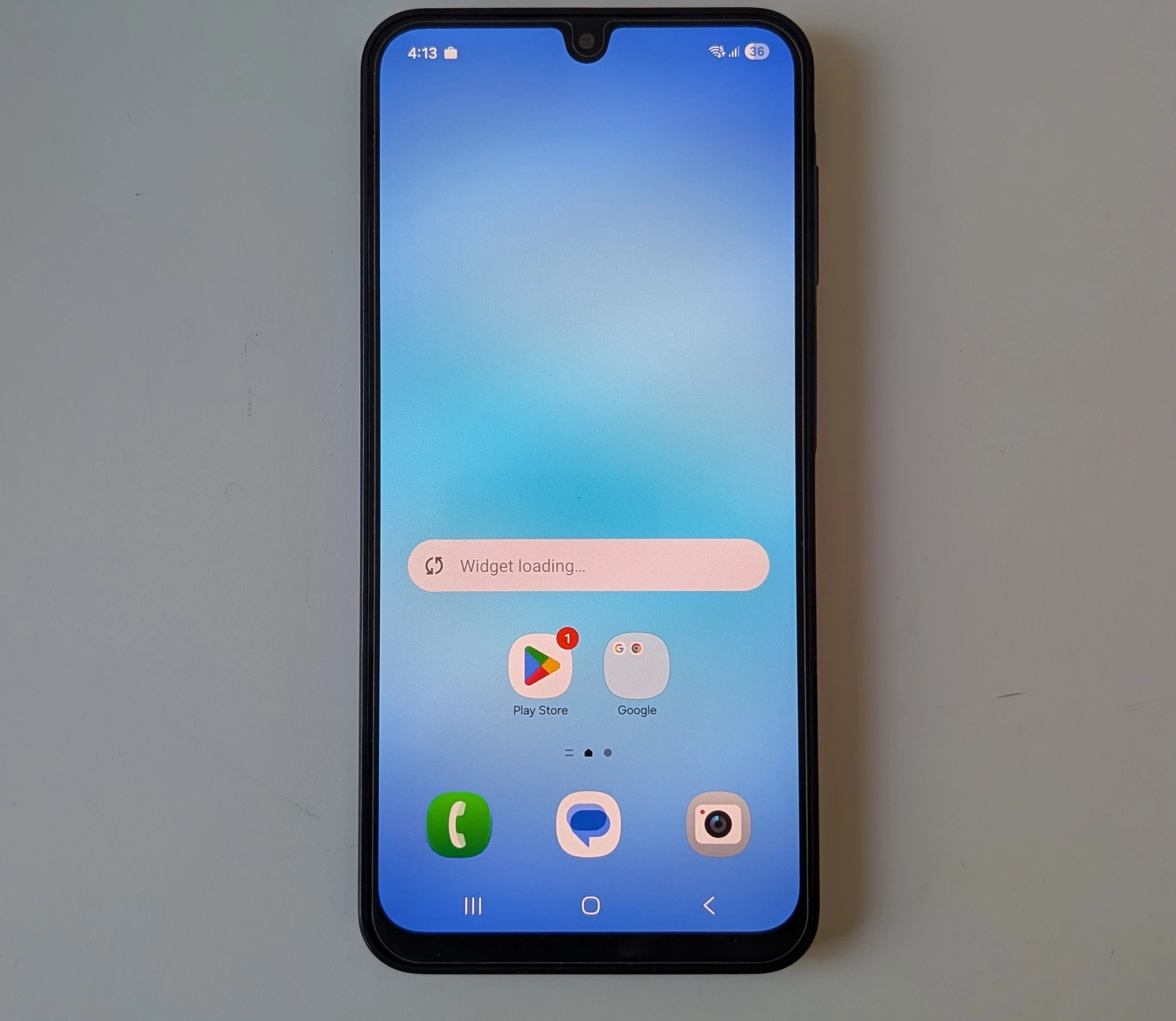
26. The phone will move to the normal user screen. It will take 10-15 minutes to download our specific applications from the store.
Was this article helpful?
That’s Great!
Thank you for your feedback
Sorry! We couldn't be helpful
Thank you for your feedback
Feedback sent
We appreciate your effort and will try to fix the article