If you use Outlook for iOS or Outlook for Android, you can add a shared mailbox if you have permissions to access the mailbox on Outlook Mobile.
Please note:
The Coordinator or team member will need to be logged into the device with their own @theircare.edu.au work-issued account. As the service phone should remain with the Coordinator during service operations, they will be the primary user.
If a person leaves, the account can be logged out and a new user can be added. If required, the IT Helpdesk team can remotely log people out too.
Use a shared mailbox on a mobile device (phone or tablet)
To access a shared mailbox on a mobile device, use the following steps.
Sign in to your primary account in Outlook for iOS or Android.
Tap the Add Account button in the left navigation pane, then tap Add a Shared Mailbox.
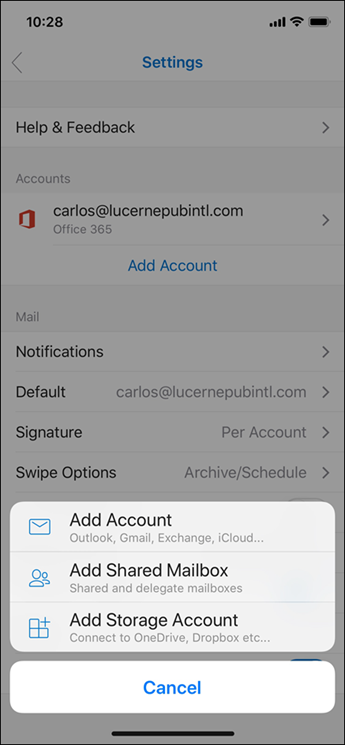
If you have multiple accounts in Outlook Mobile, select the account that has permissions to access the shared mailbox.
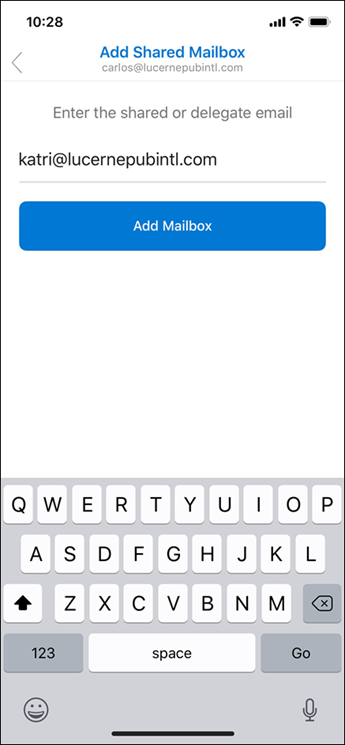
After the account setup process completes, the shared mailbox will display in your account list in Outlook for iOS or Outlook for Android.
To remove a shared mailbox, go to Settings > Accounts. Then tap on the shared mailbox and select Delete Account.
Was this article helpful?
That’s Great!
Thank you for your feedback
Sorry! We couldn't be helpful
Thank you for your feedback
Feedback sent
We appreciate your effort and will try to fix the article